How to Sort and Reorder Items in a Collection
Quick answer
You can organize items within a GemHub collection by sorting them alphabetically or by manually arranging them in a custom order. This gives you full control over how your products are presented before you share the collection.
Before you start
An active GemIQ account.
The GemHub installed on your device or open in your web browser.
A collection containing at least two items.
Steps
Method 1: Automatic Sorting
Navigate to the Collections section in the GemHub.
Open the collection you want to organize.
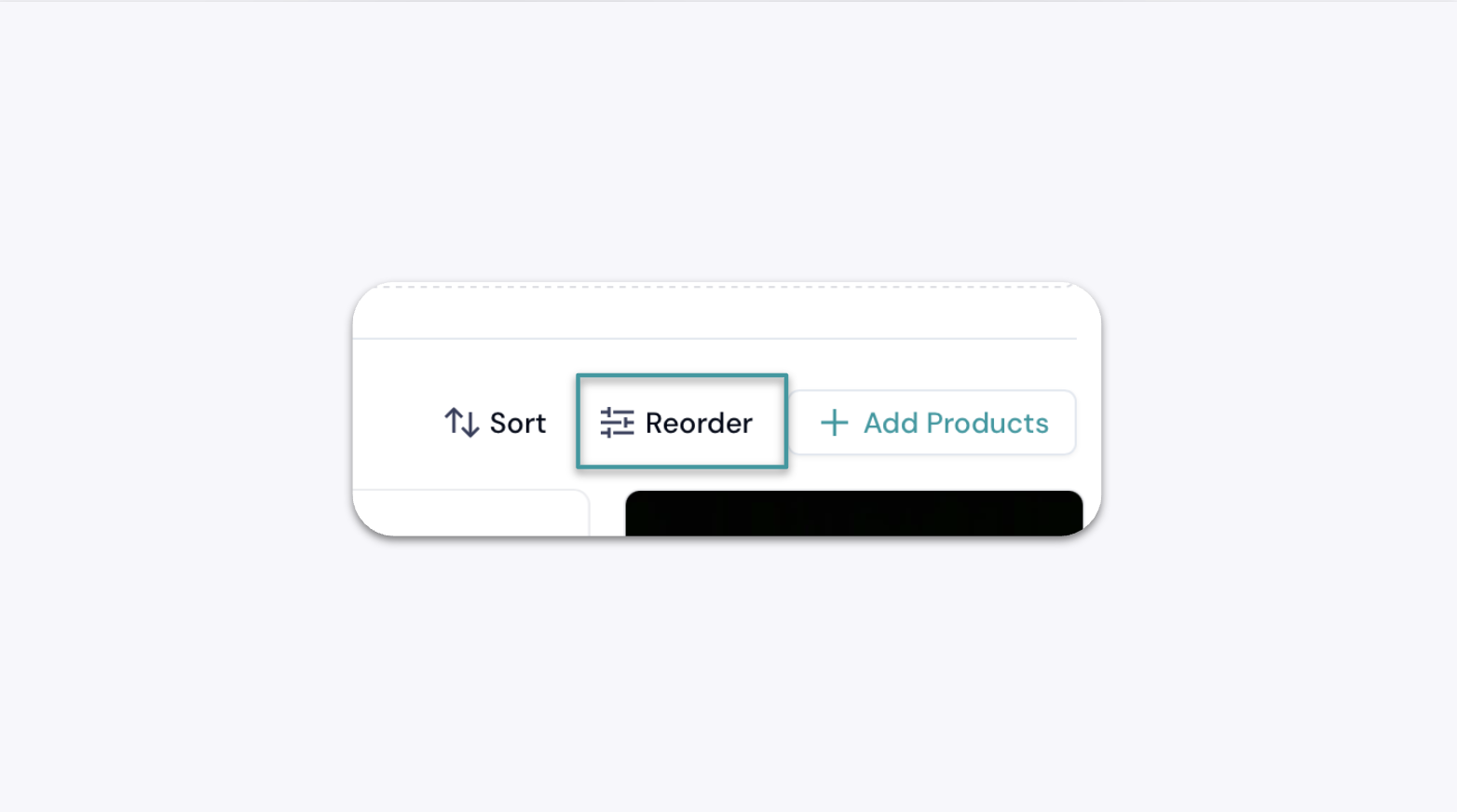
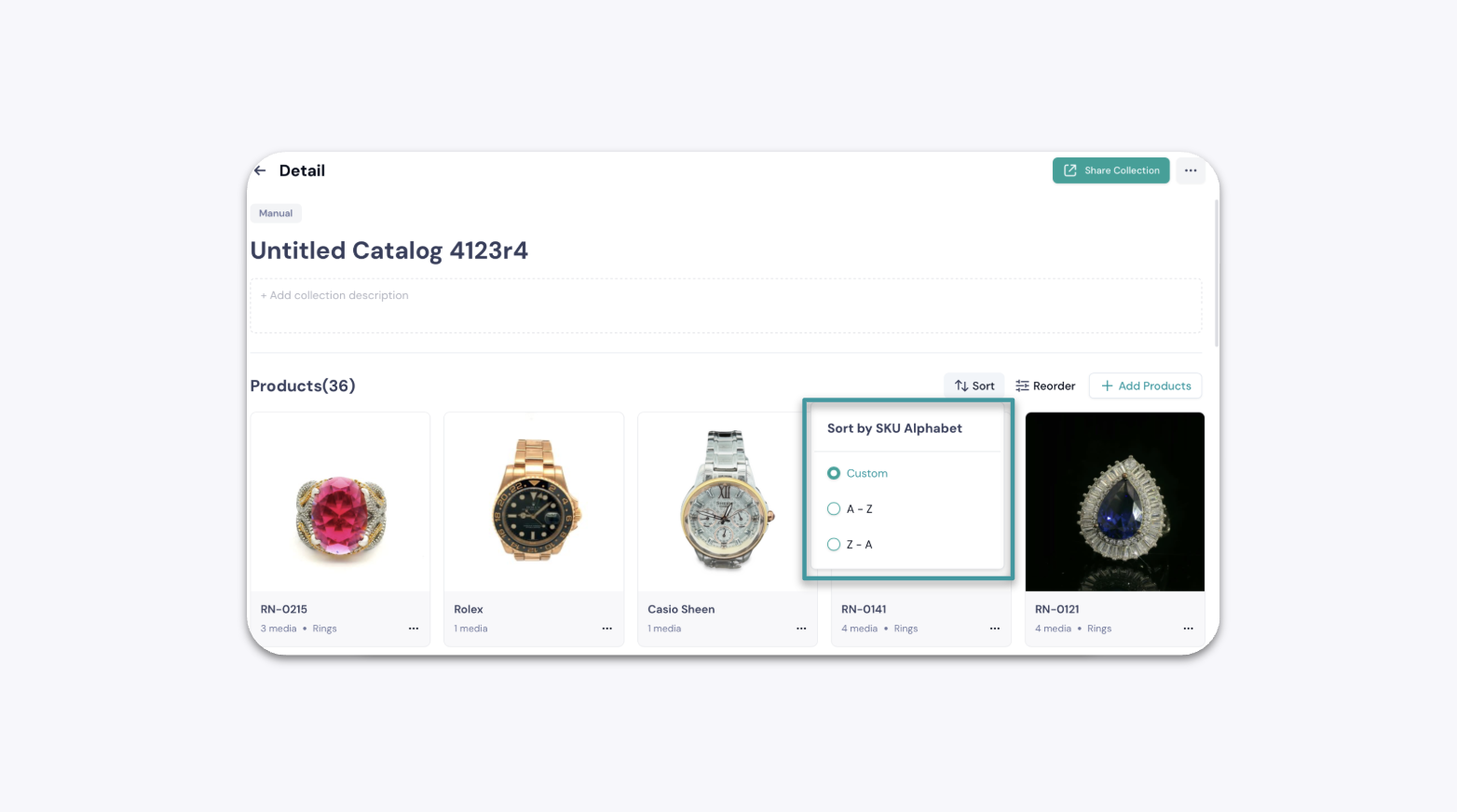
Locate and click the Sort button.
Select an alphabetical sorting option, such as A-Z or Z-A.
Method 2: Manual Reordering
In your collection, find the sorting options.
Ensure any automatic sorting (like A-Z) is turned off. There may be a toggle or a "Custom" option.
Select the Reorder option. This will enable drag-and-drop mode.