Managing SKUs for Your Products in the GemHub
Quick Answer
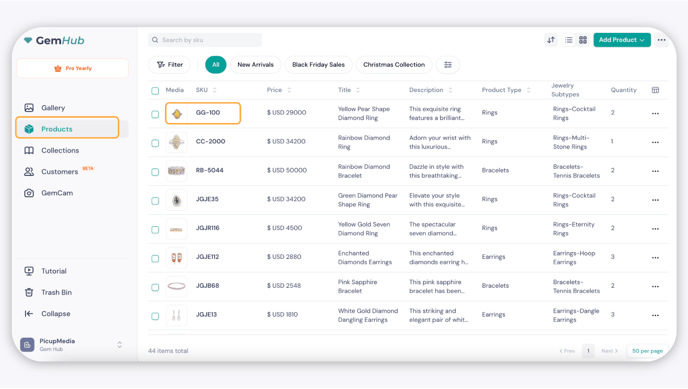
You can create, view, edit, and remove SKUs in the GemHub — one at a time or in bulk. SKUs link a unique identifier to each product image so you can track and organize your jewelry inventory more easily.
Before You Start
You have a GemIQ account with at least one image or product uploaded.
You know the SKU format your business uses (for example, RNG-001 for a ring).
Steps
1. Create and Assign a SKU
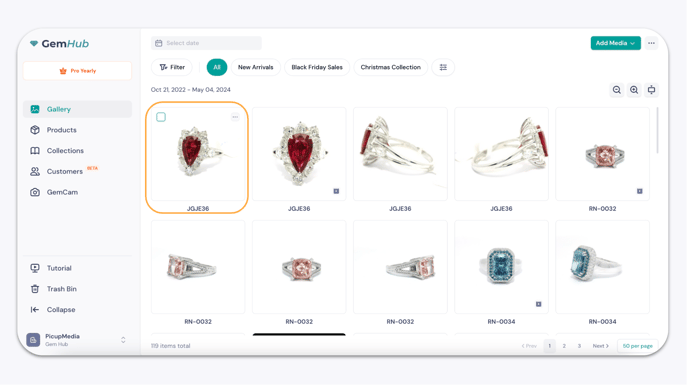
Open the GemHub and go to the Gallery.
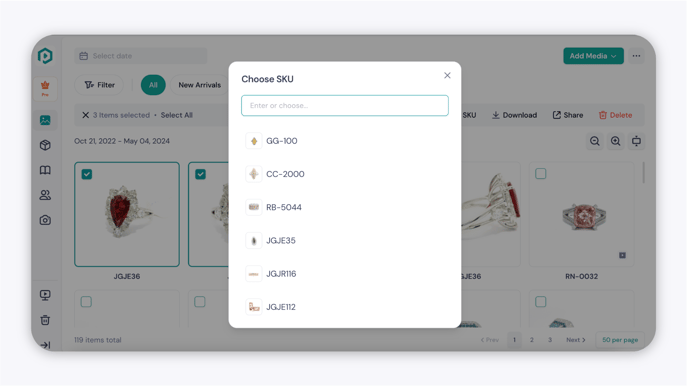
Select the image you want to assign a SKU to. - To assign the same SKU to multiple images at once, select more than one image before continuing.
Click Assign SKU.
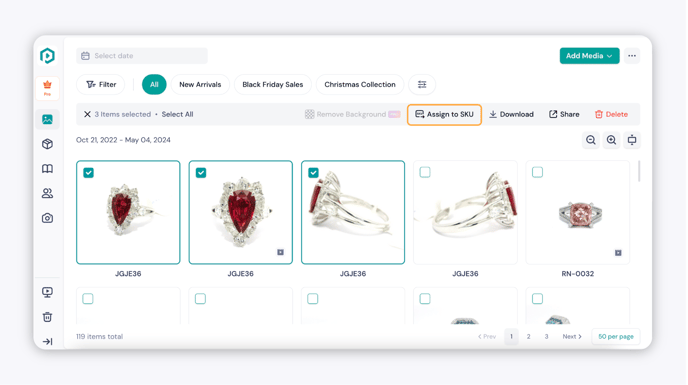
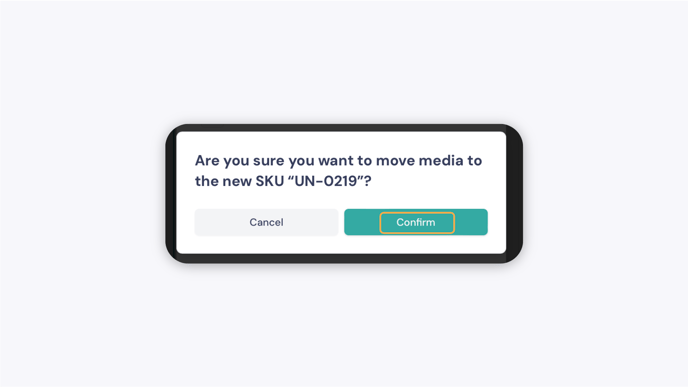
A prompt window will appear. Enter your SKU.