Inviting and Managing Team Members in the GemHub
Quick answer
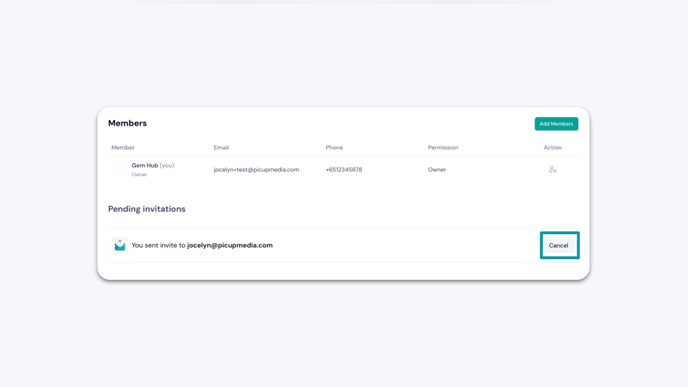
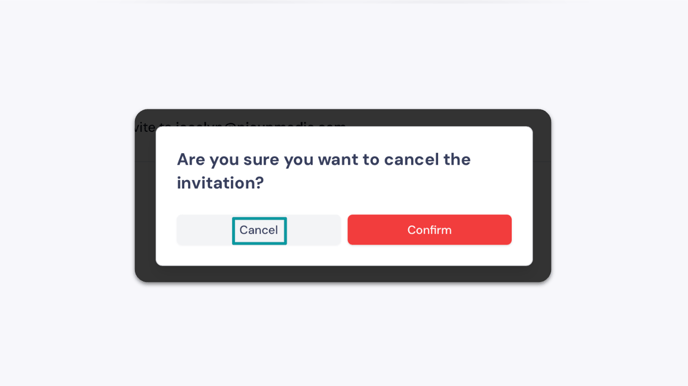
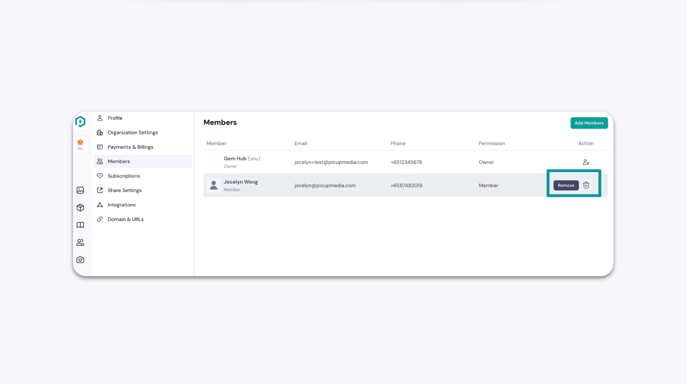
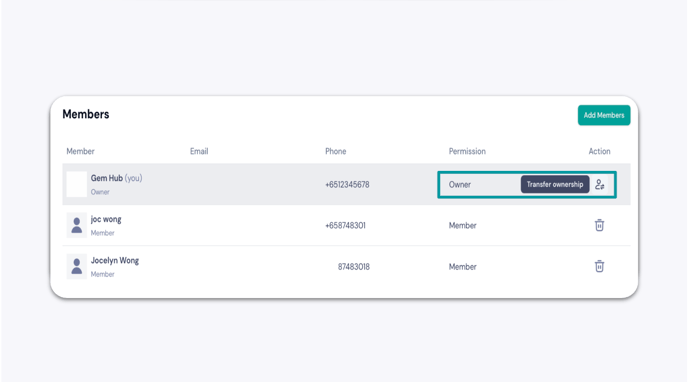
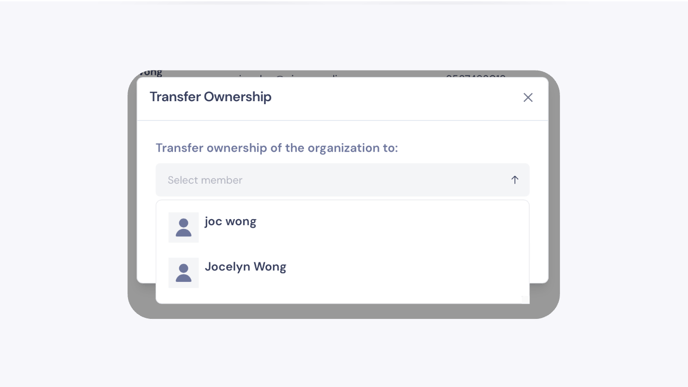
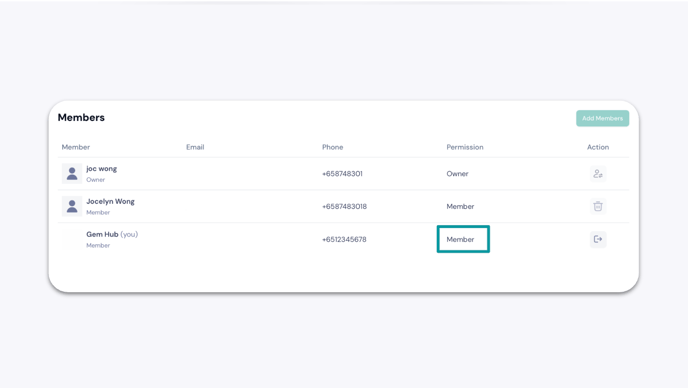
GemHub's Pro plan lets you add up to two team members to your account for shared cloud storage and collaboration. From the Members section, you can invite members, cancel pending invitations, remove members, and transfer account ownership.
Before you start
You must be on a GemIQ Pro plan to add team members.
You can add a maximum of two team members (subaccounts).
Only the primary account holder can manage, remove, or transfer ownership.
Before a new member joins, confirm your main account has enough cloud storage to receive their media.
Steps
Adding a Team Member
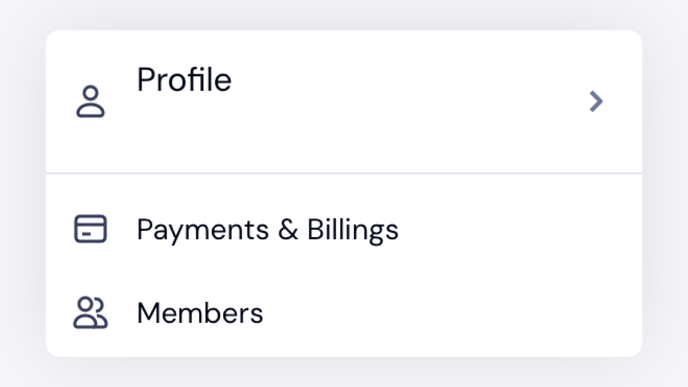
Log in to the GemHub and click the profile icon in the bottom-left corner.
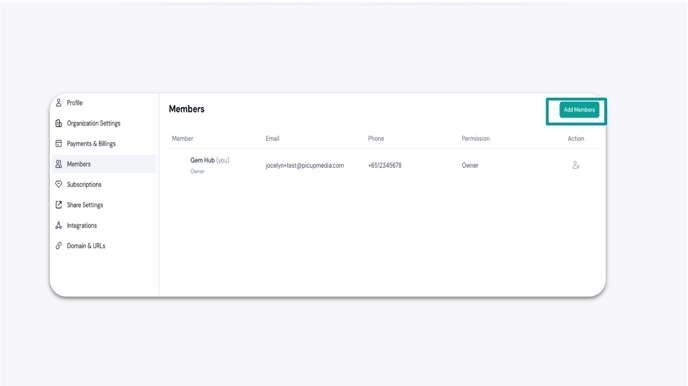
Navigate to Members.
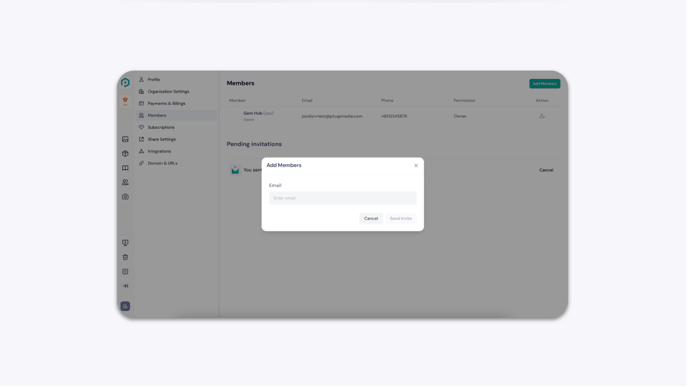
Click Add Members.