How to Export Images and Videos from the GemHub
Quick Answer
You can export images and videos from the GemHub to your mobile device. From the app's gallery, select the files you wish to save, then use the share option to save them directly to your device's camera roll or send them to another application.
Before You Start
Ensure the GemHub is installed on your mobile device.
Make sure you have images or videos in your GemHub gallery that you want to export.
Check that the GemHub has permission to access your device's photo library. You can usually manage this in your device's settings.
Steps
Open the GemHub on your mobile device and navigate to the Gallery tab.
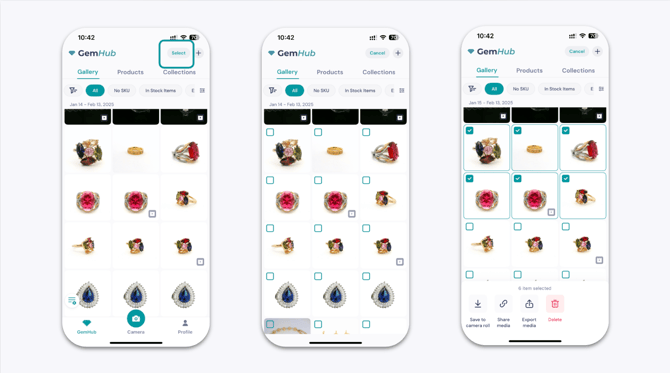
Tap Select in the top right corner of the screen.
Tap on the images and videos you want to export. A checkmark will appear on selected items.
Once you have selected all desired files, tap the Share button in the bottom left corner.
A menu will appear with two options:
Tap Save to Camera Roll to save the files directly to your device's photo gallery.
Tap Share To to open your device's standard sharing menu, allowing you to send the files to other apps like email, messages, or social media.