How to Change or Reset Your GemIQ Account Password
Quick Answer
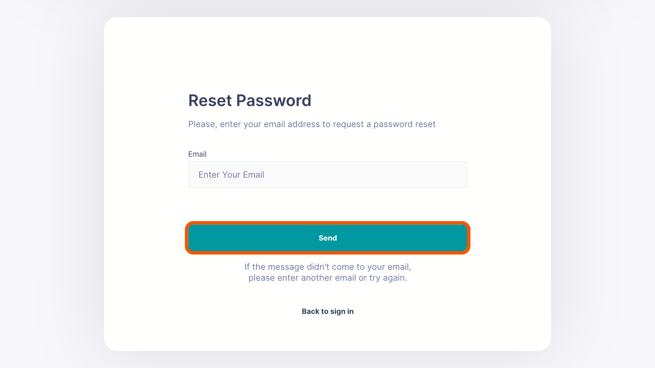
To change your password while logged in, go to your profile settings in the GemIQ web app. If you've forgotten your password, use the "Forgot Password" link on the login page to receive a reset link via email.
Change Your Password (If You Know Your Current One)
Before You Start
You must be logged into your GemIQ account on a web browser.
Steps
Log in to your GemIQ account at hub.gemlightbox.com.
Click on your Profile name in the top right corner of the page.
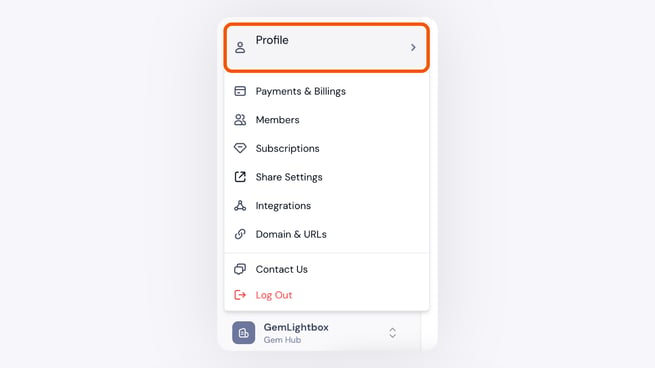
A dropdown menu appearing after clicking the user's profile name. In the Profile section, scroll down and click Change Password.
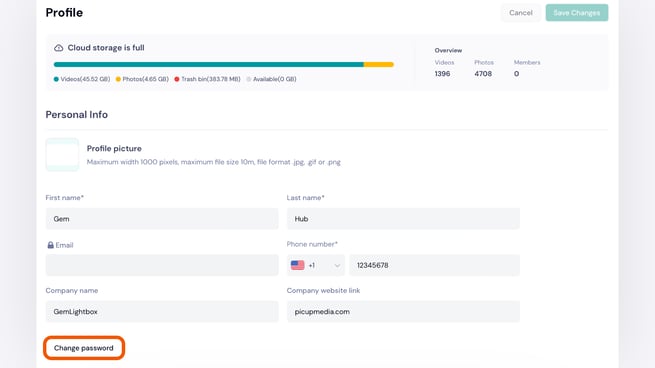
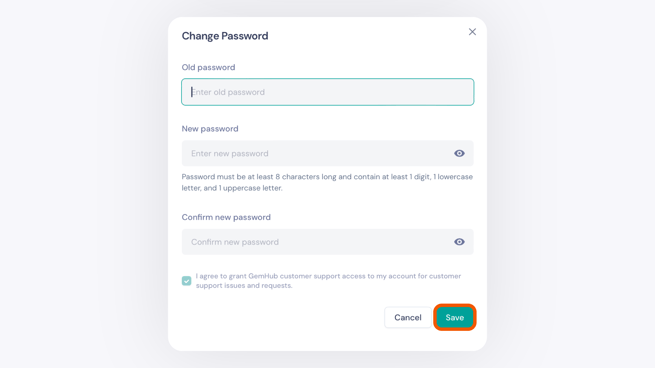
The user's profile page with the "Change Password" button highlighted. Enter your current password, then enter your desired new password twice.
Click Change to save your new password.