How to Download Media Files from the GemHub
Quick answer
You can download photos and videos directly from the Gallery, Products, or Collections section in the GemHub. Downloaded files are automatically named using the SKU you assigned, making them easy to organize. For the best video quality, always download directly from your GemIQ account rather than from a shared link.
Before you start
Log in to your GemIQ account.
Confirm your media files have been captured and are available in your Gallery, Products, or Collections.
Assign SKUs to your products so downloaded files are labeled correctly.
Steps
Download Photos or Videos
Navigate to the Gallery, Products, or Collections tab.
Select the media files you want to download.
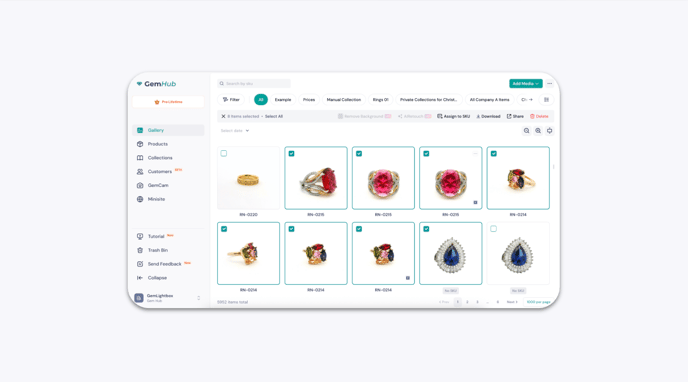
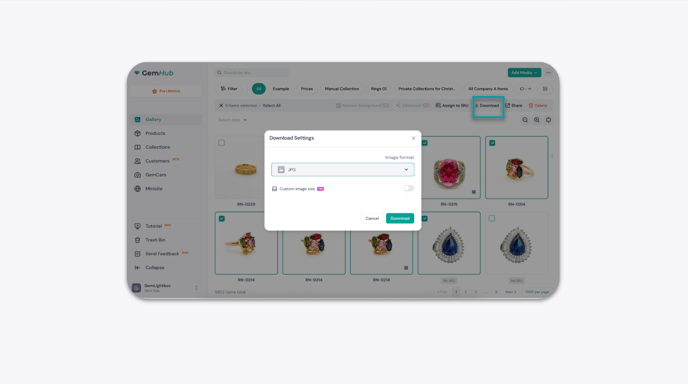
Click Download and choose your preferred file type.
To set a custom size, enable the Custom Image Size option and enter your desired width and height.
Confirm your selection to start the download.