How to Upload Media to Your GemIQ Gallery from a Computer
Quick Answer
To add images and videos from your computer to the GemHub, open the Gallery, then either drag and drop your files directly into the app window or click the "Add Media" button to select them. All uploaded media syncs automatically across your devices.
Before You Start
Ensure the GemHub is installed on your Windows PC or Mac.
Log in to your GemIQ account.
Have the image and video files you want to upload saved locally on your computer.
Steps
Open the GemHub on your computer and navigate to the Gallery section.
Drag your media files from a folder on your computer and drop them anywhere in the Gallery window.
Alternatively, click the Add Media button.
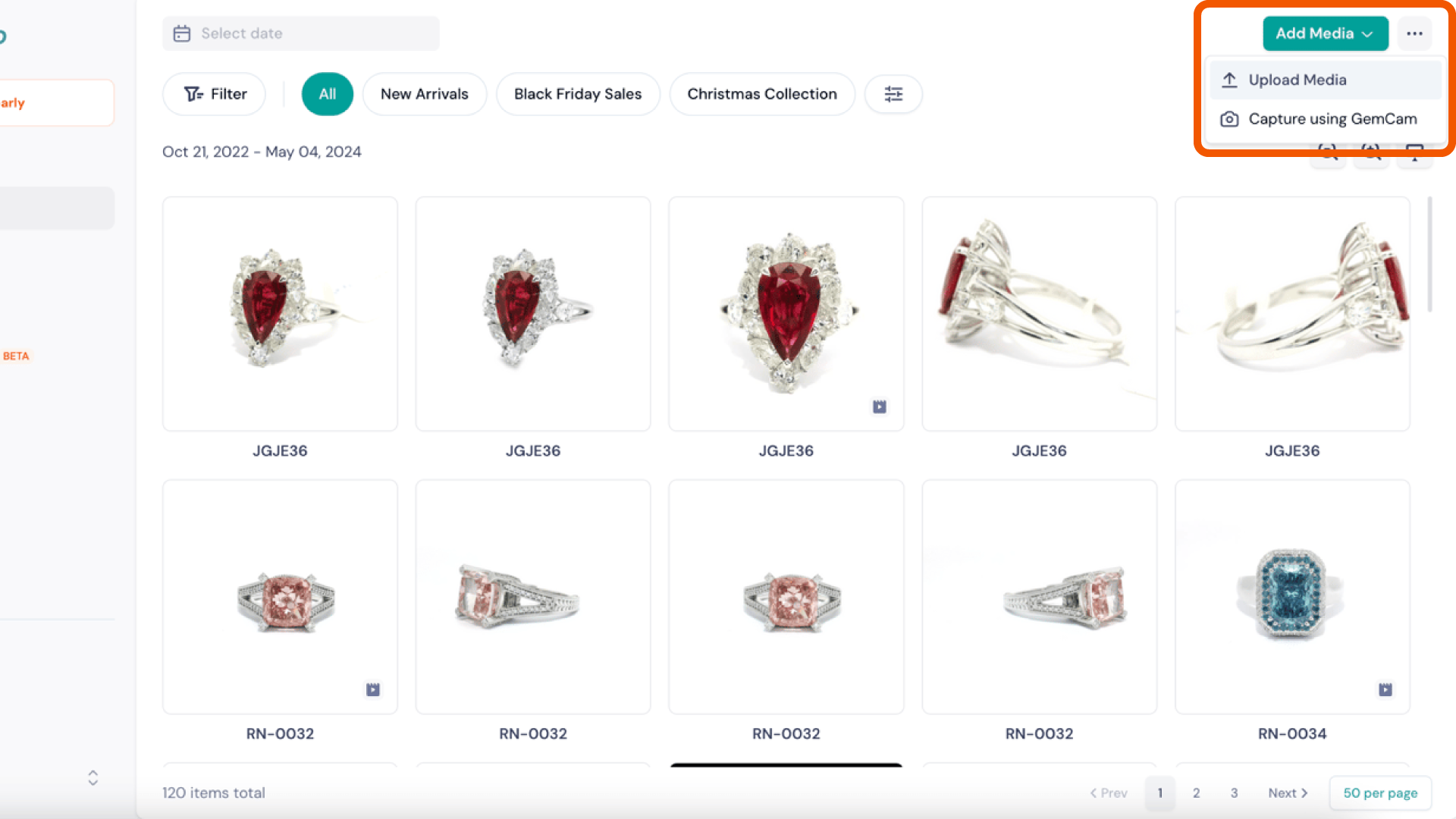
The Add Media button in the GemIQ app gallery. In the file selection window that appears, locate and select the files you wish to upload.
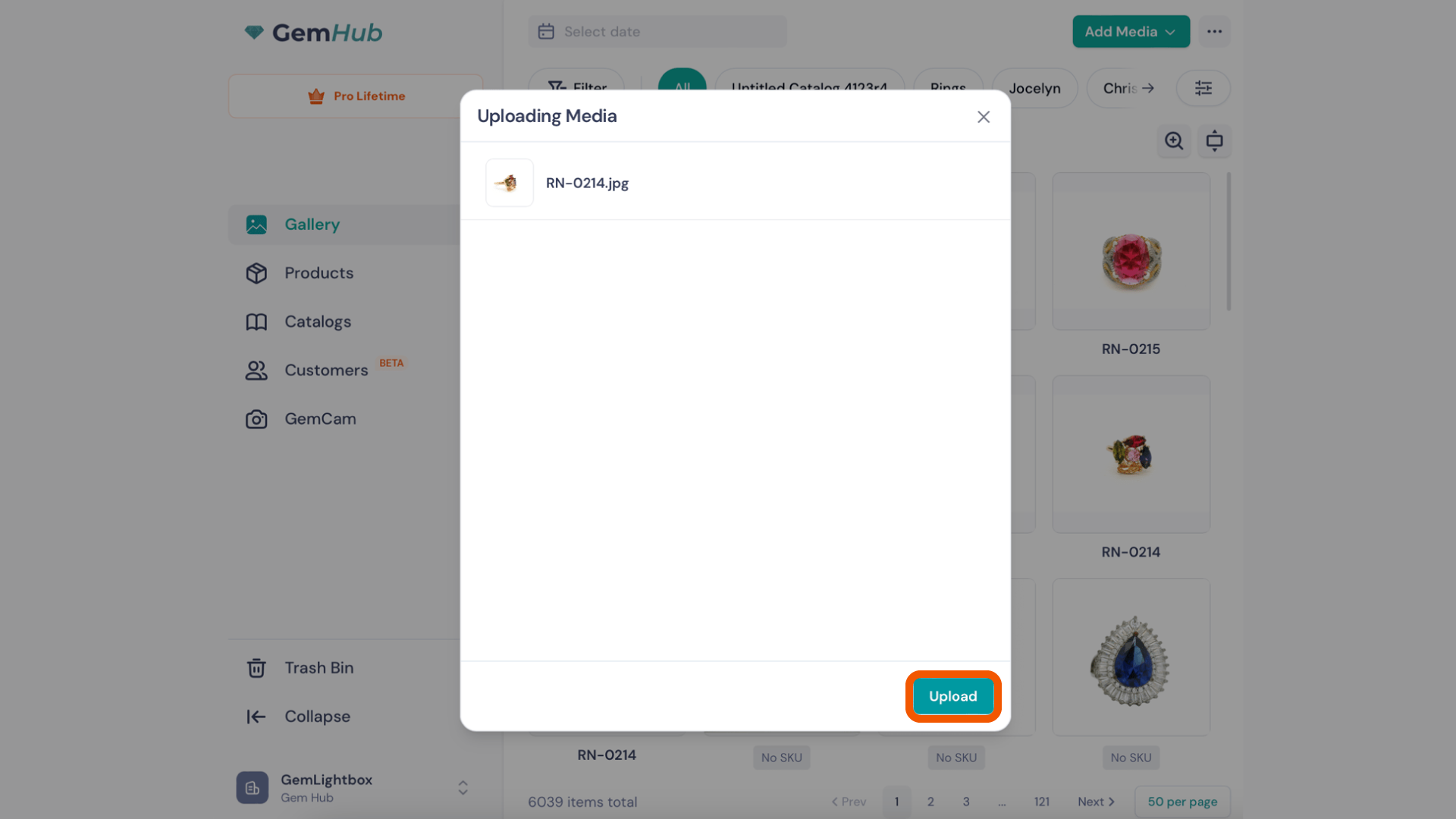
Click the Upload button to begin the process.