How to Filter Images in the GemHub Gallery
Quick Answer
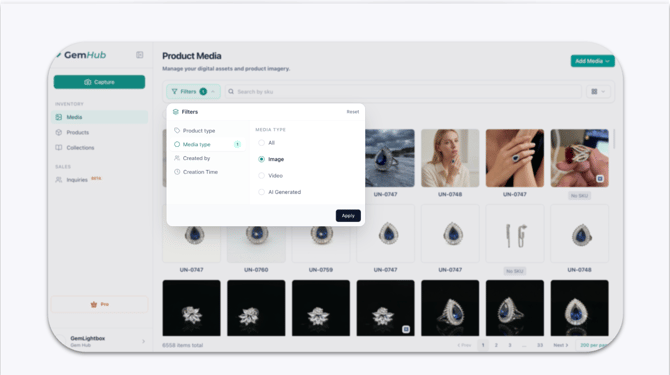
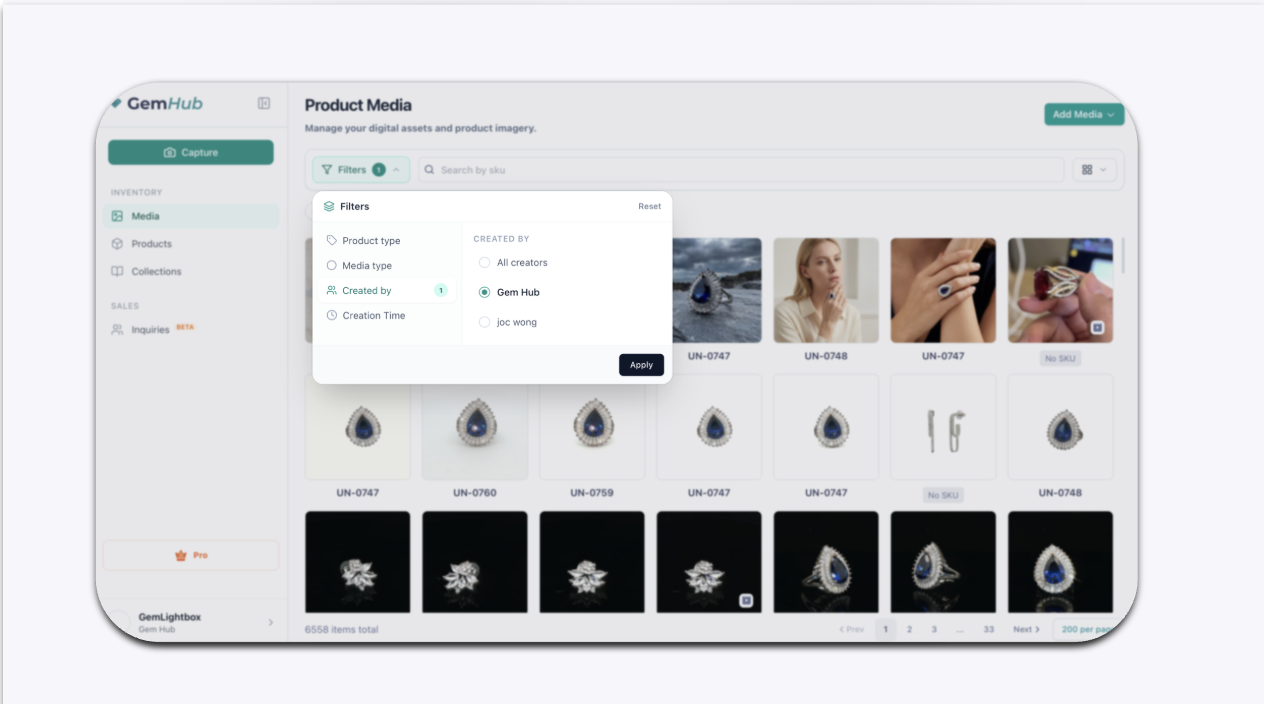
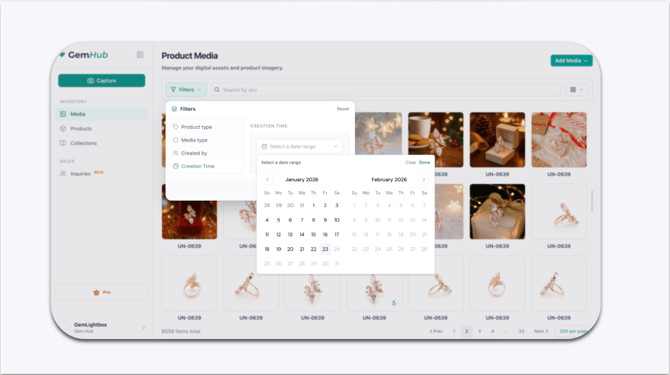
Use the filter options at the top of the GemHub gallery to find specific images and videos. You can filter your media by product type, media type (image, video, or AI-edited), the team member who created it, and a specific date range. Filters can be combined for more specific searches.
Before You Start
Ensure you have uploaded images or videos to your GemHub gallery.
If you want to filter by creator, your team members must be part of your GemIQ account.
Steps
Open the GemHub on your desktop or mobile device and navigate to the Gallery tab.
Locate the filter dropdown menus at the top of the gallery view.
Select a filter to apply:
Product Type: Choose one or more jewelry types (e.g., Ring, Pendant) to show only media associated with them.
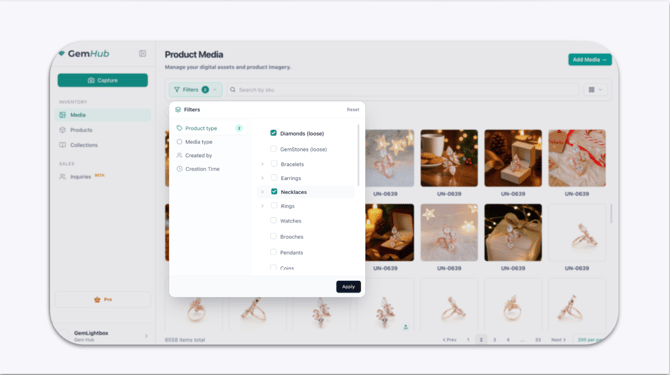
A dropdown menu showing product types like Ring, Bracelet, and Pendant. Media Type: Select from options like Raw Images, Videos, or AI Generated Images to narrow down the file format.