
How to Crop and Resize Images in the GemHub
Quick Answer
The GemHub includes an image editor that allows you to crop unwanted areas, resize your jewelry within the frame, and change the overall canvas size to fit specific requirements for e-commerce or social media platforms.
Before You Start
You need an image or video saved in your GemHub Gallery.
This guide covers editing on the GemIQ desktop app. Features may differ on mobile.
Steps
First, open the image editor: 1. Navigate to the Gallery in the GemHub. 2. Hover your mouse over the image you want to edit. 3. Click the three-dot menu (⋯) that appears. 4. Select Edit Media from the dropdown menu to open the editor.
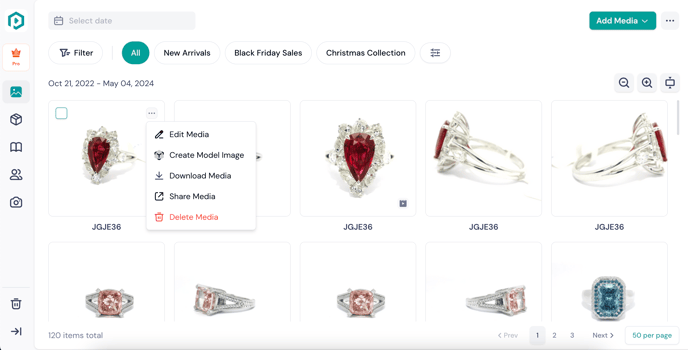
Part 1: Crop Your Image
Use the Crop tool to trim the edges of your image and focus on the subject.
In the editor, click the Crop button in the bottom-left toolbar.
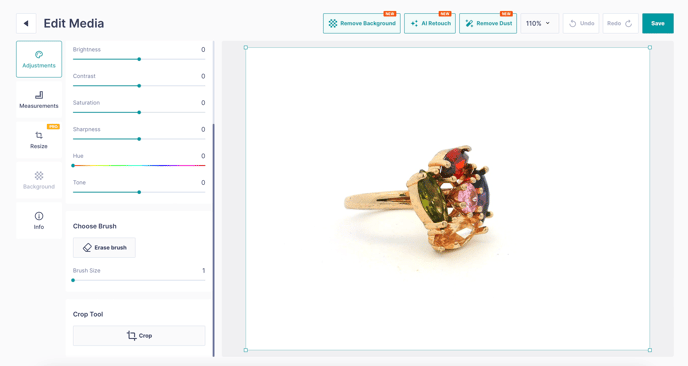
The Crop tool icon in the image editor toolbar. White handles will appear on the corners and sides of the image.
-gif.gif?width=678&height=381&name=Untitled%20design%20(1)-gif.gif)
-gif.gif?width=688&height=387&name=Untitled%20design%20(3)-gif.gif)
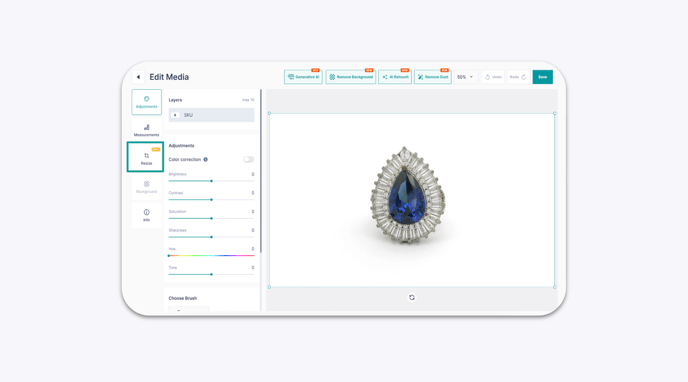
-gif.gif?width=688&height=387&name=Untitled%20design%20(2)-gif.gif)