How to Edit and Resize Your Images and Videos in the GemHub
Quick Answer
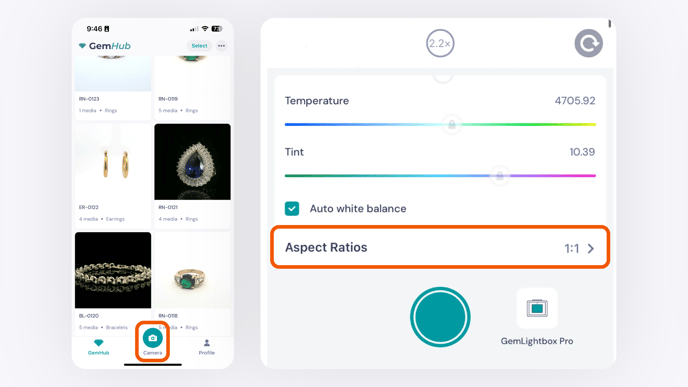
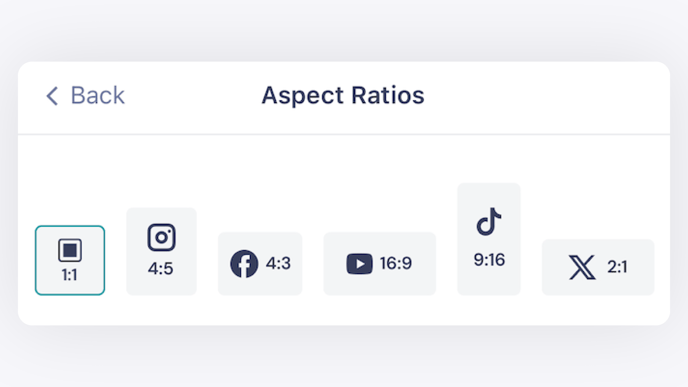
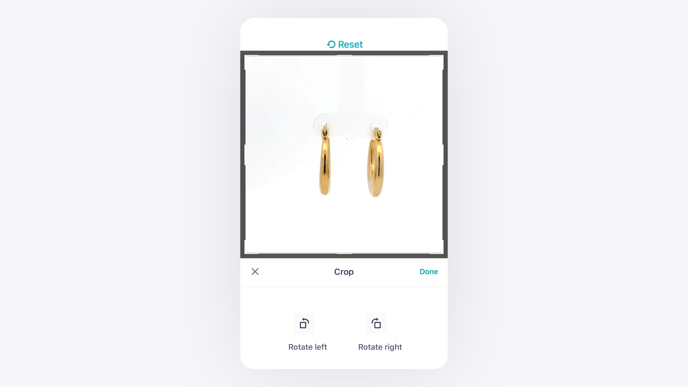
GemHub's built-in editor lets you enhance and resize your jewelry images and videos directly in the app. Apply AI background removal, cropping, watermarks, and logos — or resize your media for any social media platform, either during capture or after shooting.
Before You Start
GemHub installed and signed in to your account
At least one image or video already captured in the GemHub, or saved in your phone's gallery for post-capture editing
Steps
Edit an Image or Video
Open the GemHub and select the image or video you want to edit.
Tap the edit icon in the upper-right corner of the screen.
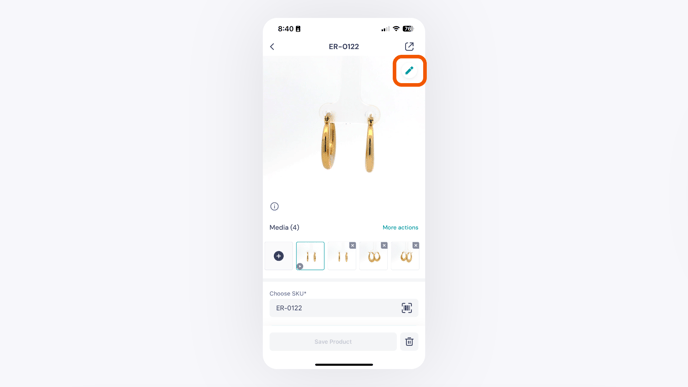
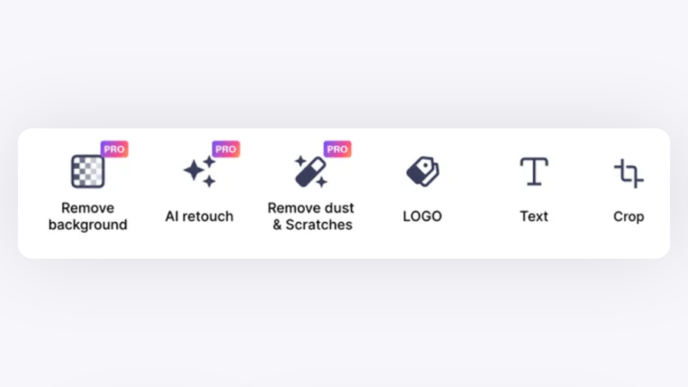
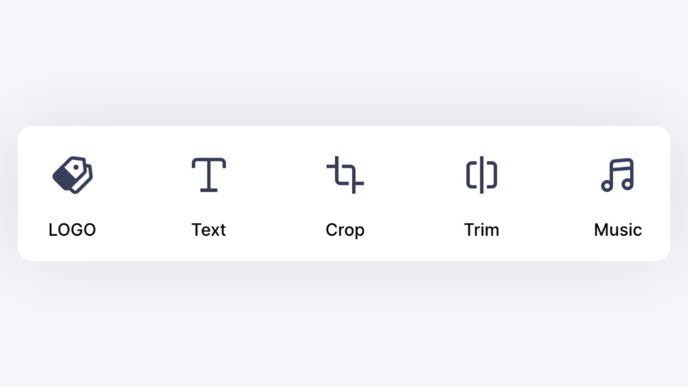
Choose your editing option: - Images: Background removal, cropping, AI retouch, dust and scratch removal, watermark, or logo - Videos: Add a logo or background music