
How to Download Your Invoices
Quick Answer
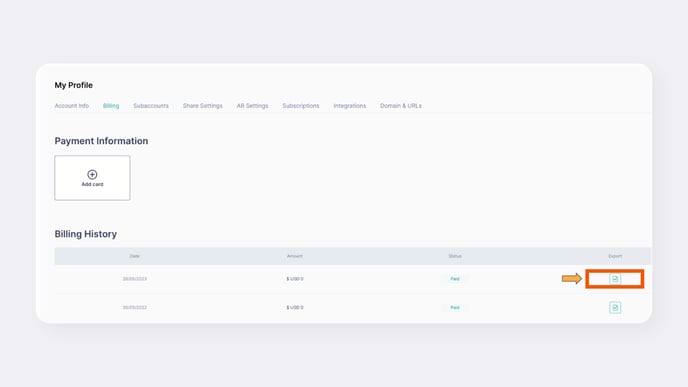
You can download your invoices directly from the GemHub. Log in to your account, navigate to the "Payments & Billings" section, find the invoice you need, and click "Export" to download it as a PDF.
Before You Start
You will need your GemIQ account login credentials.
You need access to the GemHub, typically on a desktop computer.
You will need a PDF viewer installed on your computer to open the downloaded invoice.
Steps
Log in to your account on the GemHub.
From the main menu, navigate to the Payments & Billings section.
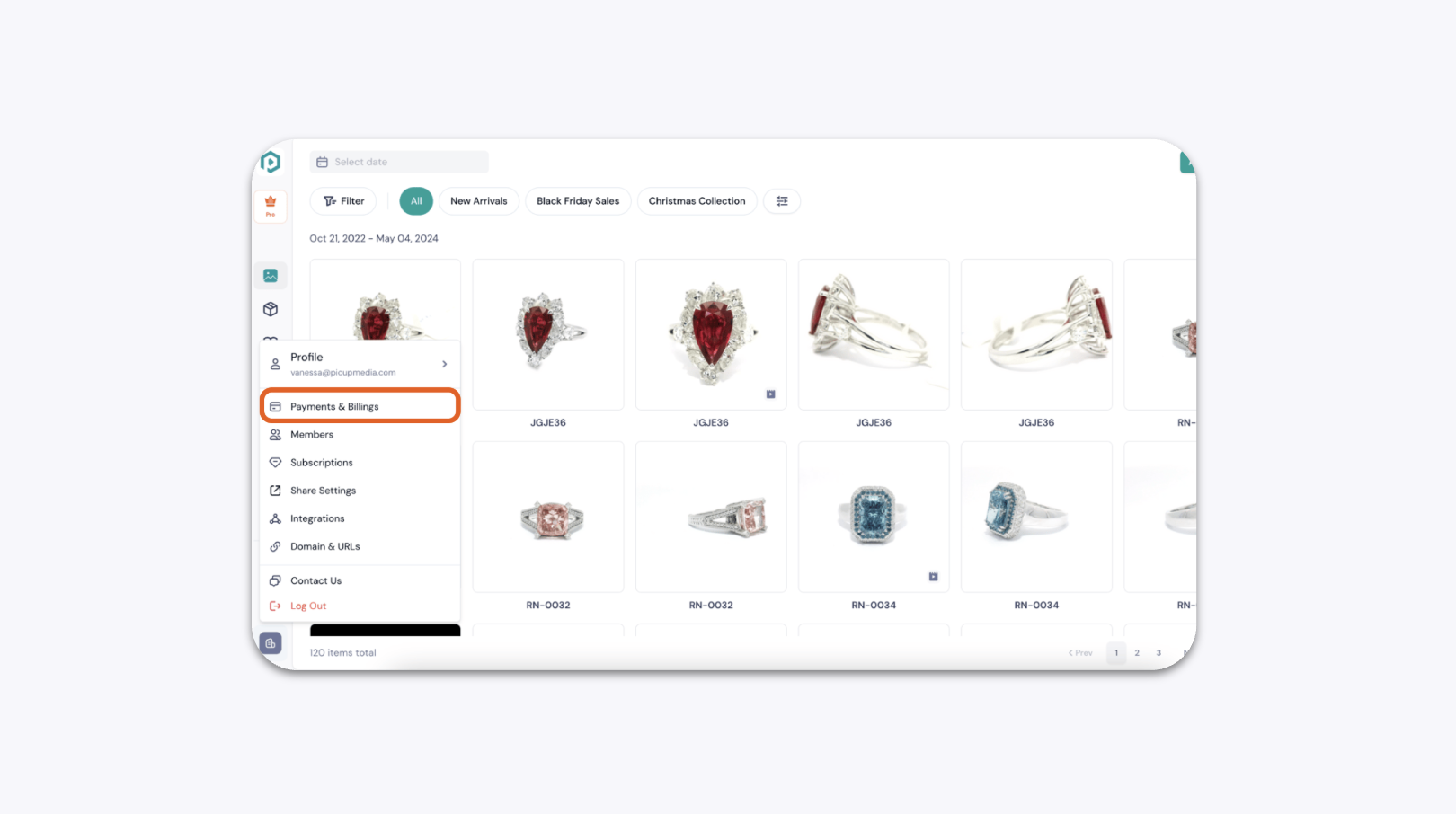
Locate the specific invoice you wish to download from the list.
Click the Export button next to the corresponding invoice.
Expected Result
After clicking "Export," the invoice will immediately download to your computer as a PDF file. You can then open, save, or print it using any PDF viewing software.