Create Virtual Try-On Model Images in the GemHub
Quick Answer
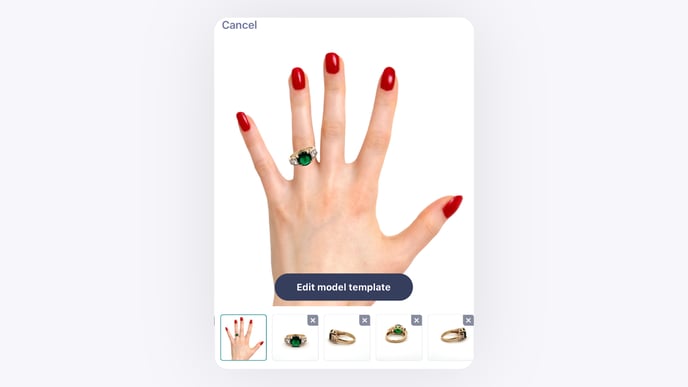
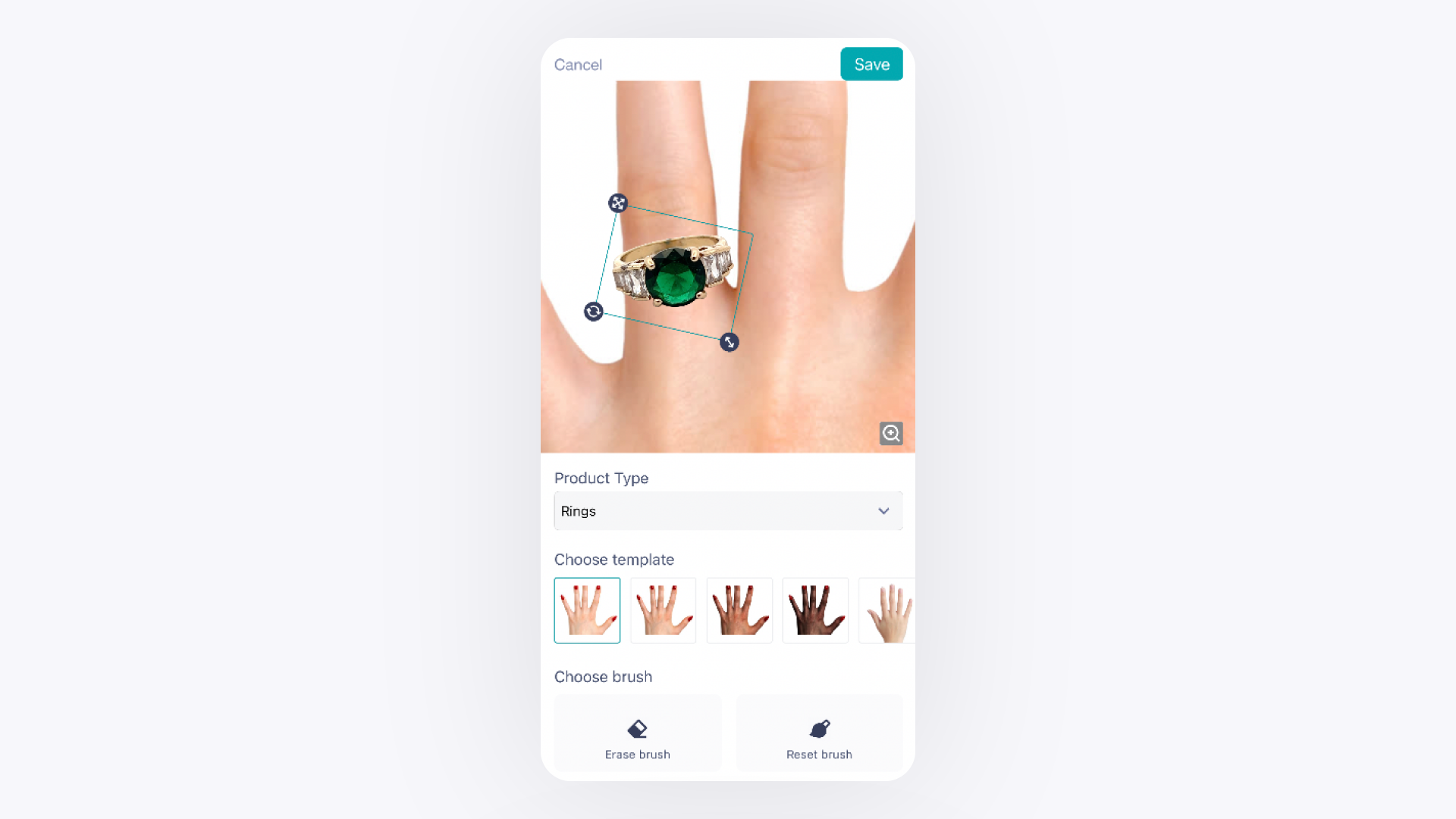
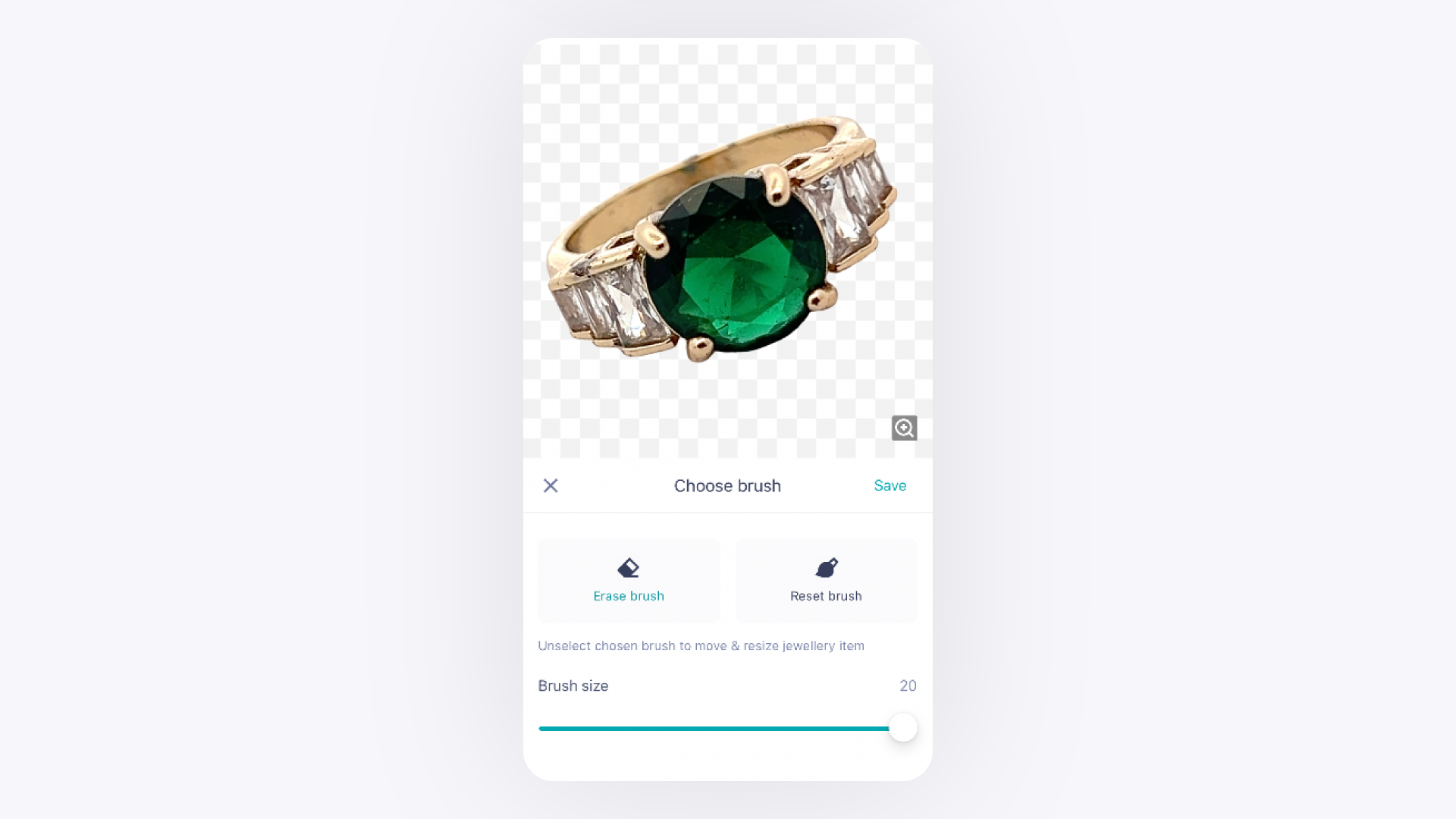
GemIQ Pro subscribers can generate AI model images that show jewelry being worn. Enable Model Shots before you shoot, capture your jewelry in Video mode, and GemHub automatically creates a virtual try-on image. You can then select a model template, adjust the jewelry placement, and save the finished result.
Before You Start
Confirm your GemIQ subscription is at the Pro tier. This feature is not available on lower-tier plans.
Use the GemHub. This workflow is not available in GemHub.
Have your jewelry piece ready to photograph.
Steps
Step 1 — Enable Model Shots
Open the GemHub and tap the camera icon.
Switch to Video mode.
Tap GemAI.
Scroll down and toggle on Model Shots.
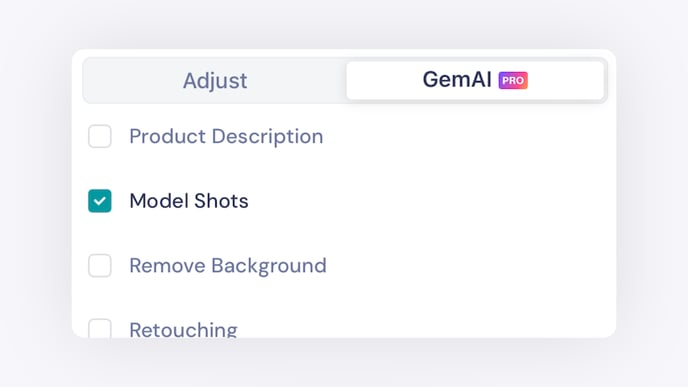
Step 2 — Capture Your Jewelry
Photograph your jewelry as usual.
Once the capture is complete, GemHub automatically generates a virtual try-on image.