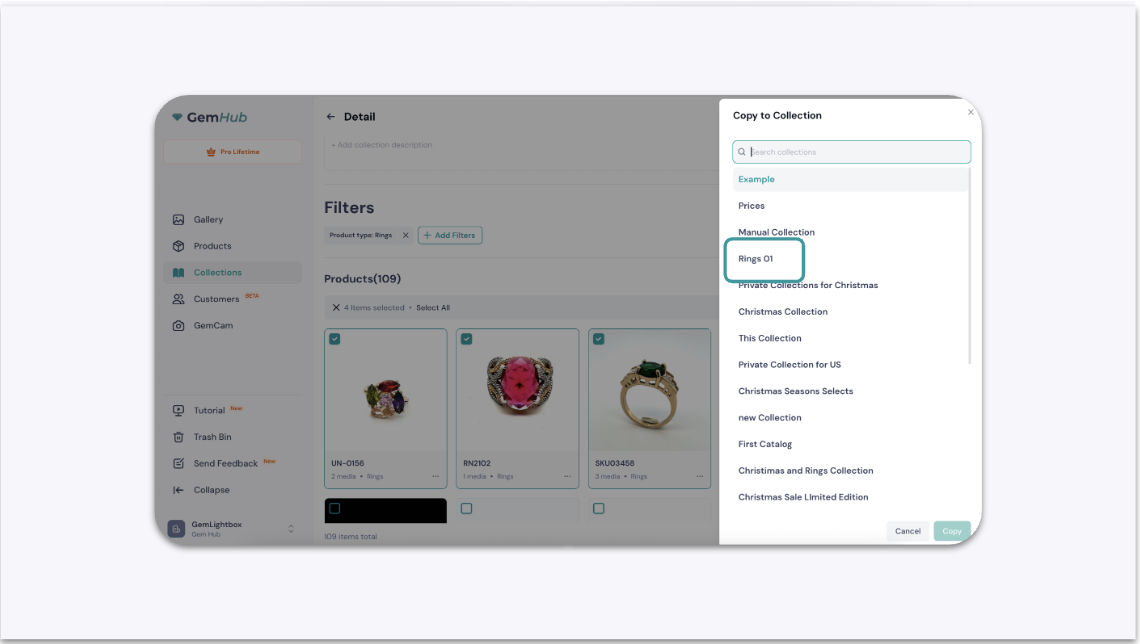
How to Copy Products Between Collections
Quick Answer
To copy products, open a collection, select the products you want to duplicate, click the "Copy to" button, and then choose the destination collection from the menu. This action duplicates the selected products into the new collection without removing them from the original one.
Before You Start
You must have at least one product in a source collection.
You need a second, existing collection to serve as the destination.
Steps
Navigate to the collection containing the products you want to copy.
Select one or more products. A checkmark or highlight will appear on your selected items.
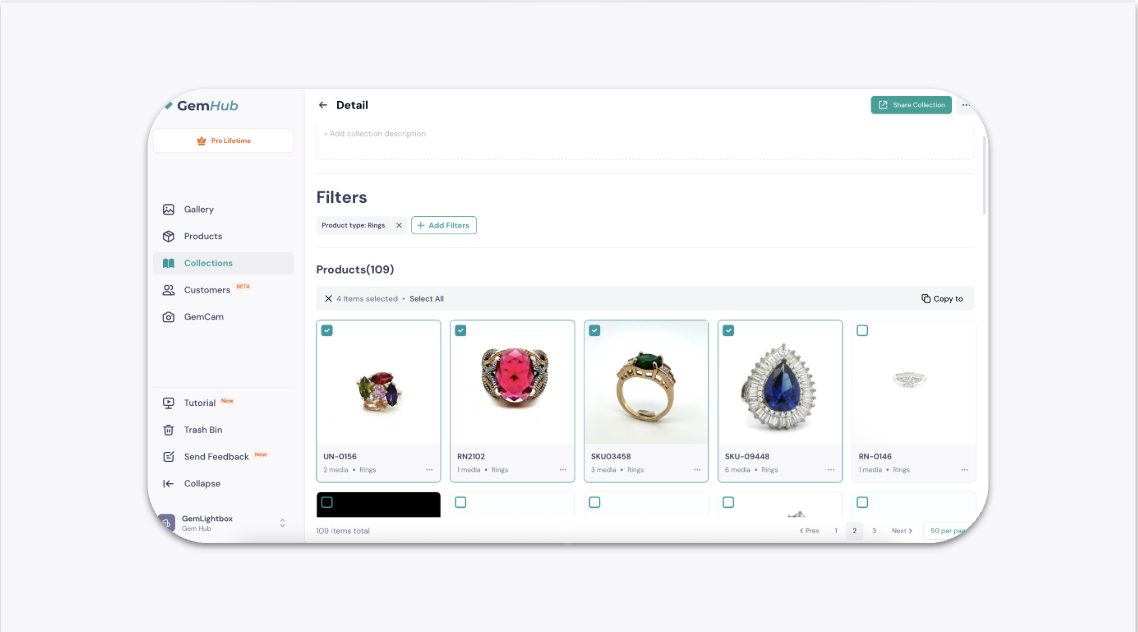
Selecting a product within a collection in the GemIQ app. 3. With your products selected, locate and click the Copy to button in the action menu.
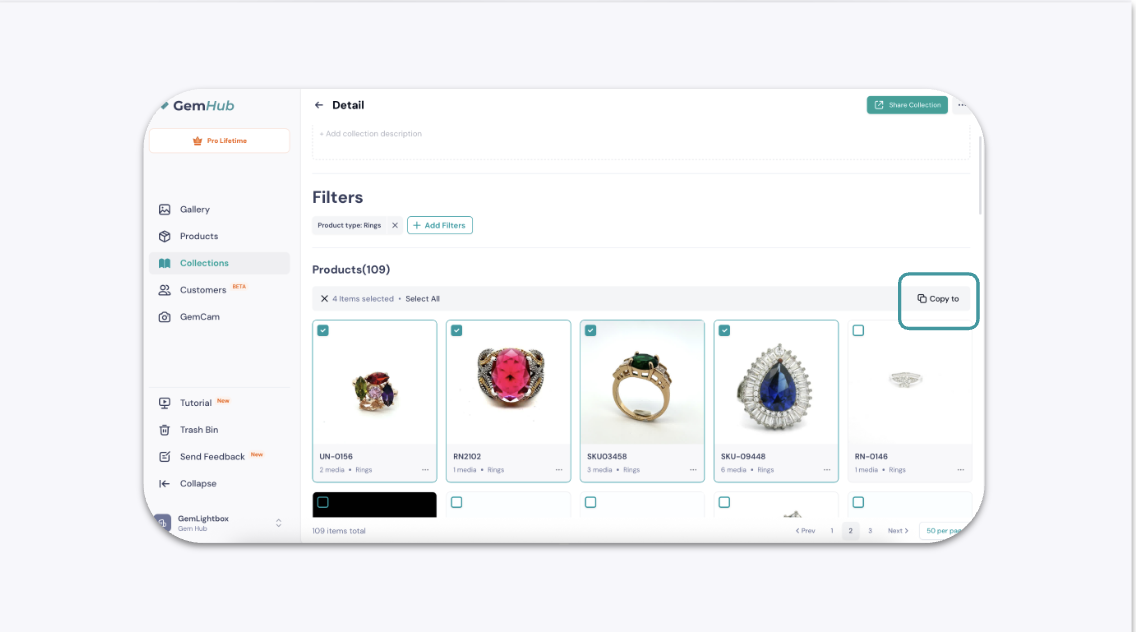
The 'Copy to' button highlighted in the GemIQ app action menu. 4. A side menu or pop-up will appear, listing all your existing collections. Select the destination collection where you want to copy the products.