How to Adjust Image Colors in the GemHub
Quick Answer
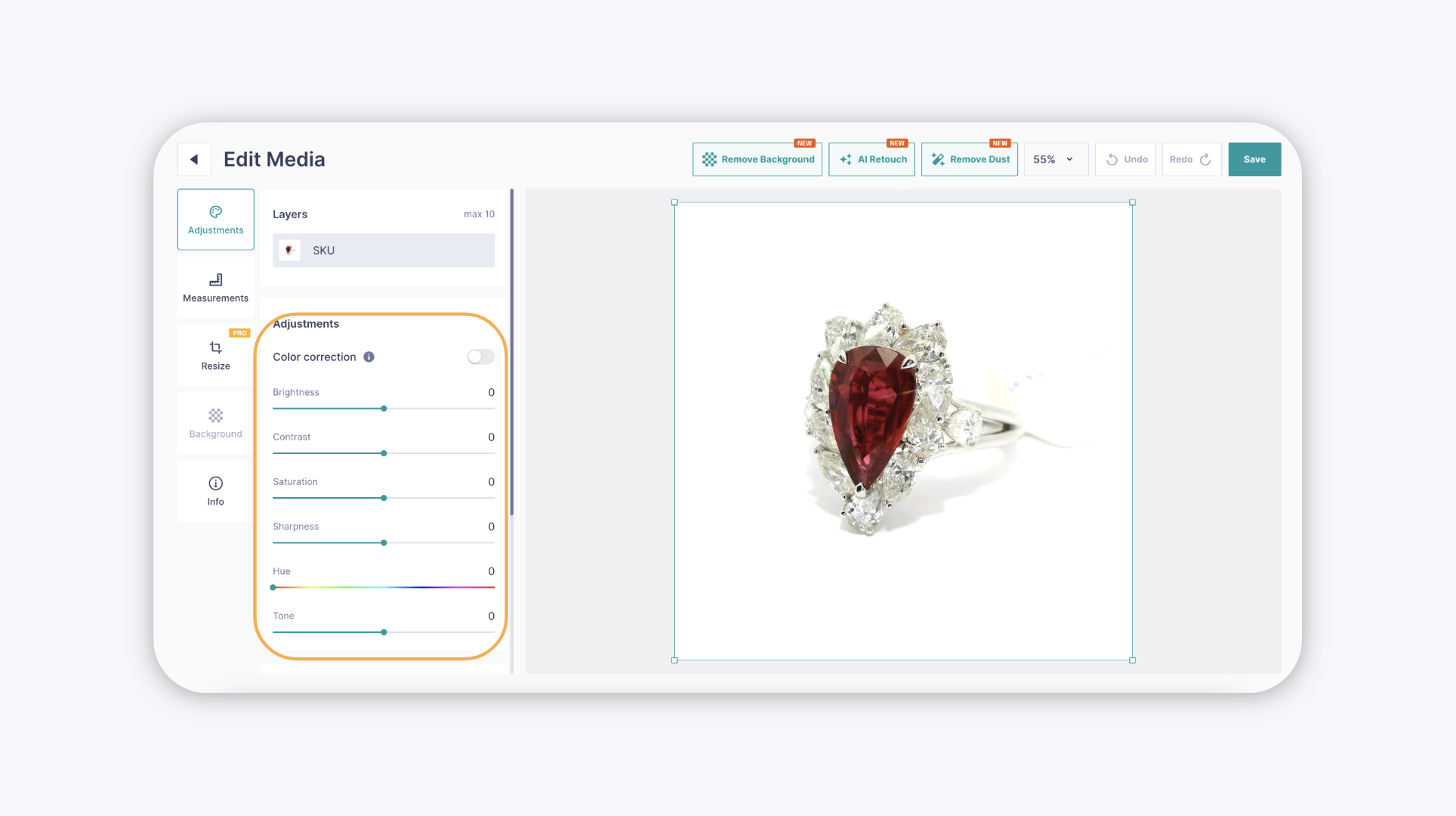
The GemHub includes an image editor with tools to manually adjust the colors and tones of your photos. You can modify brightness, contrast, saturation, sharpness, and hue to ensure your jewelry images are accurate and vibrant.
Before You Start
Ensure you have the GemHub installed on your device.
Have an image saved to your GemIQ gallery that you wish to edit.
Steps
Open the GemHub and navigate to your gallery.
Select the image you want to modify to open it in the viewer.
Tap the Edit icon to launch the image editor.
Locate the Color Adjustments tool in the editing panel.

The GemIQ App Editor Interface with Color Adjustments Highlighted Use the sliders to fine-tune the following settings:
Brightness: Makes the image lighter or darker overall.
Contrast: Adjusts the difference between the light and dark areas.
Saturation: Increases or decreases the intensity of the colors.
Sharpness: Enhances the clarity and detail.