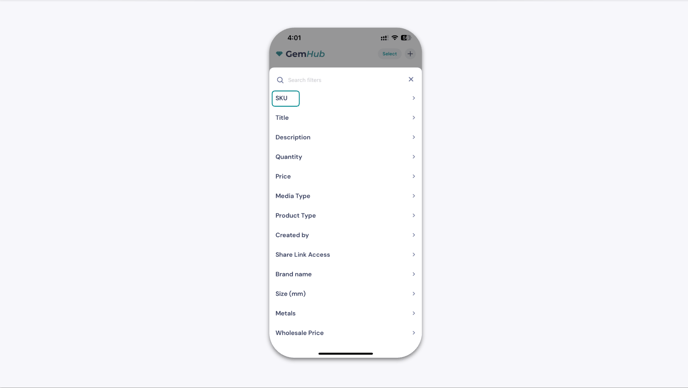
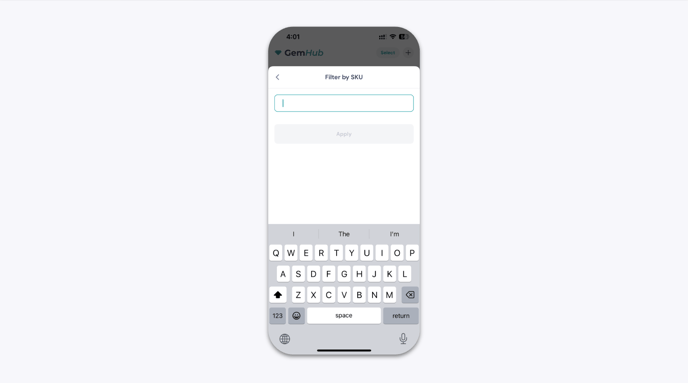
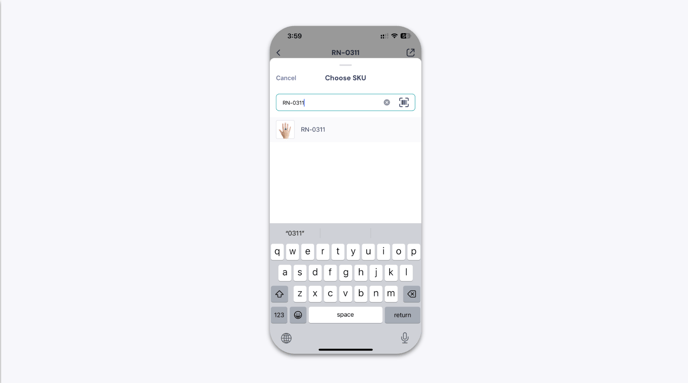
How to Add, Generate, and Search SKUs in the GemHub
Quick Answer
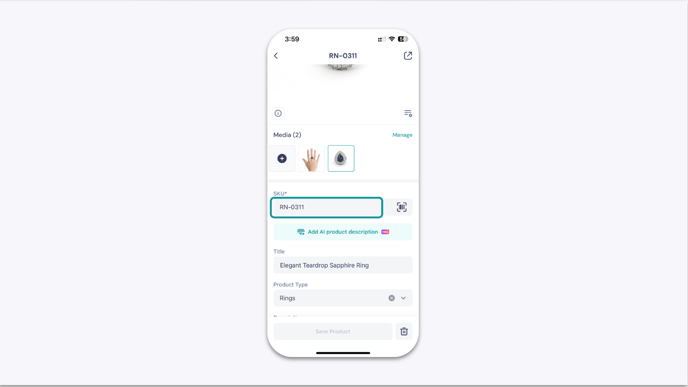
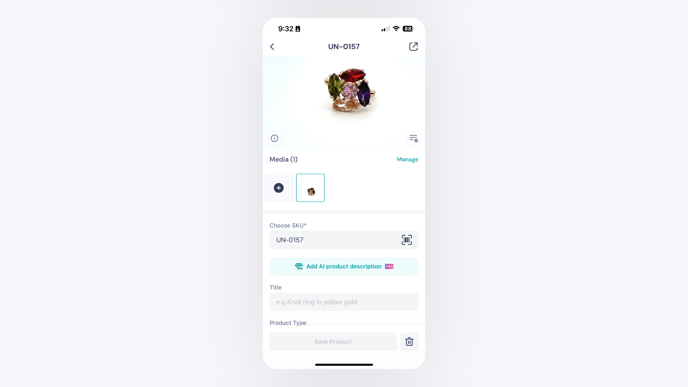
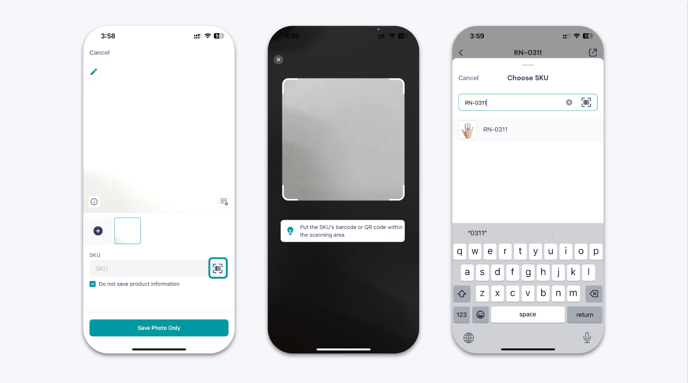
GemHub gives you three ways to assign a SKU to a product: automatic generation after capture, manual entry on the preview screen, or editing directly inside your library. You can also use the built-in barcode scanner to fill the SKU field instantly from any product tag.
Before You Start
GemHub installed and signed in
At least one product photo or video captured, or ready to capture
Steps
Option 1 — Auto-Generate a SKU
This is the fastest option. GemHub creates a SKU for you after every capture.
Capture your image or video.
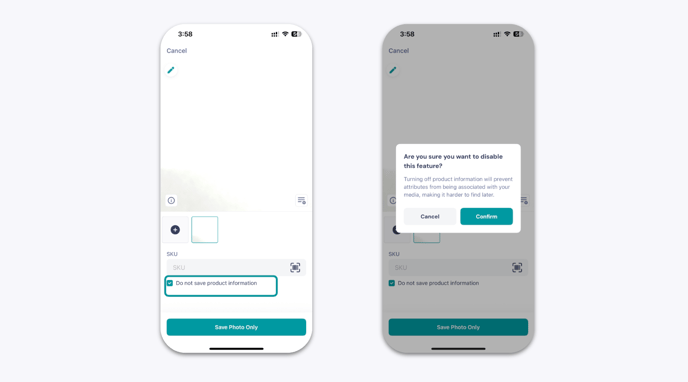
On the preview screen, confirm that Do not save product information is unchecked.
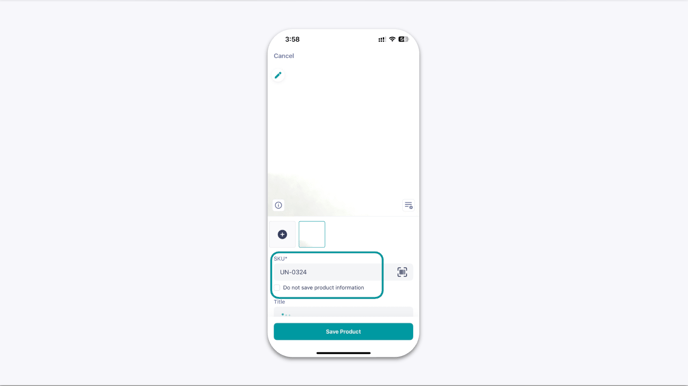
Tap Save Product. GemHub saves the image with an automatically generated SKU.
Option 2 — Enter a SKU Manually on the Preview Screen
Use this option if you want to assign your own SKU right after capture.
Capture your image or video.