How to Add Payment Details in the GemHub
Quick Answer
You can save a credit or debit card directly in the GemHub under your account's Payments and Billing settings. Once saved, your card will be used automatically when your subscription renews.
Before You Start
You must be logged in to your GemIQ account.
Have your credit or debit card ready (card number, expiration date, and security code).
Steps
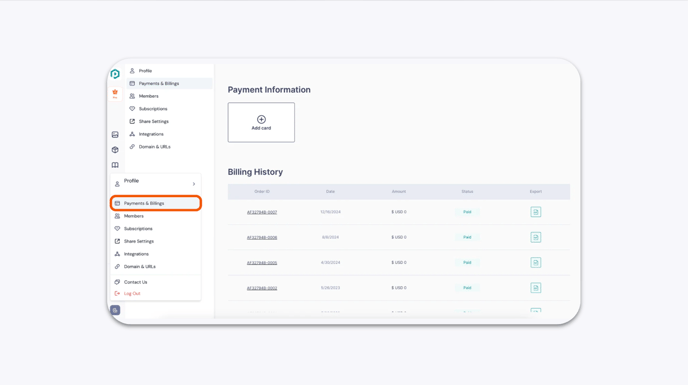
In the GemHub, click your Profile icon and select Payments and Billing.
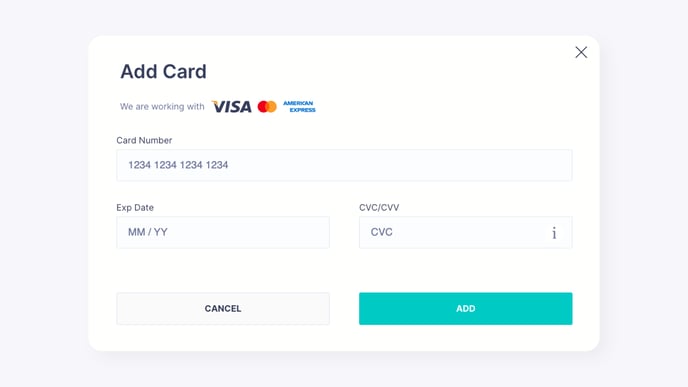
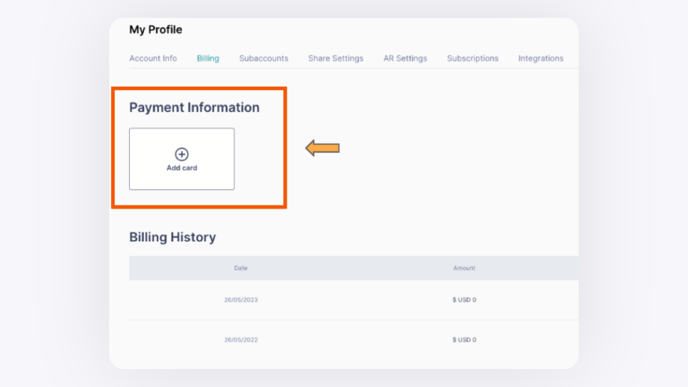
Click Add Card and enter your card details: - Card number - Expiration date - Security code (CVV)
Click Add to save your card.