Quick Answer#
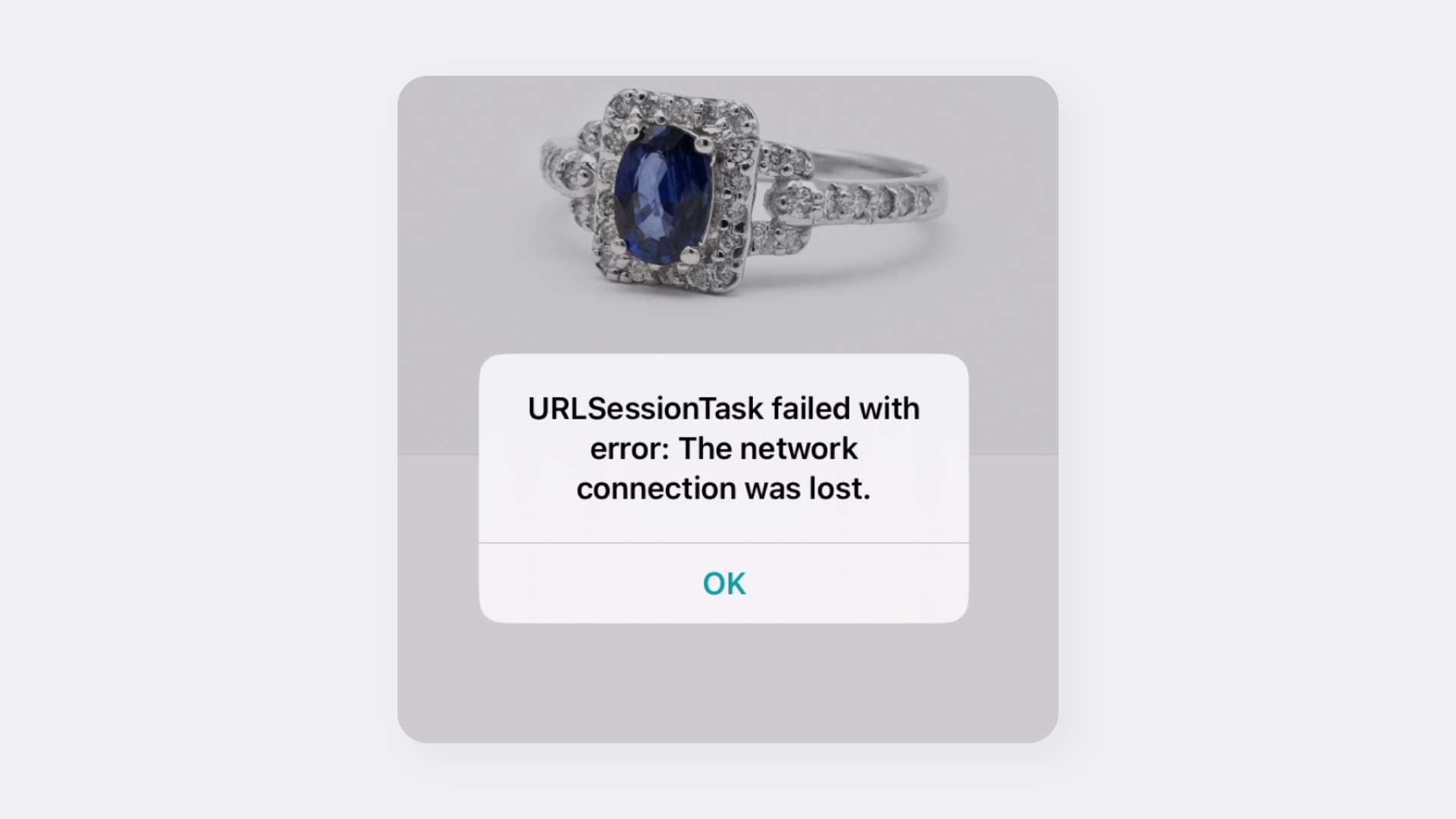
The "URLSessionTask failed" error message means GemIQ lost its connection to the internet while trying to sync your files. To fix this, check that your device's Wi-Fi or cellular data connection is stable, then try the action again.
Before You Start#
Your mobile device (iPhone, iPad, or Android) has the GemIQ application installed.
Access to your device's network settings for Wi-Fi and cellular data.
Steps#
Check Your Internet Connection: Look at the status bar on your device to confirm your Wi-Fi or cellular signal strength.
Test Your Connection: Open a web browser on your device and try to load a new website. If the page does not load, the issue is with your device's general internet connectivity.
Improve Your Signal:
If using Wi-Fi: Move closer to your router. If the signal is still weak, try restarting your router by unplugging it for 30 seconds and plugging it back in.
If using cellular data: