

Quick Answer#
GemBrush is a precision retouching tool built into the GemIQ mobile app. It gives you three targeted brushes: Remove Blemish, Brighten, and Darken, each designed to make small, controlled corrections directly on your jewelry image without needing a separate editing app.
How to Access GemBrush#
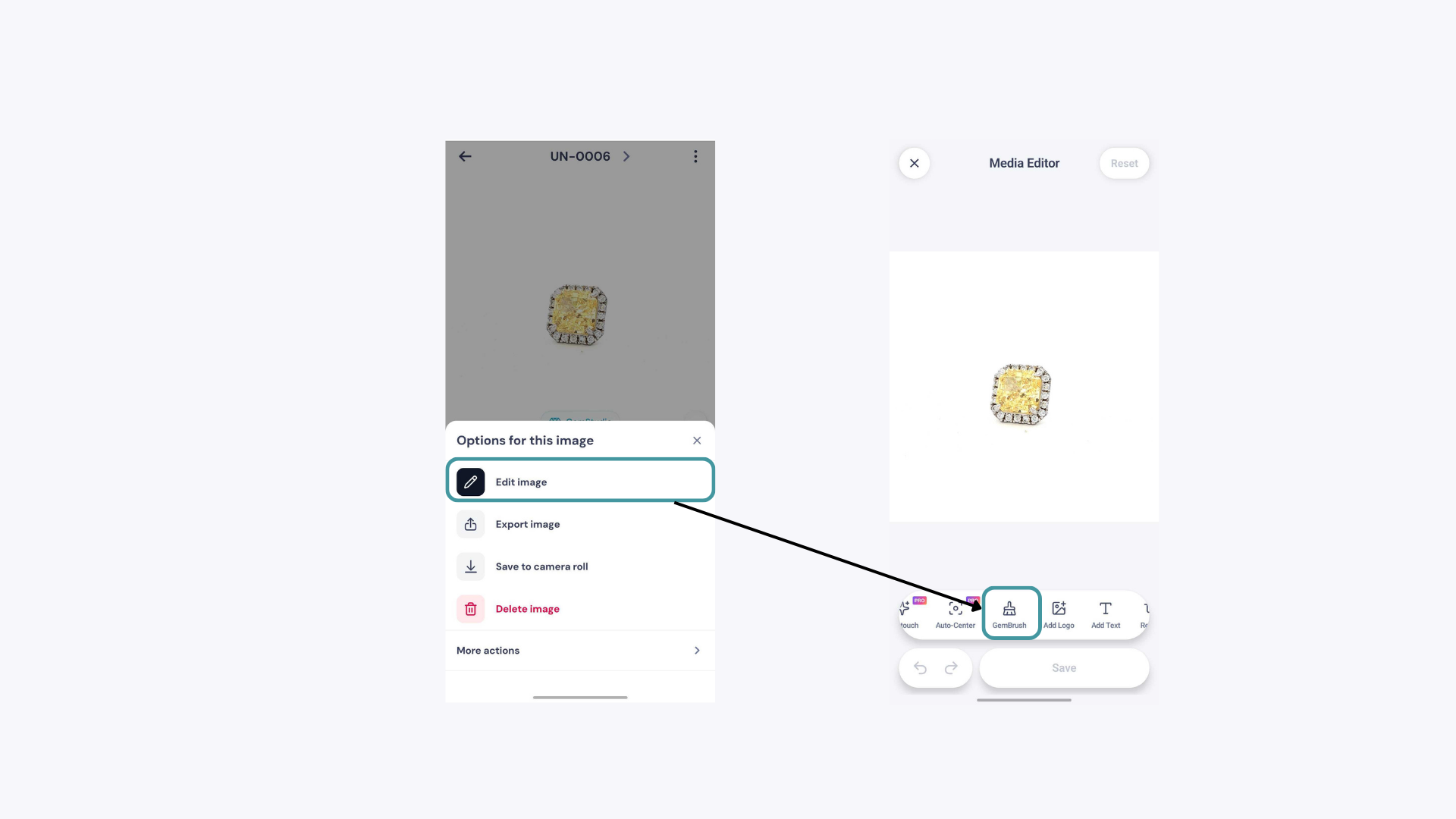
Tap the ellipsis (⋯) in the bottom right corner of any image and tap Edit Image. At the bottom of the editing screen, swipe right through the tool options and tap GemBrush. Use the slider to set your brush radius before you start. A smaller radius works best for fine detail like prong work or small stones, while a larger radius suits broader areas like metal surfaces.
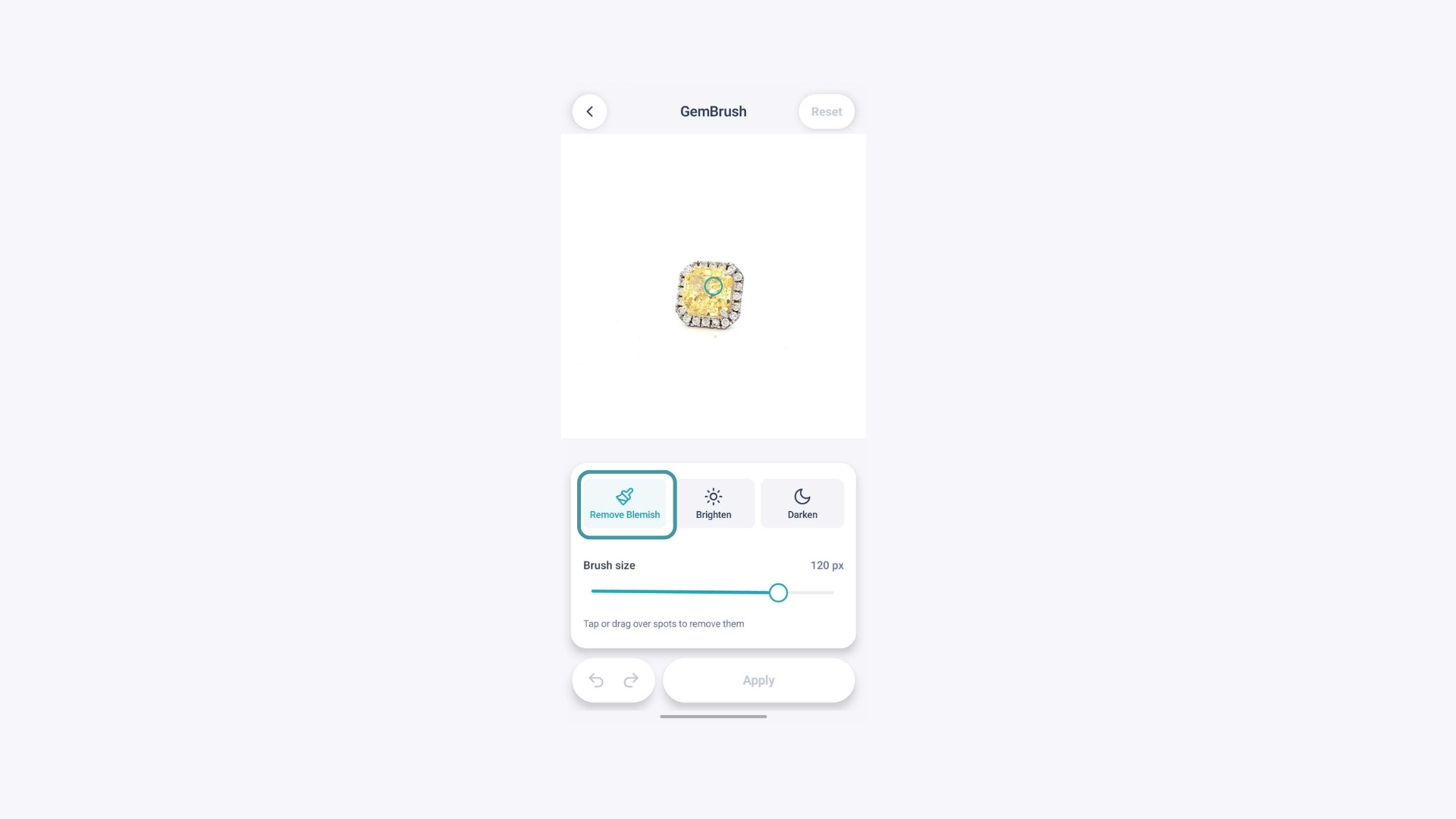
Remove Blemish#
Use this tool to remove small spots, dust marks, or light artifacts that appear on the jewelry or background. These can come from light reflections, small imperfections on the piece itself, or particles on the shooting surface.
To use it: tap on Remove Blemish and tap on the area you want to fix. Do not drag the brush. Keep tapping on the same spot repeatedly and the tool will gradually blend it into the surrounding area for a natural result.
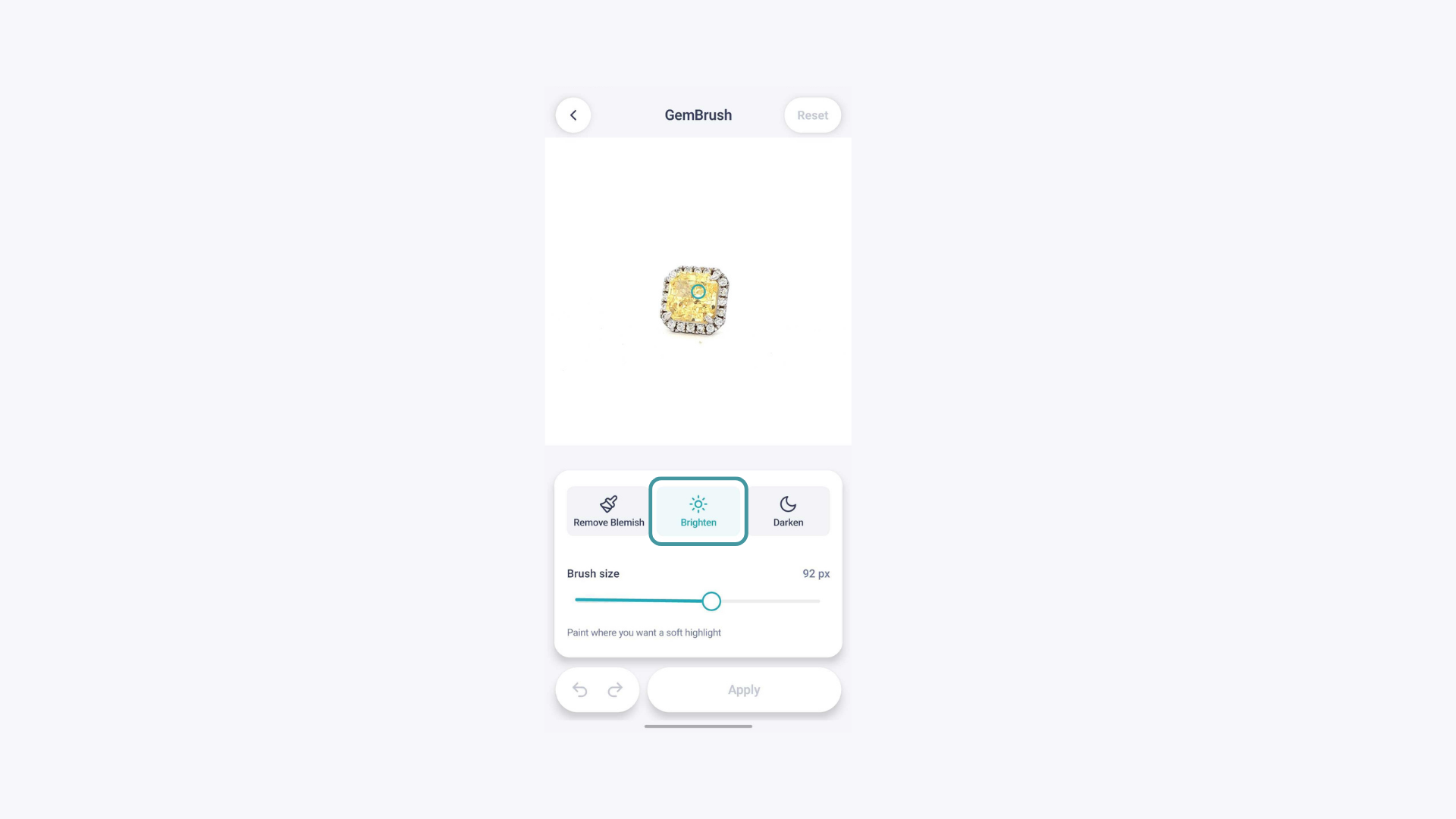
Brighten#
Use this tool to add a soft highlight or to lift areas of the image that came out too dark. This is useful for reclaiming detail in shadowed areas of the jewelry, such as the underside of a ring or the inside of a setting.
To use it: tap or drag gently over the areas you want to brighten. Short, light passes give more control than long sweeping strokes.
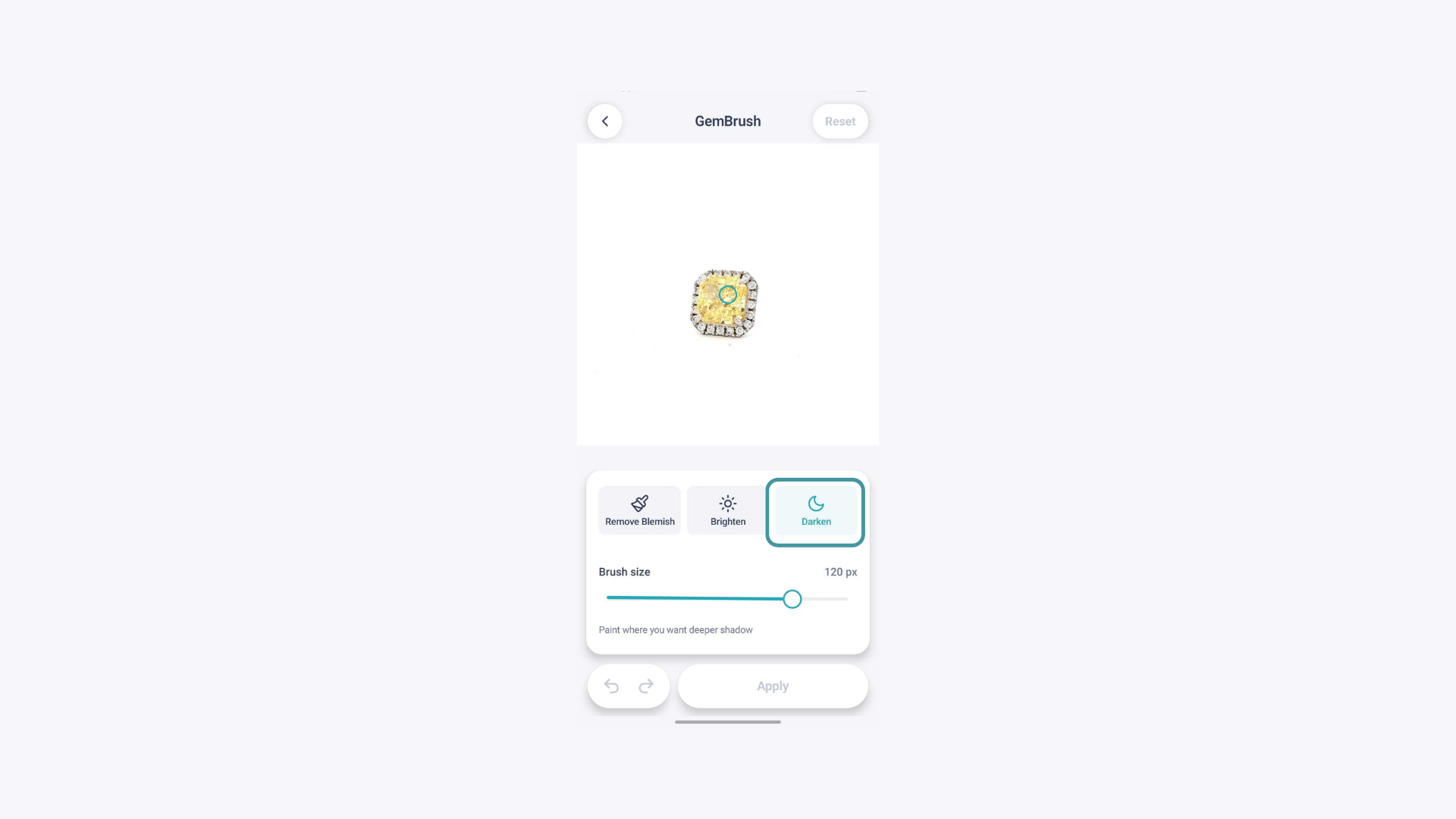
Darken#
Use this tool to deepen shadows or tone down areas that are too bright or overexposed. This is particularly useful for managing hotspots on highly reflective metals or for adding depth to flat-looking areas of the piece.
To use it: tap or drag over the areas you want to darken. Short passes give you more control over the result.
Saving Your Changes#
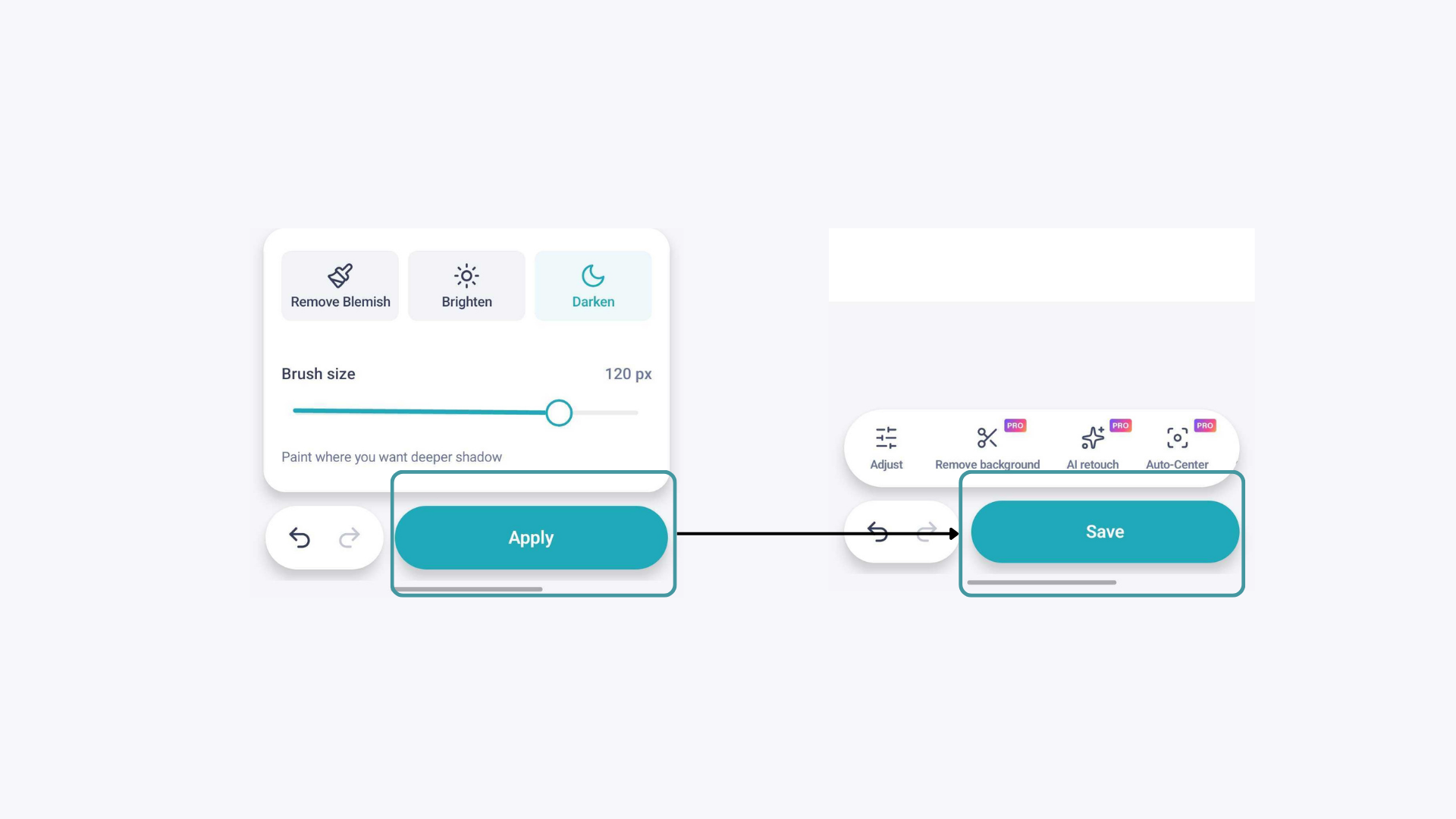
Once you are satisfied with your retouching, tap Apply and then tap Save. You will be given the option to save the edited image as new media, keeping the original untouched, or to save the changes directly to the original image.
Expected Result#
After using GemBrush, your image should have cleaner surfaces, more balanced lighting across the piece, and fewer distracting blemishes or artifacts. The corrections should look natural and consistent with the rest of the image.
Common Questions#
How do I choose the right brush radius? Start small and increase if needed. A radius that is too large can affect areas you did not intend to retouch and make corrections look unnatural.
Can I undo a GemBrush correction? Yes. Use the undo function to step back if a correction does not look right before saving.
Can GemBrush fix major issues like incorrect prong counts or missing stones? No. GemBrush is designed for minor retouching only.
Important Note#
GemBrush is a supplementary retouching tool. The best results always come from capturing a great image in the first place using your GemIQ equipment, correct lighting, and the right scene preset settings. Use GemBrush for final touch-ups, not as a substitute for good capture technique.