Quick Answer#
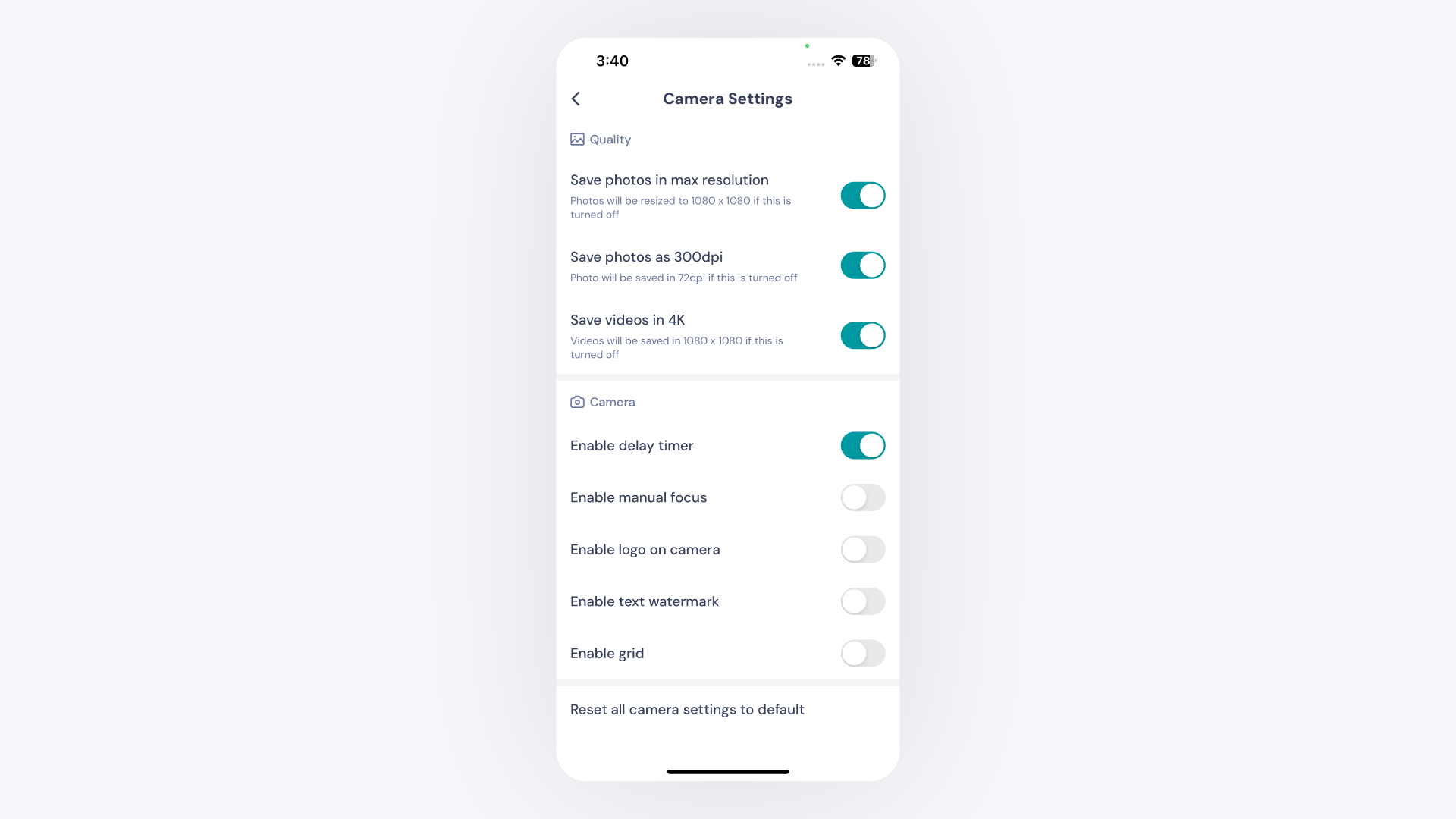
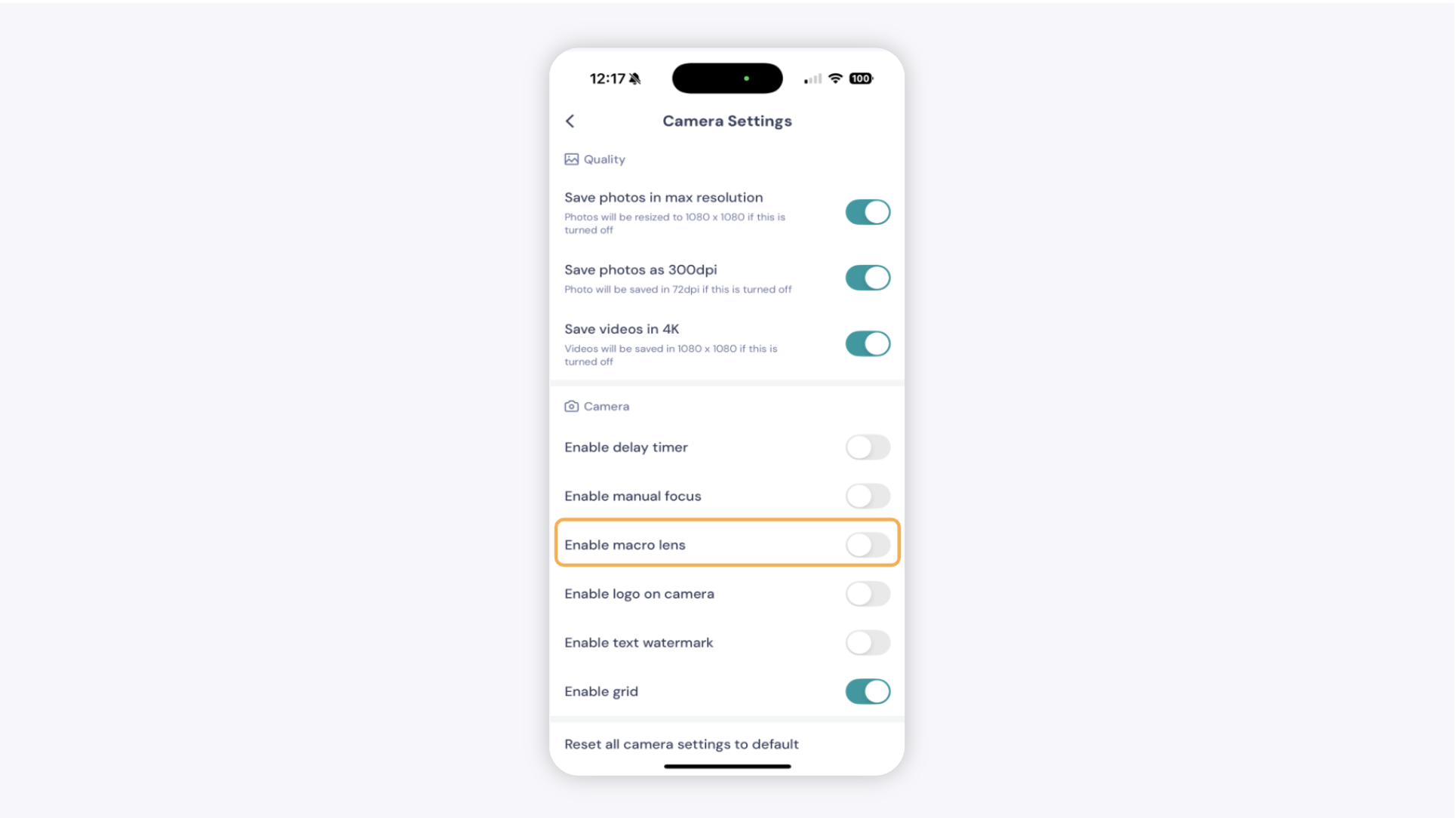
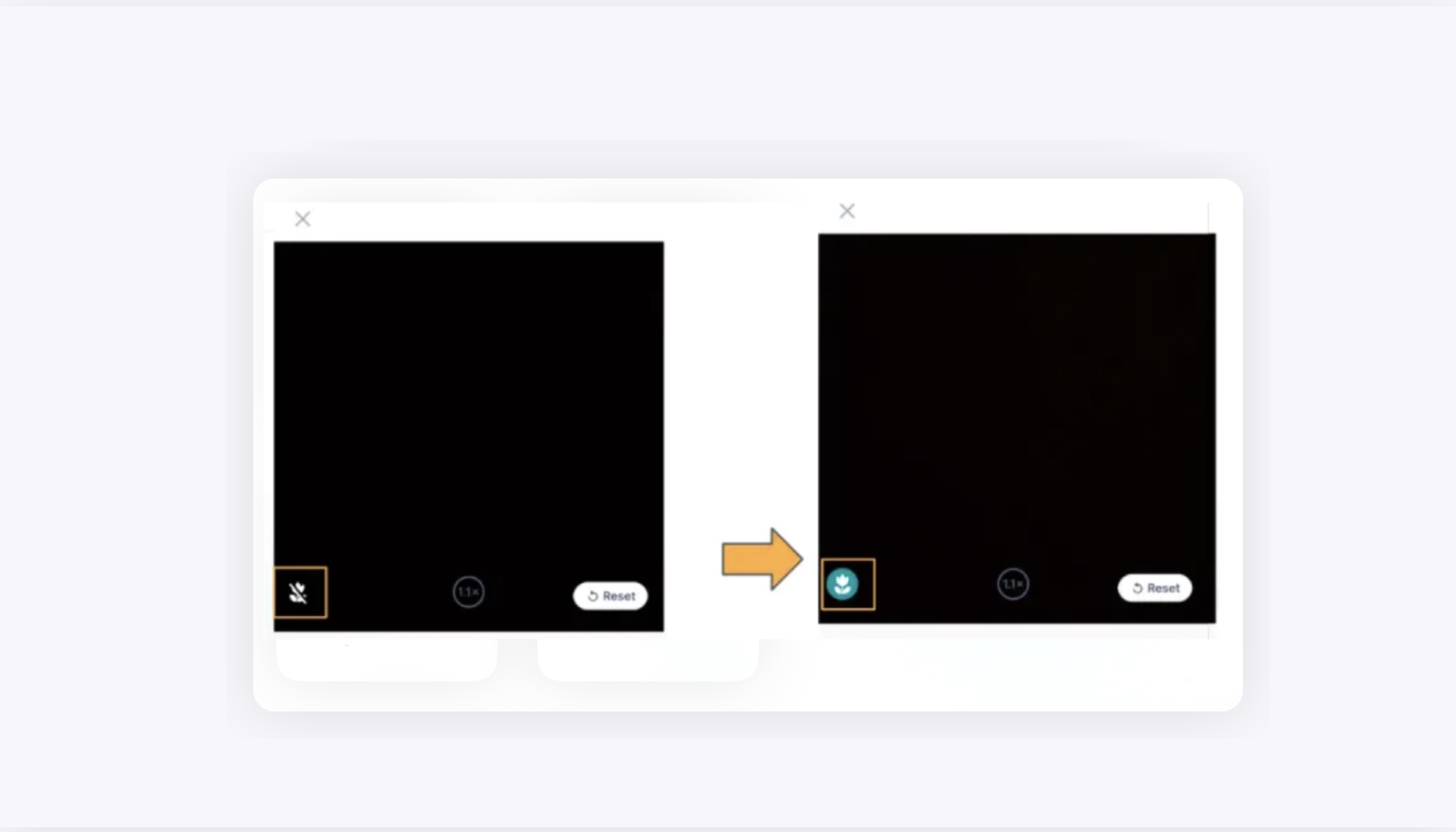
Open the GemIQ Mobile app, tap Camera, then tap the gear icon (⚙) at the top right of the screen to access camera settings. From here you can control image resolution, video quality, the delay timer, and the macro lens.
Before You Start#
GemIQ app installed and up to date
Logged in to your GemIQ account
Steps#
1. Open Camera Settings#
Launch the GemIQ app.
Tap Camera.
Tap the gear icon (⚙) at the top right of the screen.
The camera settings panel will open.