GemCam Pro Camera Settings Reference#
Quick Answer#
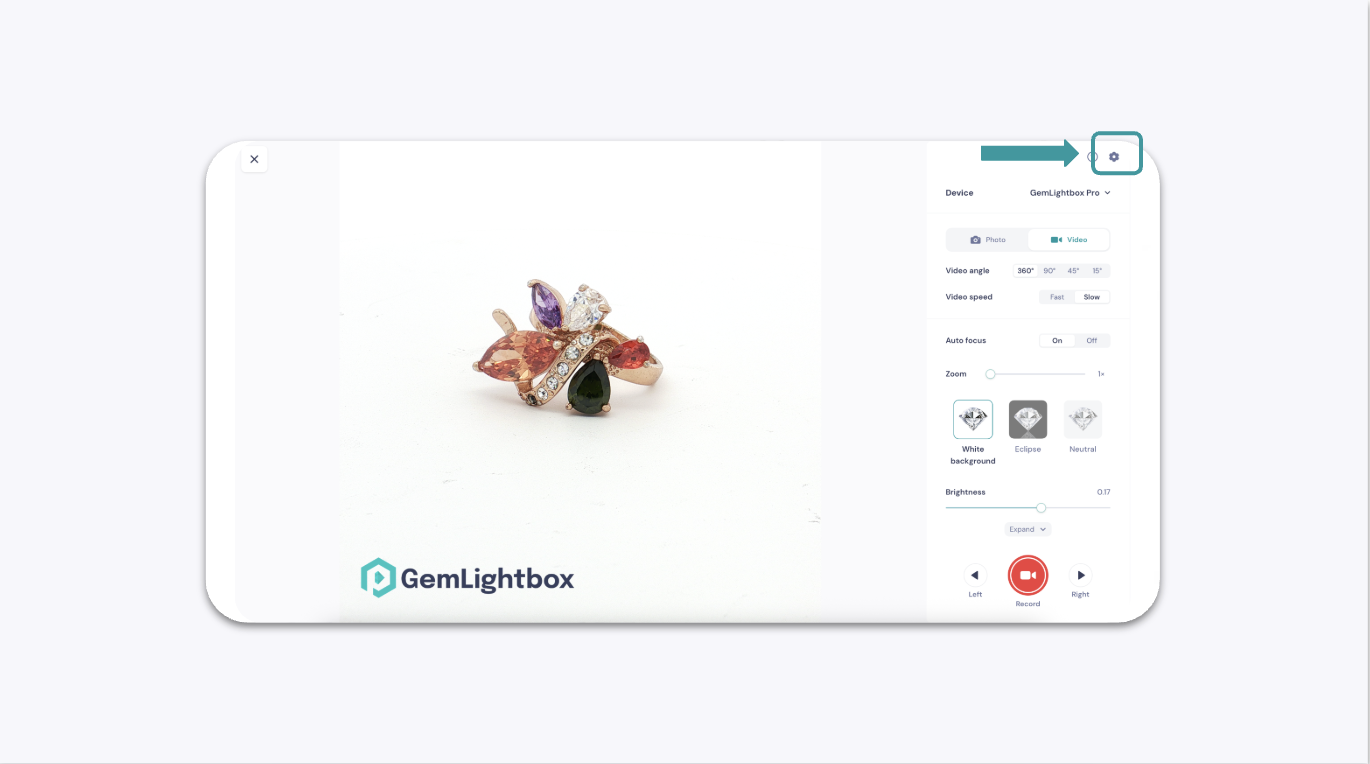
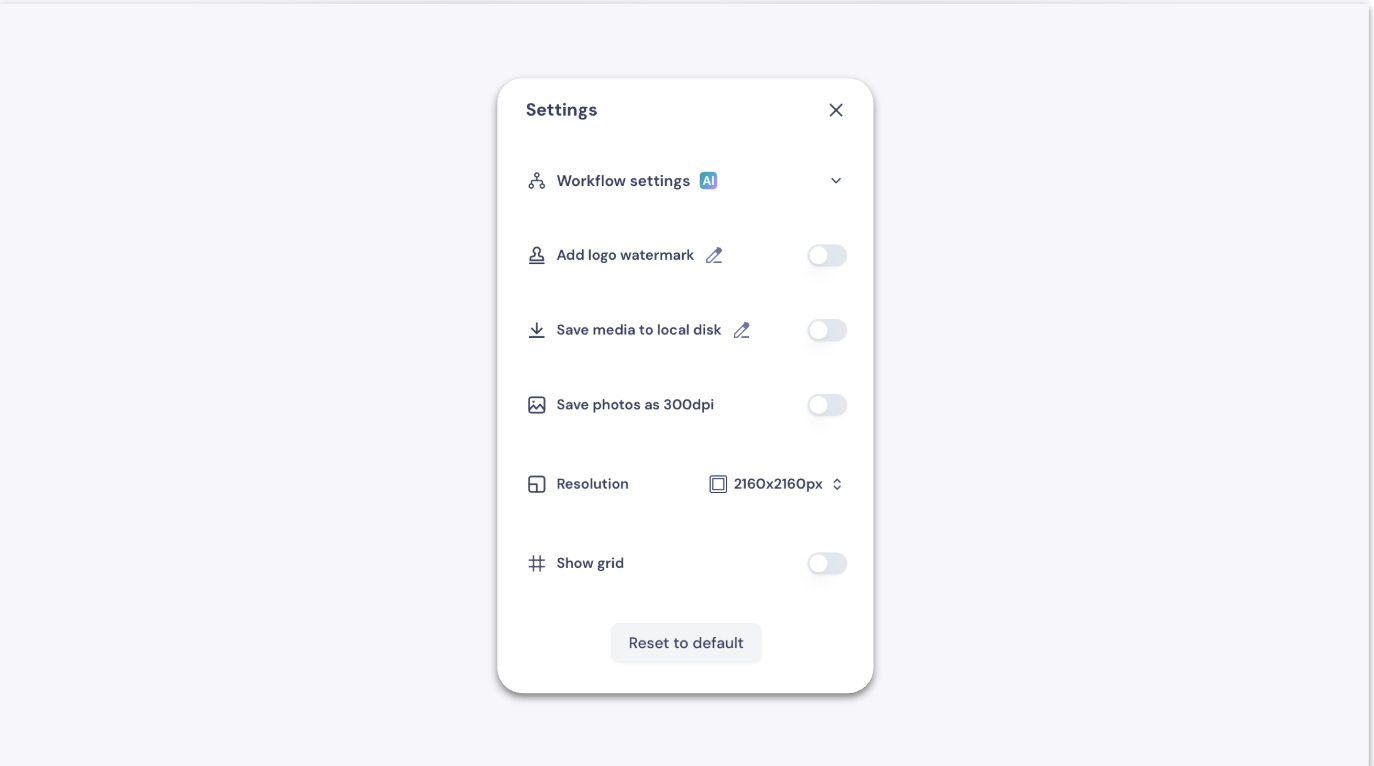
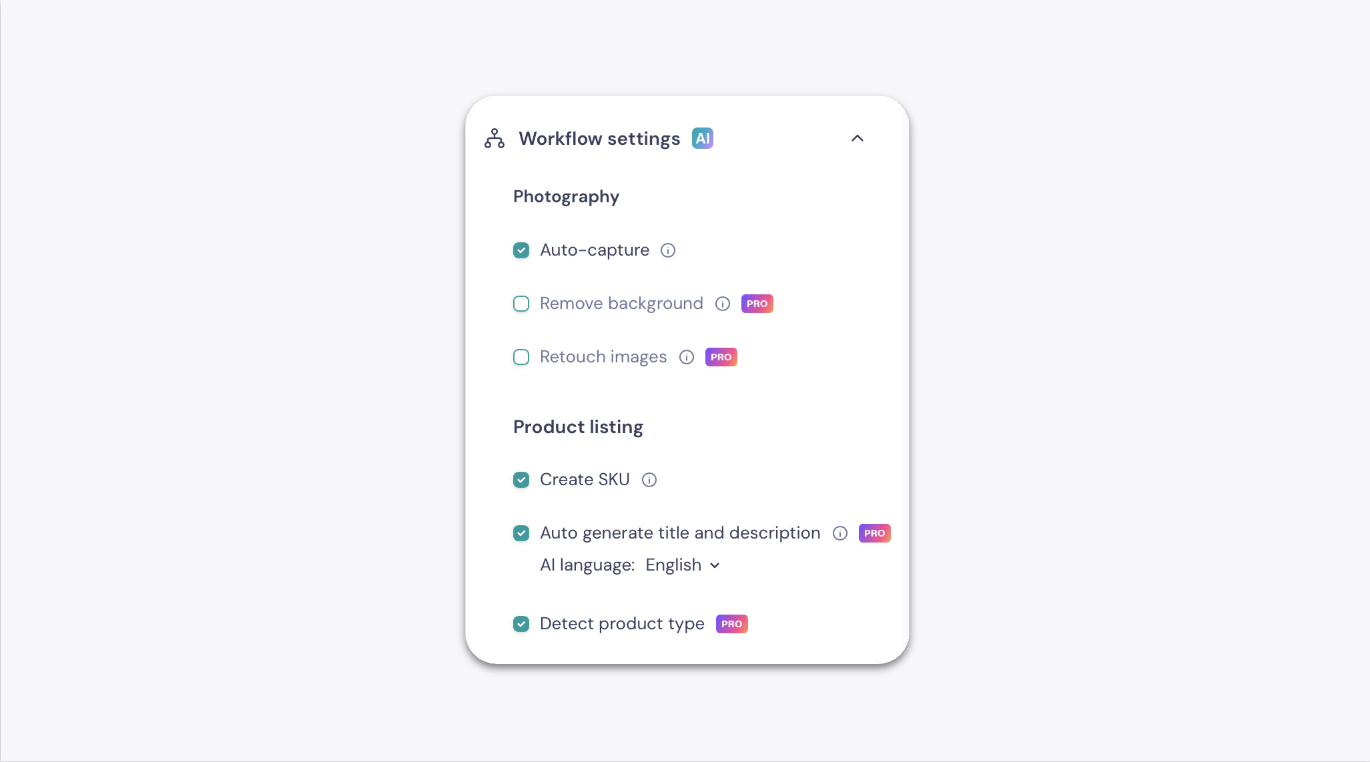
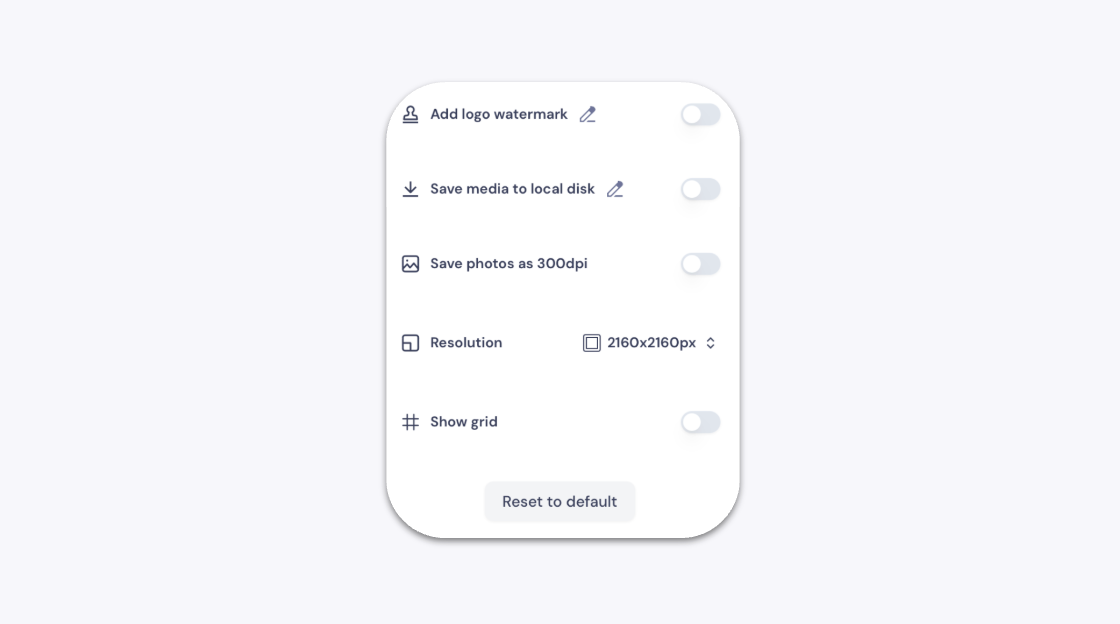
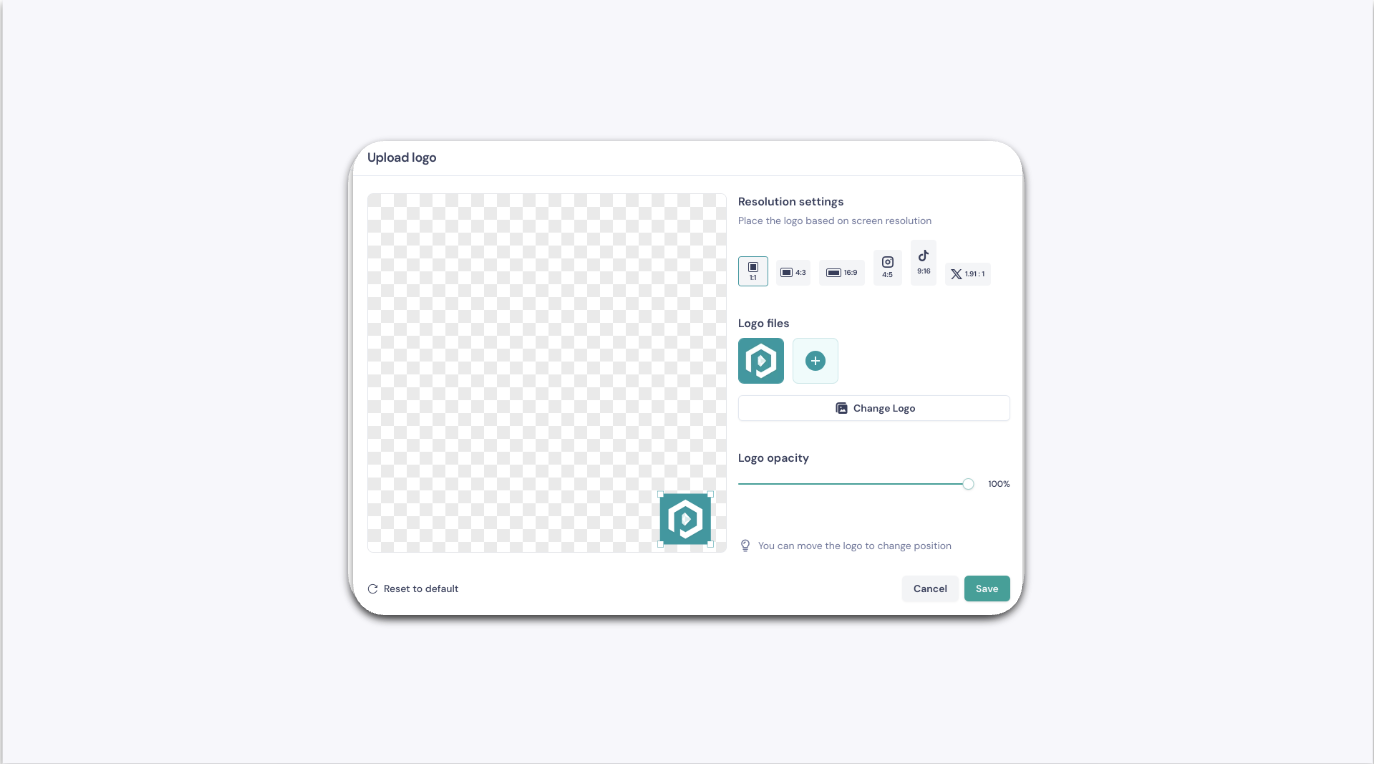
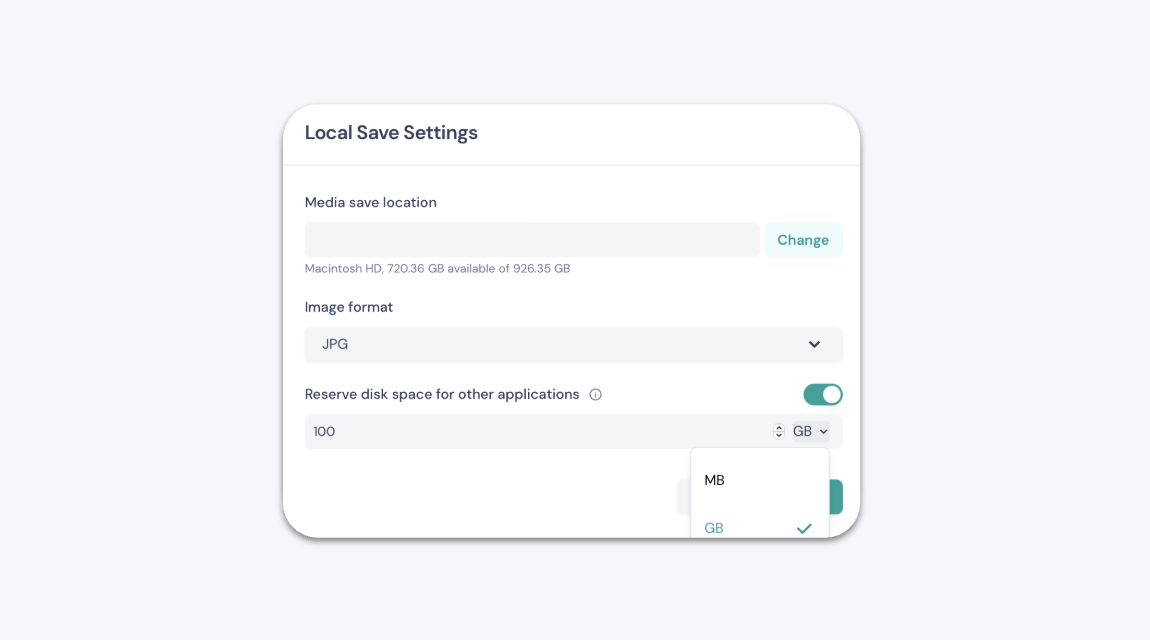
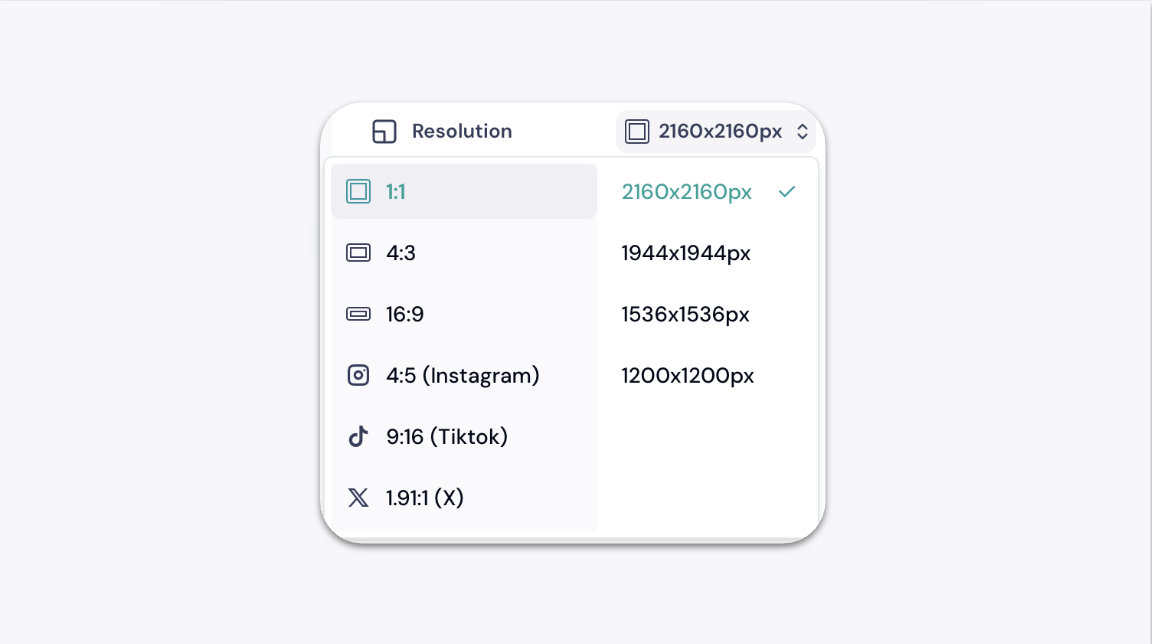
The GemCam Pro camera settings give you full control over AI automation, image output, logo watermarks, local storage, resolution, and framing alignment. Access them by clicking the gear icon (⚙️) in the top-right corner of the GemCam Pro control panel in GemIQ.
Before You Start#
GemCam Pro must be connected to your computer.
GemIQ Desktop App must be open with the GemCam Pro control panel visible.
Accessing Camera Settings#
Click the gear icon (⚙️) in the top-right corner of the GemCam Pro control panel.