

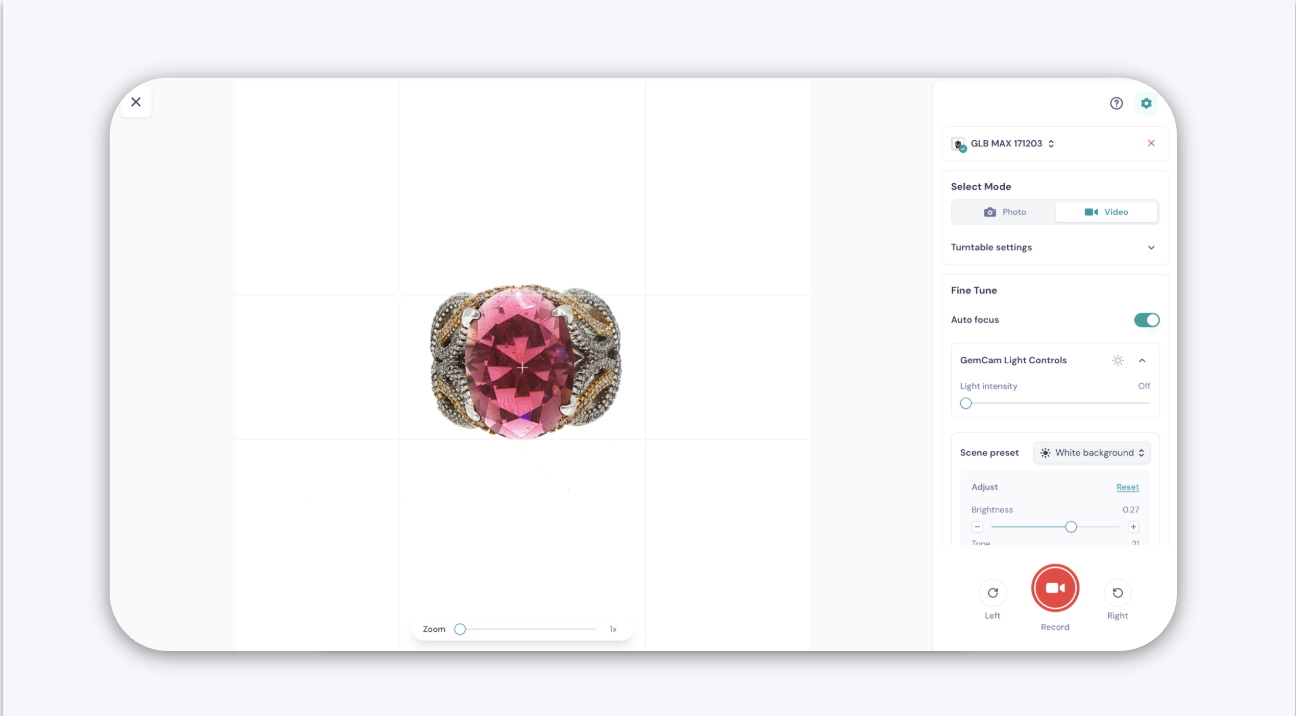
The Capture function in GemIQ gives you full control of your GemLightbox Max and GemCam Pro directly from your desktop.
From here, you can take images and record videos using the GemCam Pro and your GemLightbox Max's lighting and camera settings, all without touching your jewelry piece.
To start capturing the images and videos, connect your GemLightbox Max and GemCam Pro to your computer and click the Capture button from within GemIQ.
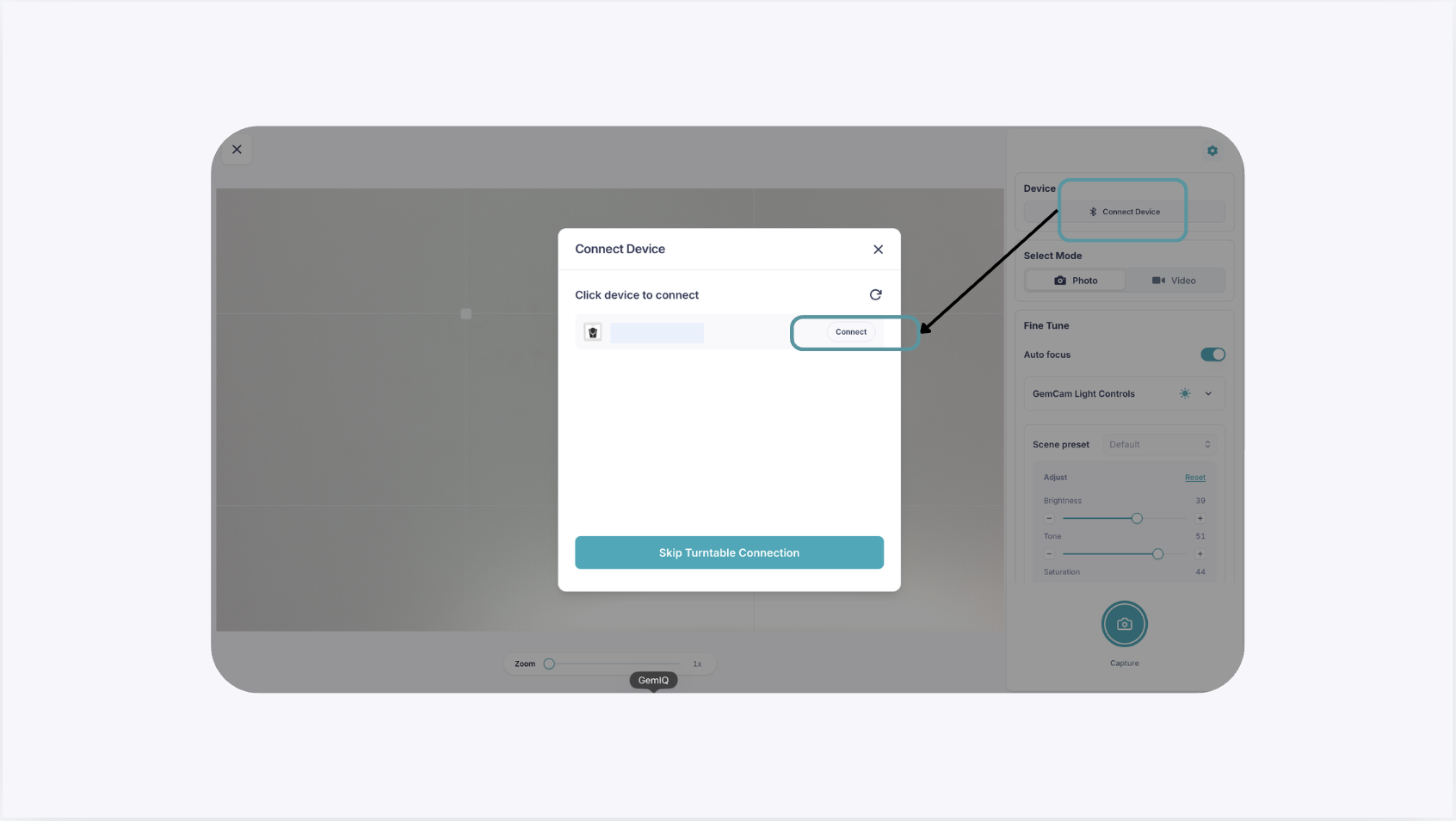
Connect Device
To connect your GemLightbox Max, click on the Connect Device button on the control button. If your computer's bluetooth is turned on, your GemLightbox Max will show up on the pop up window.
Select Mode#
At the top of the settings panel, choose how you want to capture your piece from the GemLightbox Max:
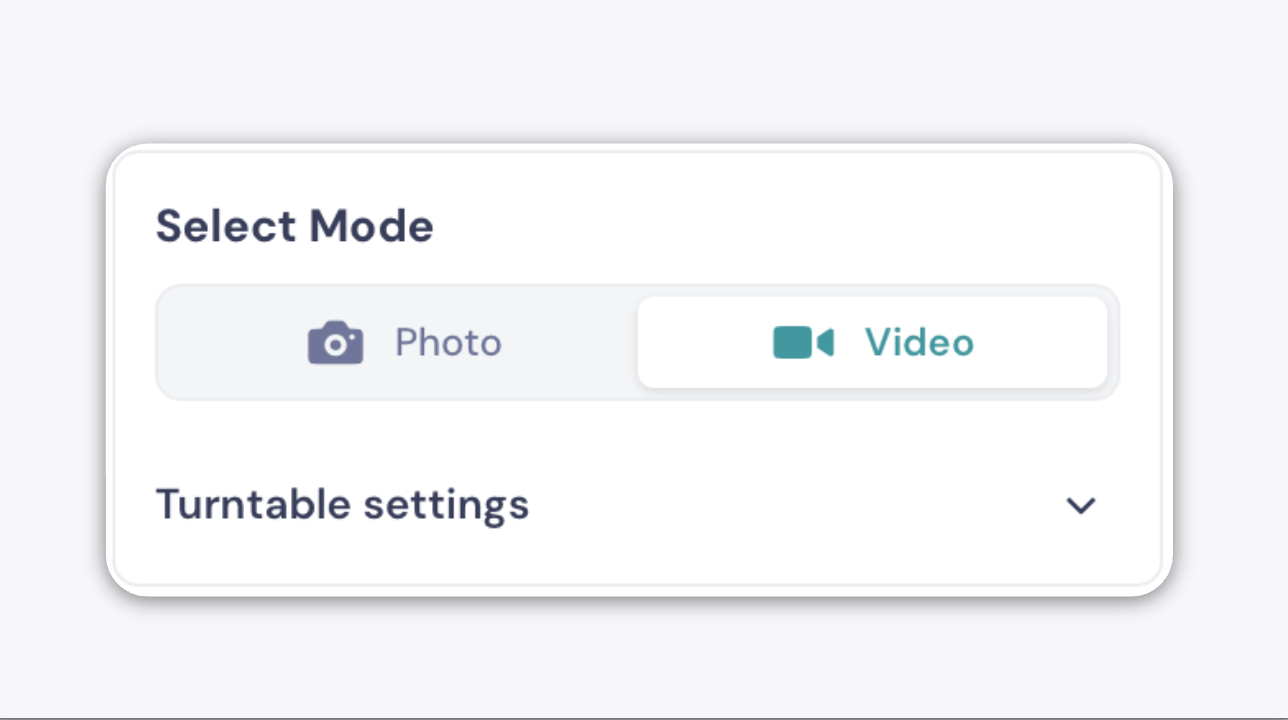
The available controls in the panel below will update depending on the mode you select.
Turntable Settings#
The Turntable Settings control how the GemLightbox Max rotates your piece during a capture session.
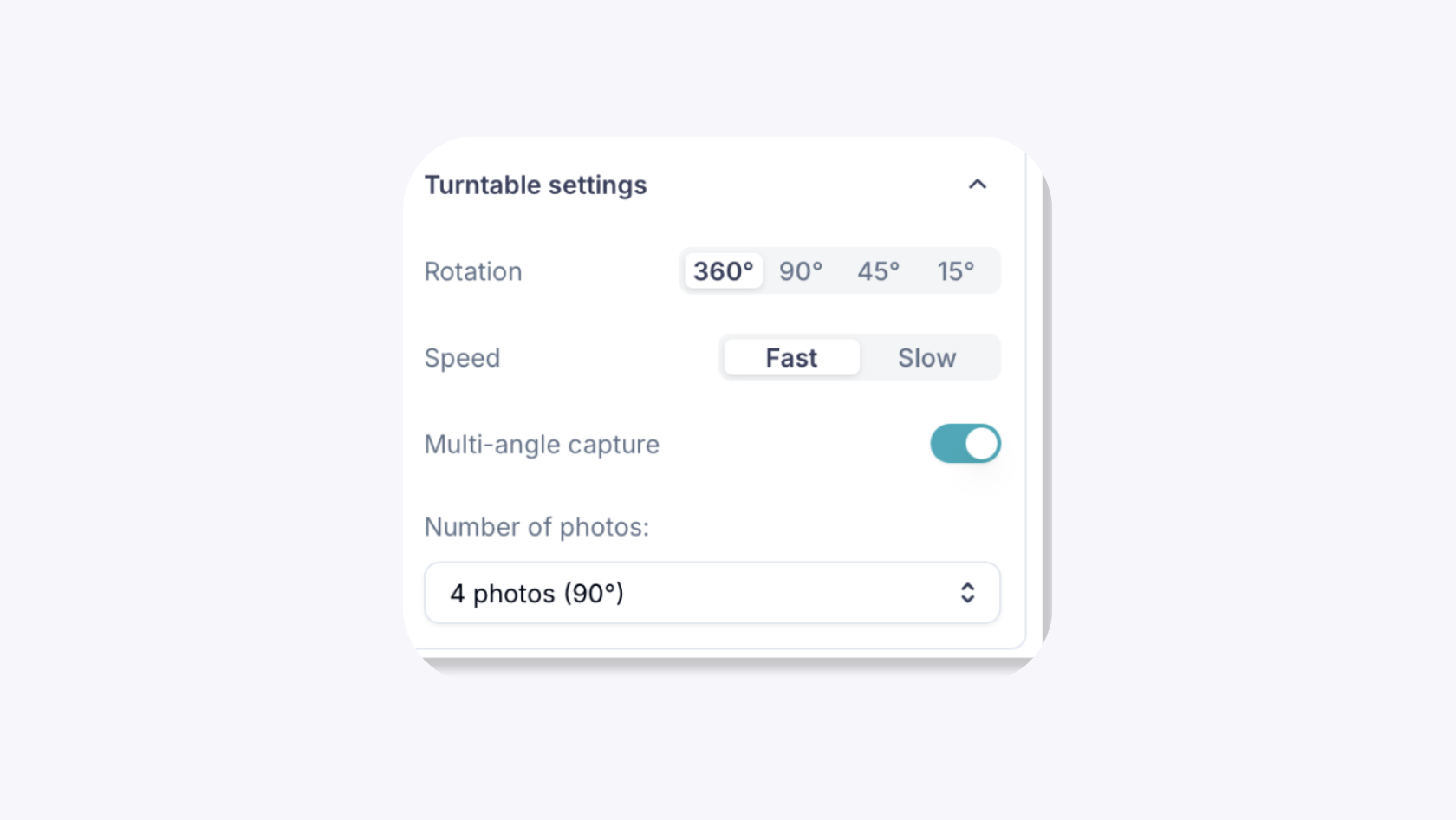
Rotation#
Select the angle of rotation for your capture. This determines how far the GemLightbox Max turntable will spin:
Angle | Best for |
|---|---|
360° | A complete rotation of your piece — the standard for full turntable videos and 360° interactive product views. |
90° | A quarter rotation, useful for capturing a specific side of a piece. |
45° | An eighth rotation for close incremental views. |
15° | A small, precise rotation — ideal for detailed multi-angle close-ups. |
Speed#
Choose how quickly the GemLightbox Max turntable rotates during a capture. There are 2 modes which you may select from: Fast , Slow.
Multi-angle capture
Turn this on to have GemCam Pro automatically capture a series of still photos at evenly spaced points during the turntable's rotation. This gives you a set of angles around the piece without manually repositioning it between each shot.
Number of photos
Choose how many still photos to capture across your selected rotation. Each option shows the angle between shots in parentheses, for example, "4 photos (90°)" captures four images spaced 90° apart.
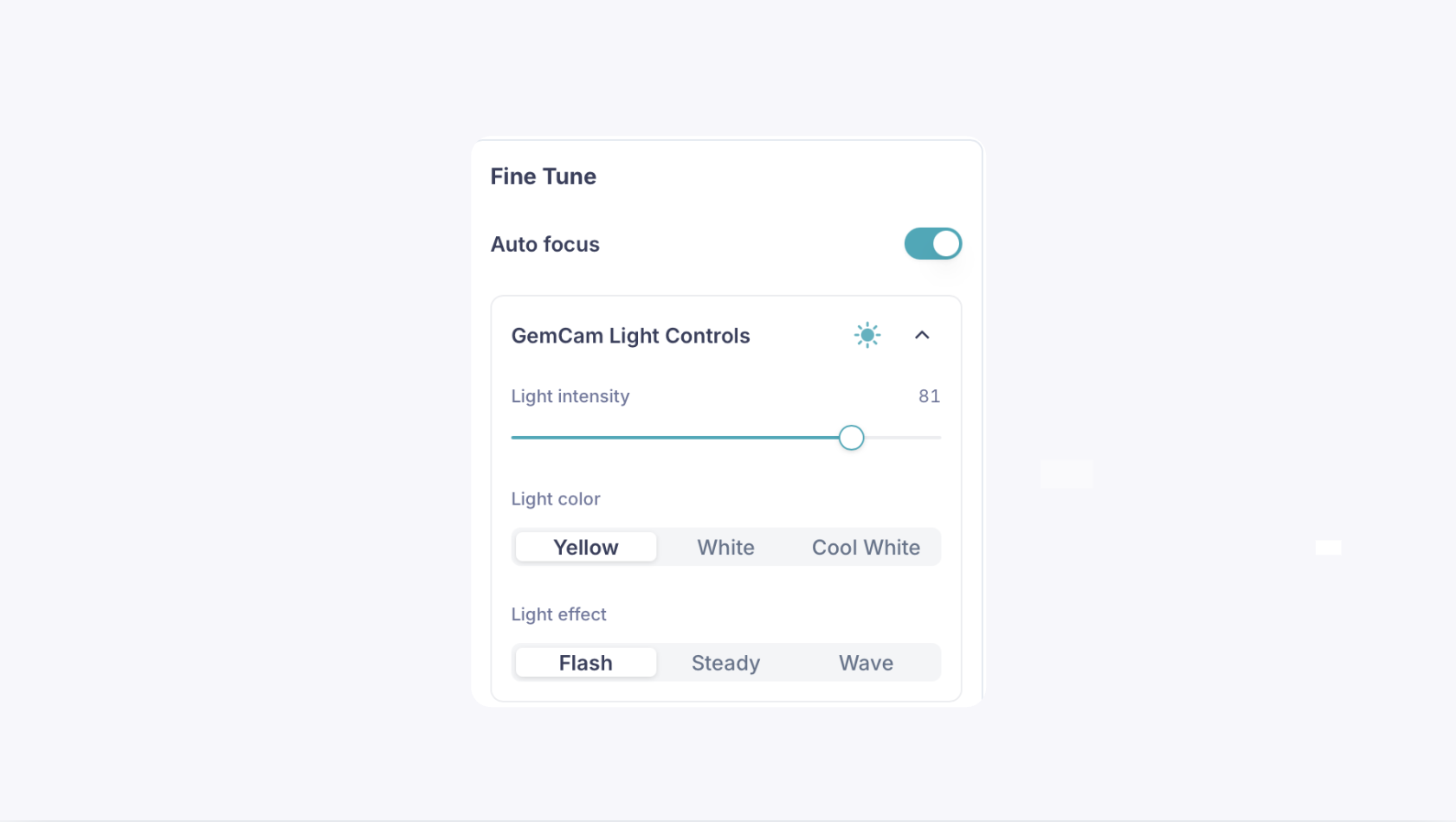
Auto focus
When turned on, GemCam automatically keeps your jewelry piece in sharp focus as you shoot, adjusting as the piece rotates or you reposition it, so you don't need to refocus manually between captures.
Light intensity
Controls the brightness of GemCam's built-in light on a scale. Higher values add more illumination for smaller stones or darker pieces; lower values help avoid blown-out highlights or glare on very reflective metals.
Light color
Option | Best for |
|---|---|
Yellow | Warmer tone that brings out the richness of yellow gold and warm-toned metals |
White | Neutral, general-purpose lighting for most pieces |
Cool White | Cooler, brighter tone that suits silver, platinum, white gold, and diamonds |
Light effect
Option | Best for |
|---|---|
Flash | The LEDs flash in sequence around your piece, creating a sparkling, brilliant look, great for diamonds and gemstones, especially in video |
Steady | Constant, continuous light — useful when shooting live view or video |
Wave | Light pulses/cycles in a moving pattern, typically used to create sparkle and movement on faceted gemstones in video |
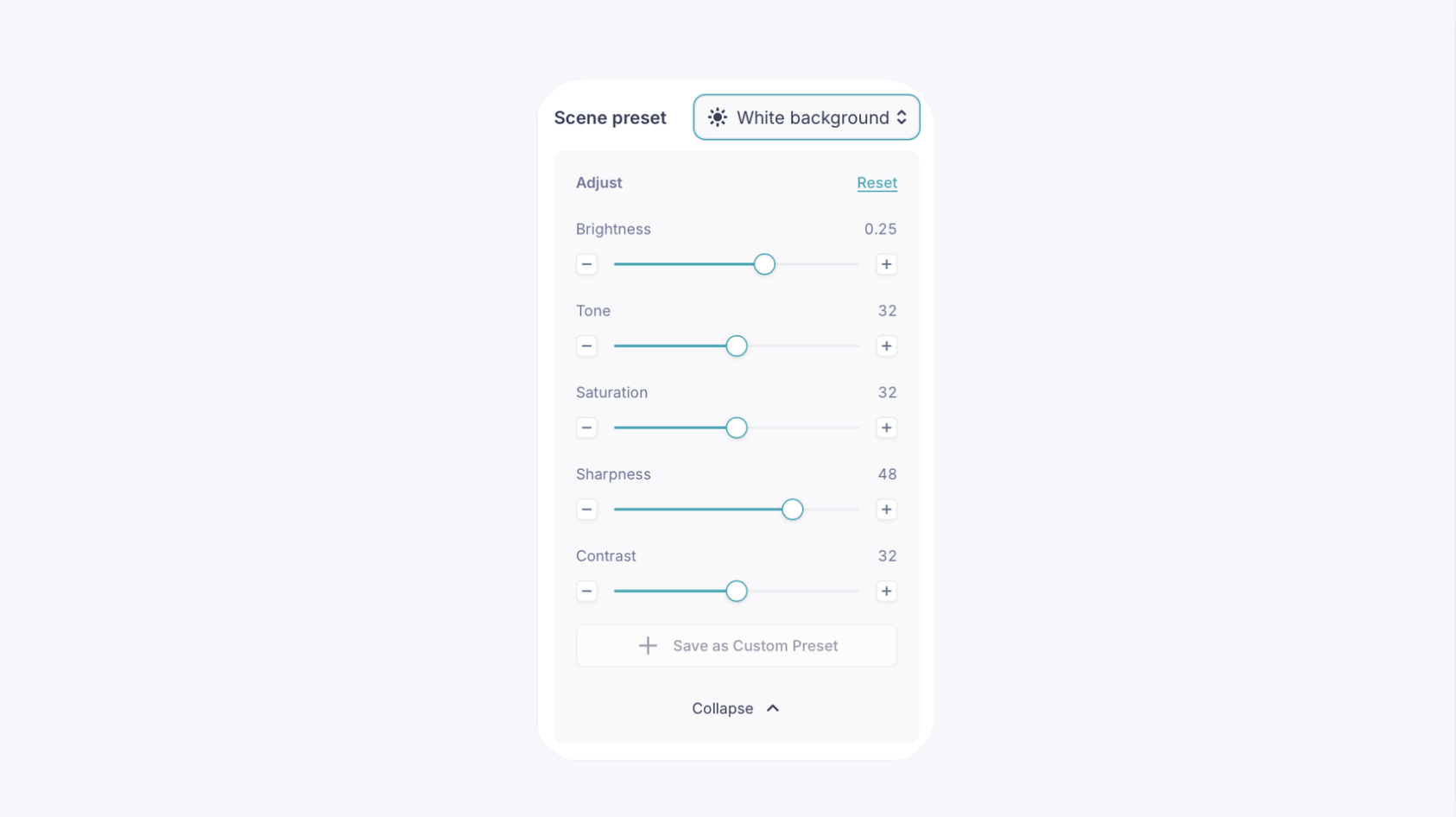
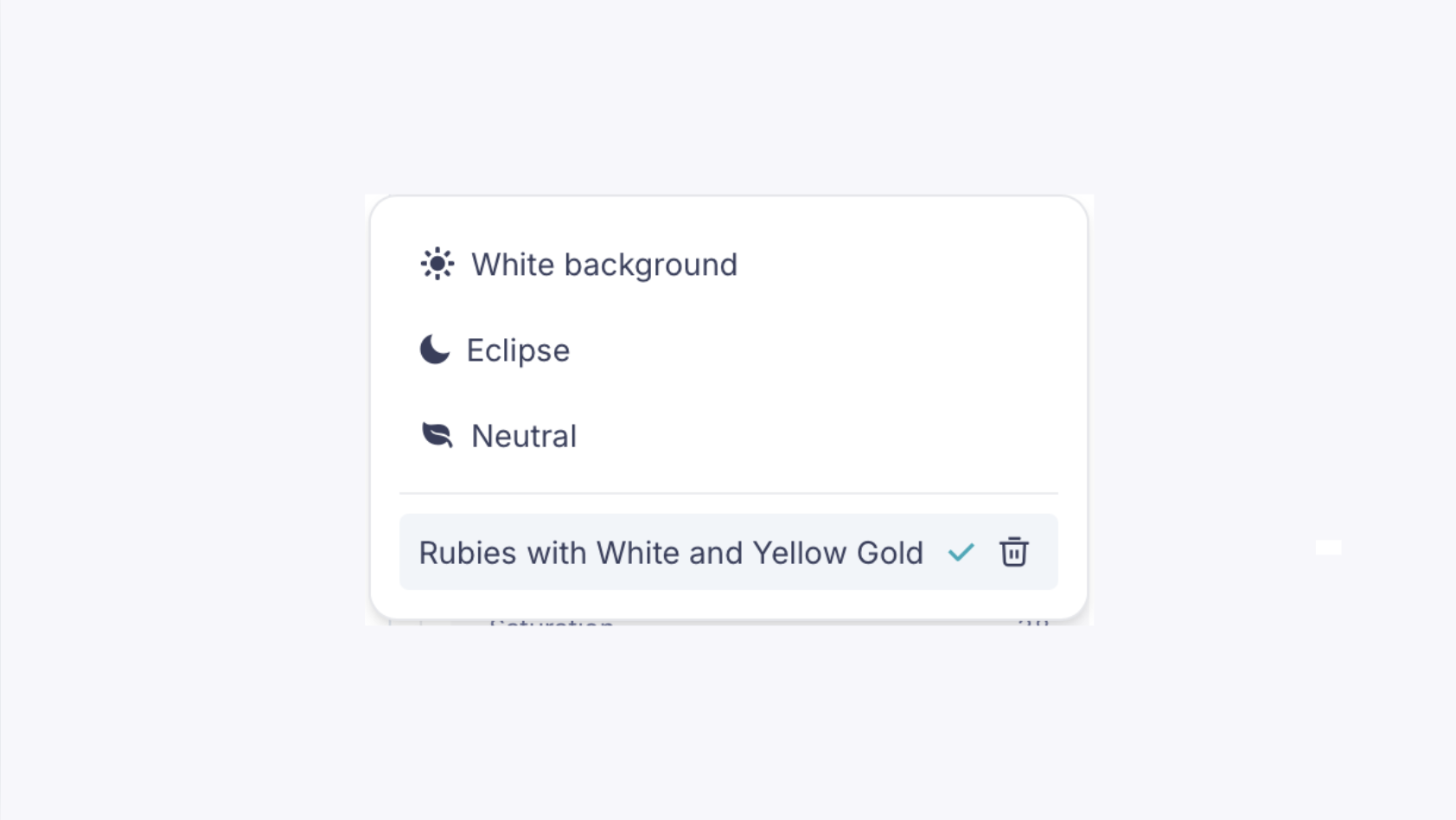
Scene Preset This dropdown gives you a ready-made starting point built for a specific look. There are three built-in presets to choose from:
Preset | Best for |
|---|---|
White Background | A bright, clean look for a classic white product background |
Eclipse | A darker, moodier look suited to a black background |
Neutral | A balanced, natural starting point with minimal adjustment |
Selecting one automatically sets up Brightness, Tone, Saturation, Sharpness, and Contrast to suit that look, so you're not starting from scratch every time.
Any presets you've saved yourself (see Save as Custom Preset below) appear underneath the built-in ones, each with a trash icon so you can delete it if you no longer need it.
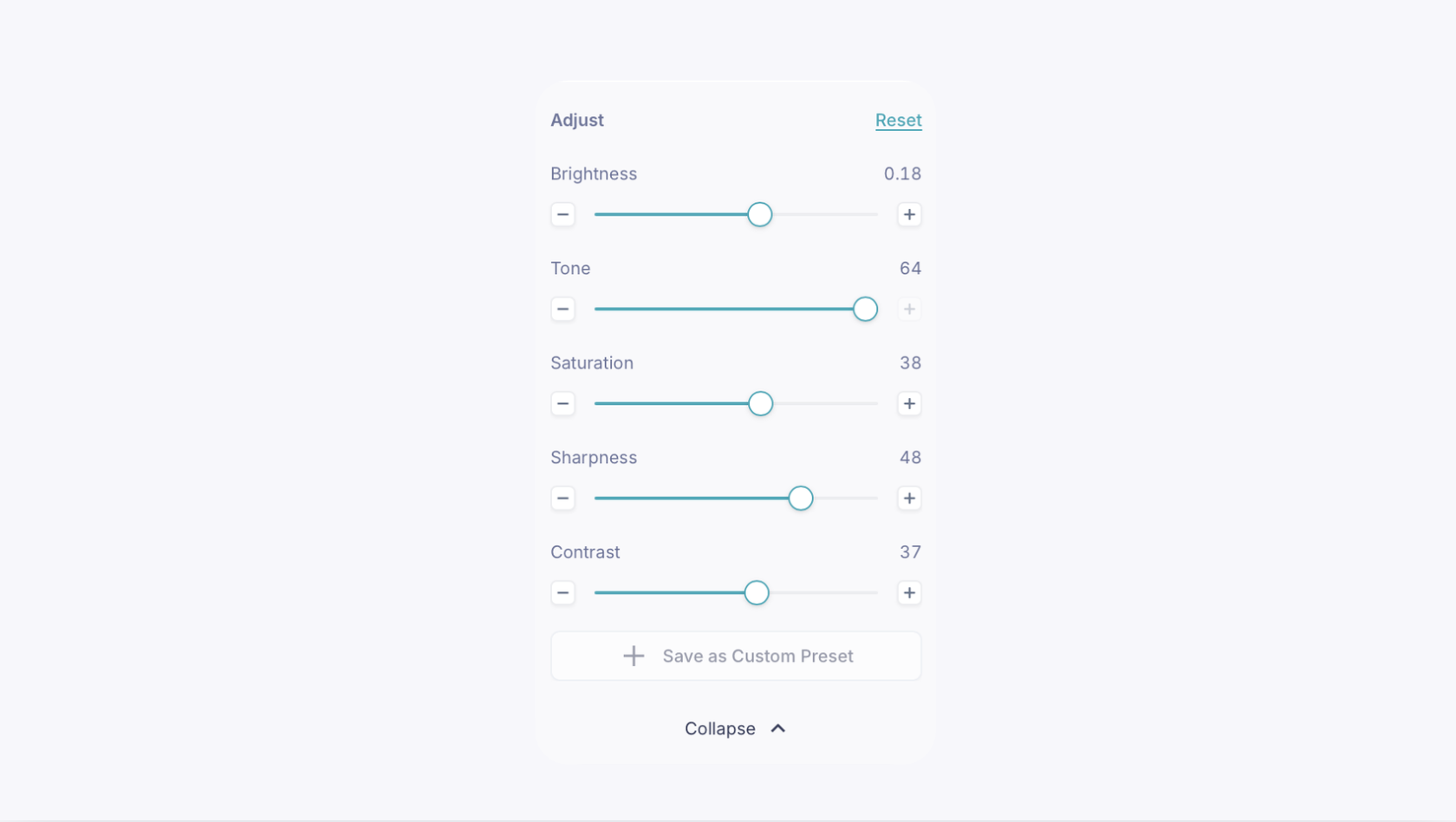
Brightness
Controls how light or dark your image looks overall. Turn it up if your photos are coming out too dark or dull, or turn it down if they look washed out or overexposed.
Tone
Adjusts the warmth or coolness of the color in your image. Shifting this can make your piece look warmer (more gold/yellow) or cooler (more blue/white) depending on the metal and background you're working with.
Saturation
Controls how vivid or muted the colors in your image appear. Increase it to make gemstones or colored metals pop, or decrease it for a softer, more natural look.
Sharpness
Controls how crisp fine details and edges look, such as facets on a stone or engraving on metal. Increase it to bring out detail, but going too high can make the image look grainy.
Contrast
Controls the difference between the lightest and darkest parts of your image. Higher contrast gives a bolder look with brighter highlights and deeper shadows; lower contrast gives a softer, flatter look.
Reset Tap Reset to bring all five sliders back to the preset's original default values.
Save as Custom Preset
Once you've adjusted the sliders to a look you like, save it as your own preset so you can apply the same settings to future shoots without redoing the adjustments each time.
Capture Options
The Left and Right buttons manually rotate your turntable to position your piece, and the Record button in the middle starts your capture.
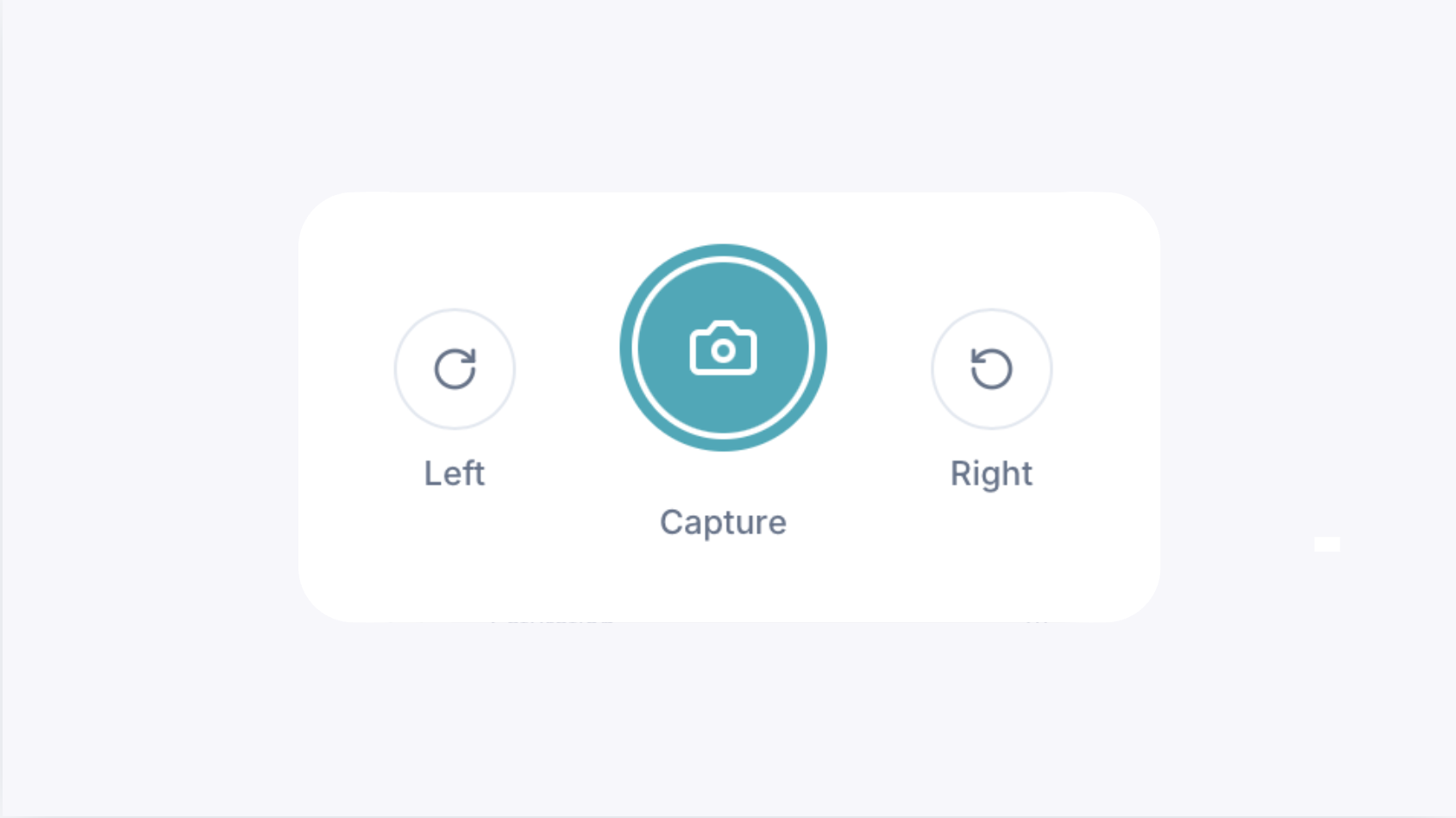
Left and Right These two buttons let you manually rotate the turntable in either direction, so you can line your piece up exactly how you want before you start shooting. Use them to fine-tune the starting position, especially if your piece needs a specific angle to face the camera first.
Record The blue or red button in the middle starts your capture. Depending on your current mode, this begins either a photo capture (including any multi-angle sequence you've set up) or a video recording.