

How to Check Your AI Feature Usage on the Free Plan#
Quick Answer#
Free Plan users receive 10 trial uses per month for each of three AI features: AI Background Removal, AI Retouching, and AI Dust Removal. You can check how many uses you have left directly in GemIQ by opening any image and tapping the edit icon.
Before You Start#
The GemIQ application is installed on your device.
You are signed in to your Free Plan account.
You have at least one image saved in your gallery.
What the Free Plan Includes#
Free Plan users receive 10 trial uses per month for each of the following AI features:
AI Background Removal
AI Retouching
AI Dust Removal
Each feature has its own separate quota. Uses reset at the start of each calendar month.
Steps#
Open your gallery. Launch GemIQ and select any image from your gallery.
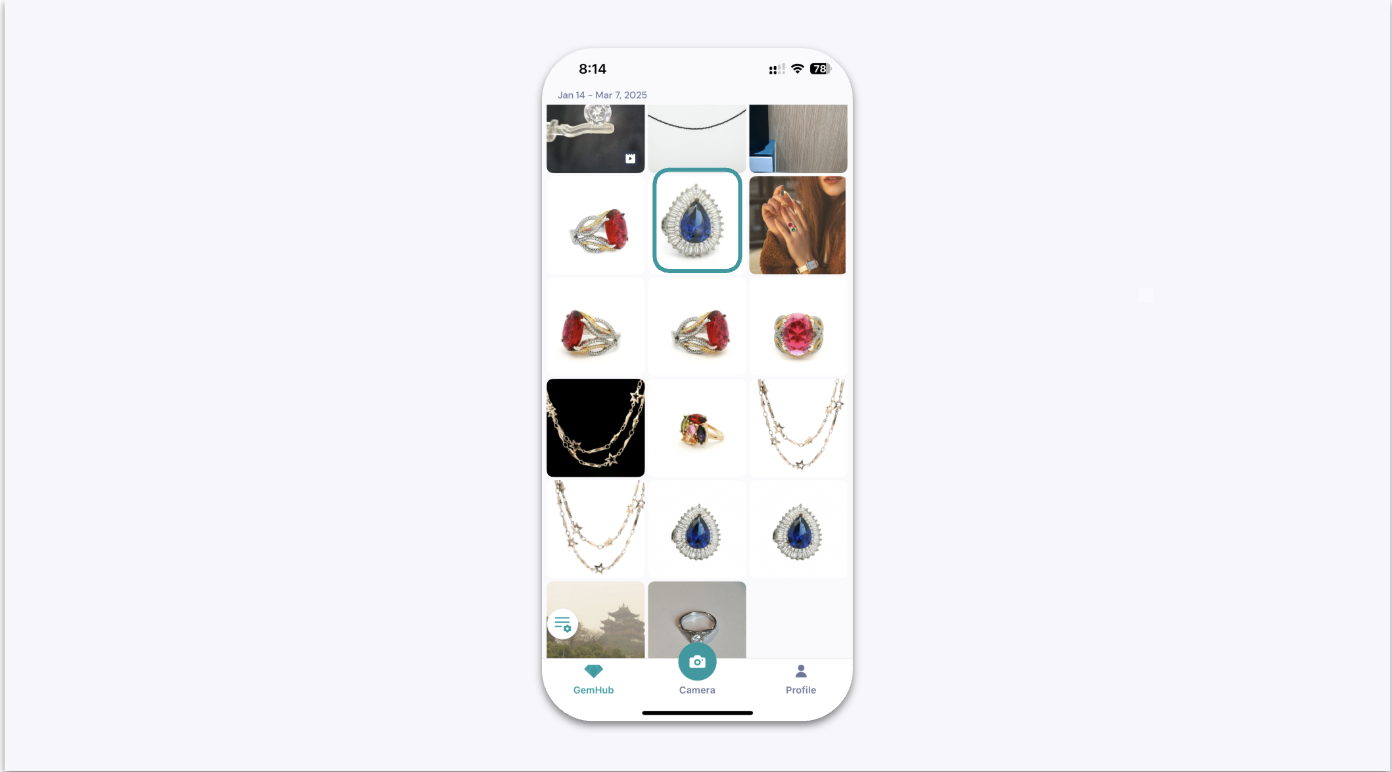
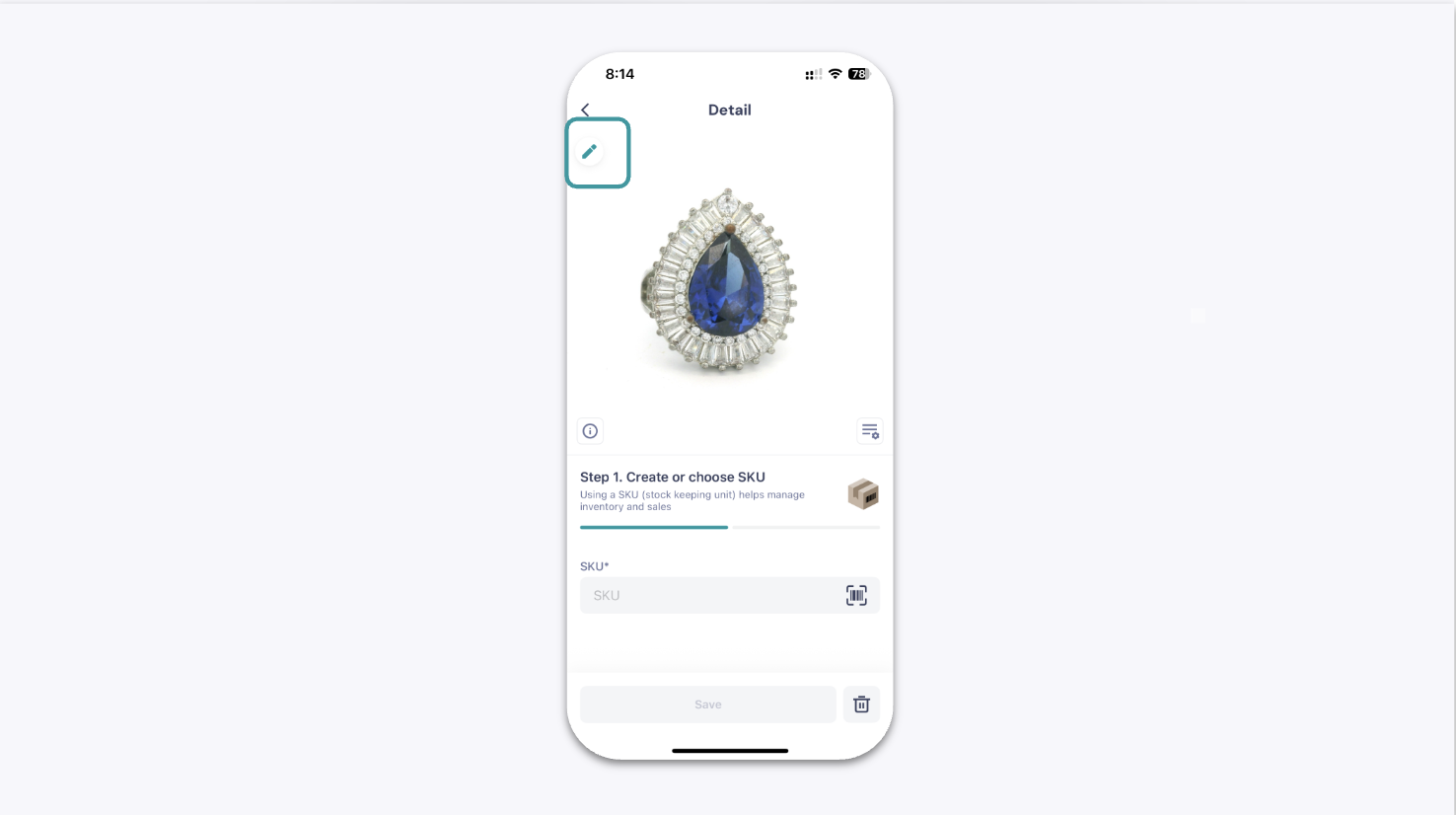
Open the Edit Media tool. Tap the pencil icon at the top-right corner of the image.
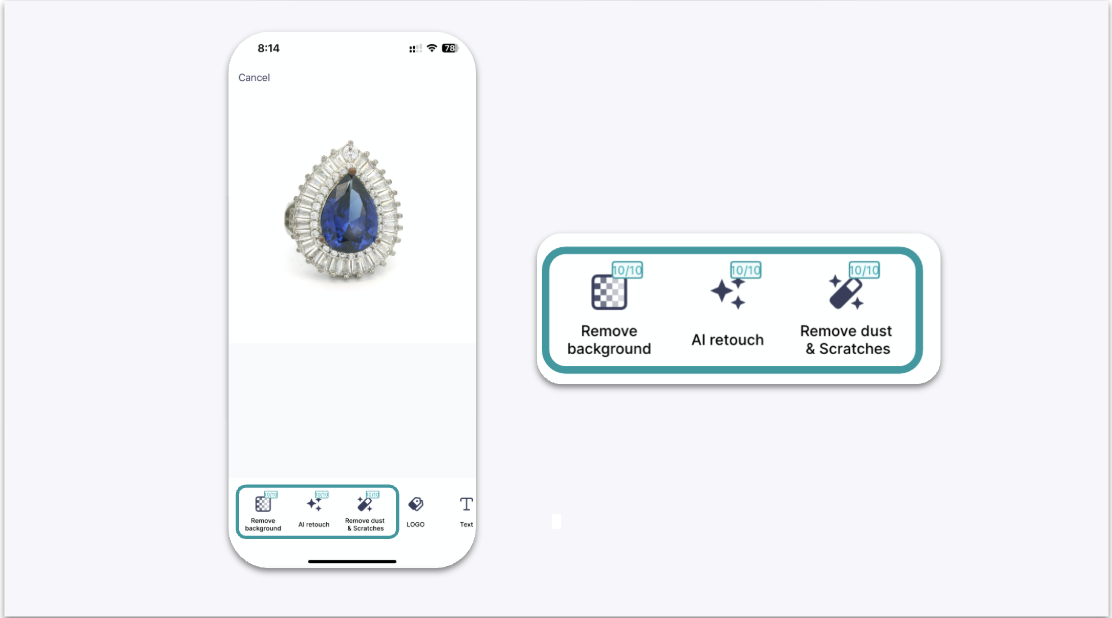
Check your remaining uses. The app displays how many trial uses you have left this month for each AI feature.
Expected Result#
Inside the Edit Media tool, you can see a remaining use count for each AI feature — AI Background Removal, AI Retouching, and AI Dust Removal.
If This Does Not Work#
The pencil icon is not visible: Make sure you have tapped an image to open it first, then look for the icon in the top-right corner.
No use count is displayed: Close and reopen the app, then try again. If the count still does not appear, contact support.
Uses show as zero but the month just started: Monthly quotas reset at the start of each calendar month. Try signing out and back in to refresh your account data.
Common Mistakes#
Thinking uses are shared across features. Each AI feature has its own quota of 10 uses per month — they are not pooled.
Not acting before the quota runs out. Once a feature's monthly quota is used up, that feature is unavailable until the next month unless you upgrade to a paid plan.
Looking in the wrong place. The usage counter is inside the Edit Media tool, not on the main account or settings page.