

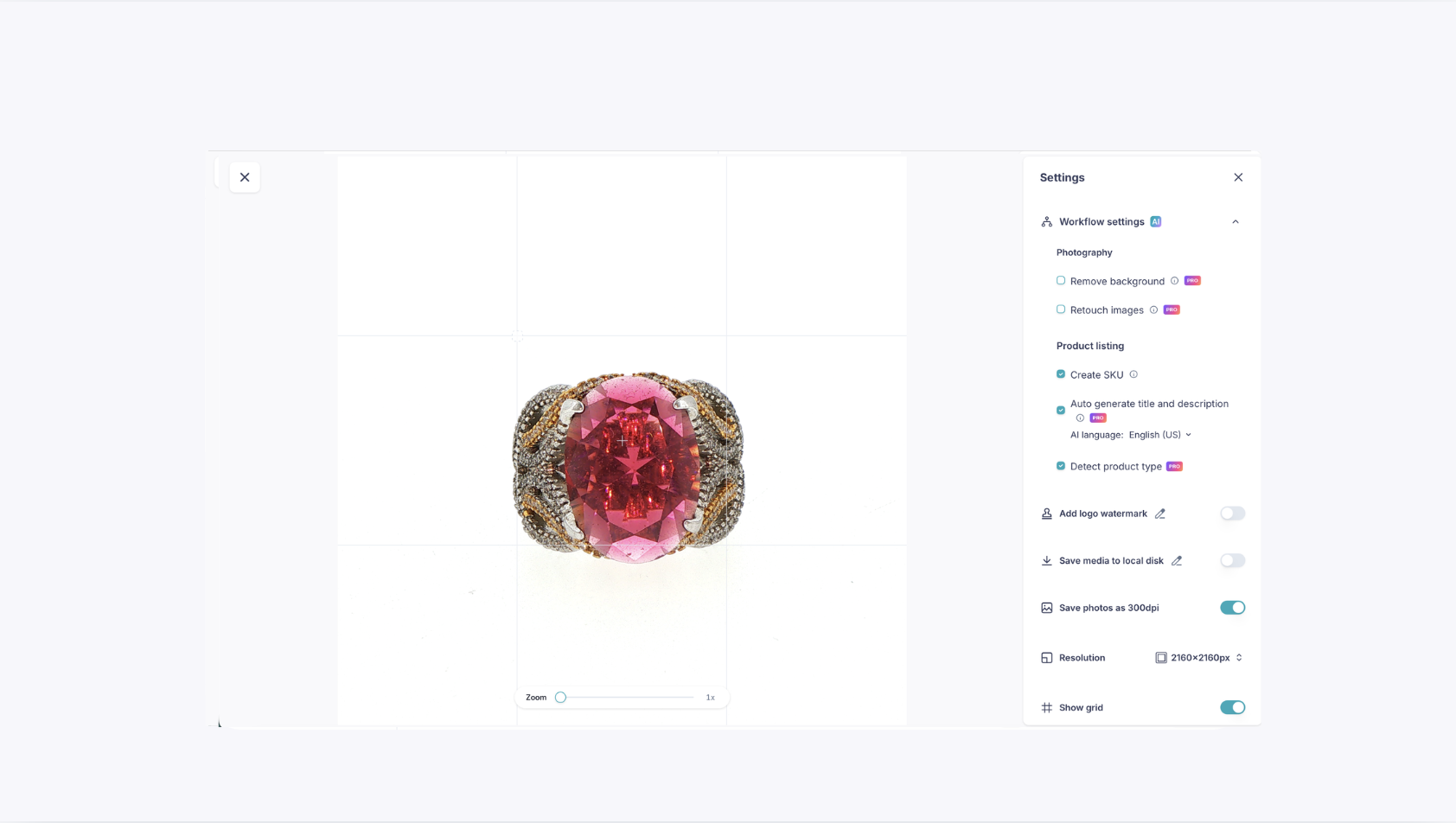
Before you start shooting, it's worth setting up GemIQ's Settings panel, it controls how your images are automated, saved, and framed, so you don't need to adjust things manually for every capture.
Tap the gear icon in the top right of the GemIQ capture screen to open Settings, where you can turn on AI workflow automations, set up watermarking, choose your save quality and resolution, and toggle the framing grid.
How to Access It#
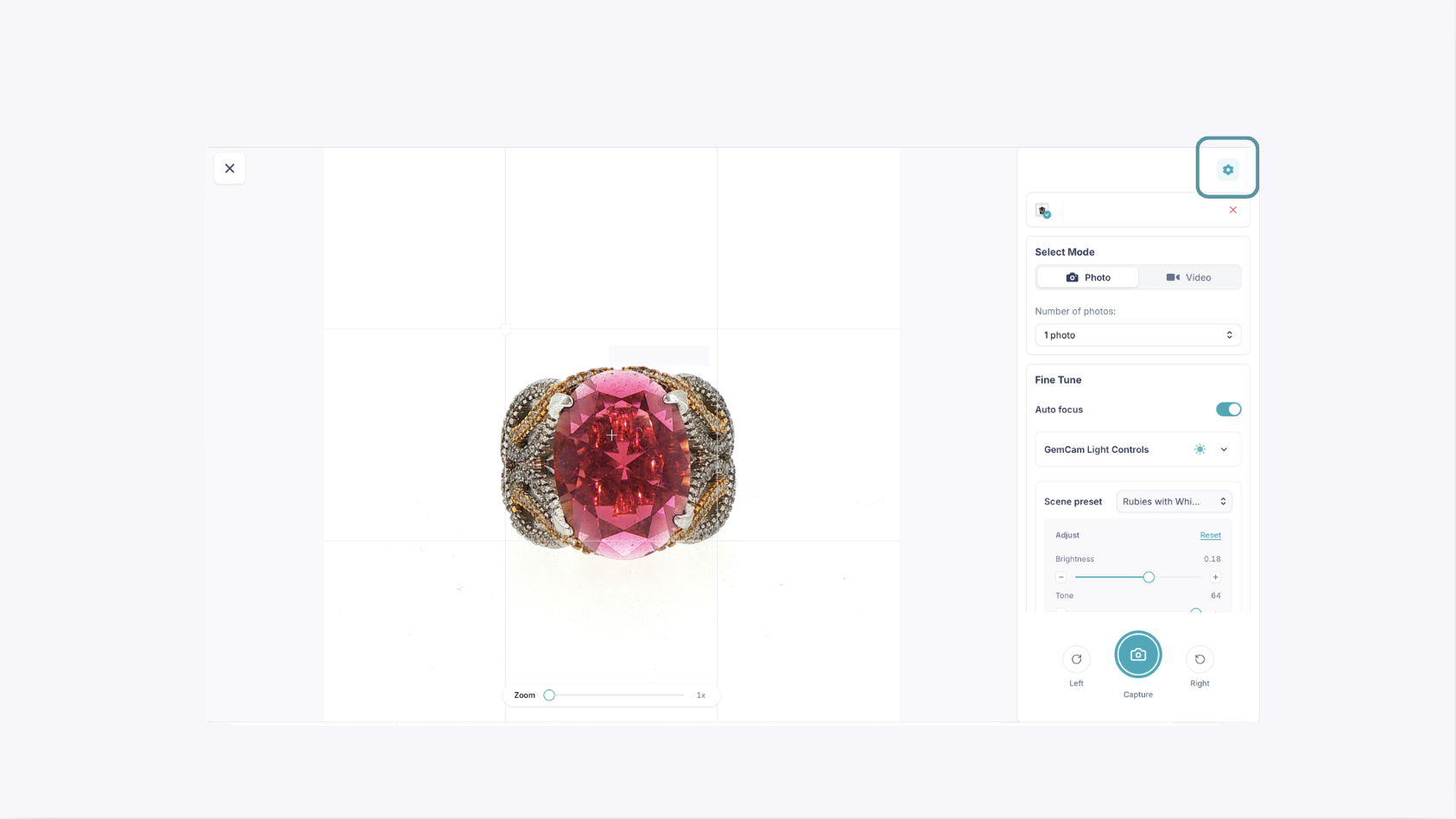
Open GemIQ and go to your capture screen with your device connected (you'll see your connected device, such as your GemLightbox Max, listed at the top).
Tap the gear icon in the top right corner.
This opens the Settings panel.
Workflow Settings (AI)#
This section automates parts of your capture-to-listing process.
Photography
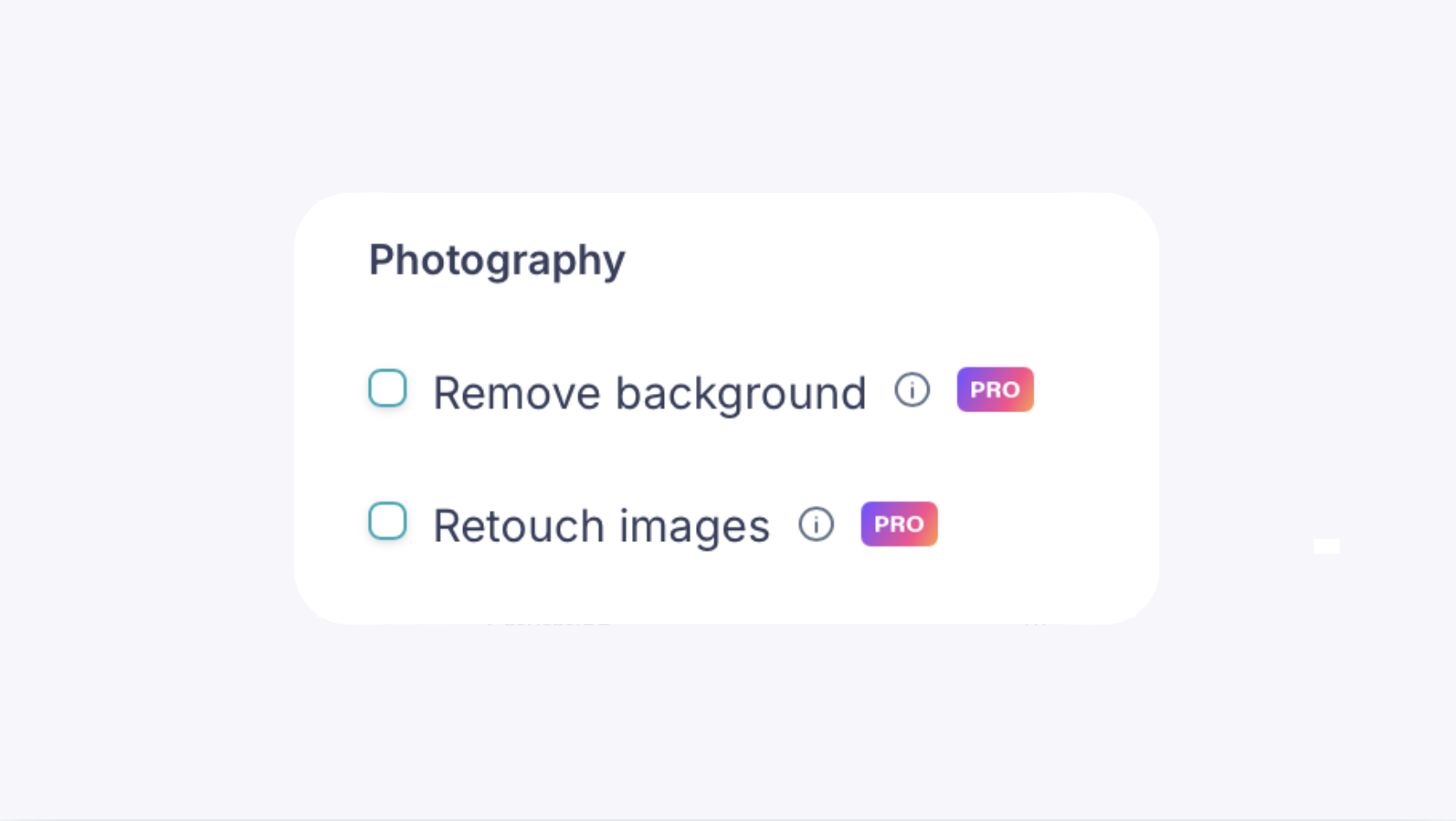
Remove background
This automatically removes the background from every image you capture.
Retouch images
This automatically retouches your captures, cleaning up small imperfections.
Product listing
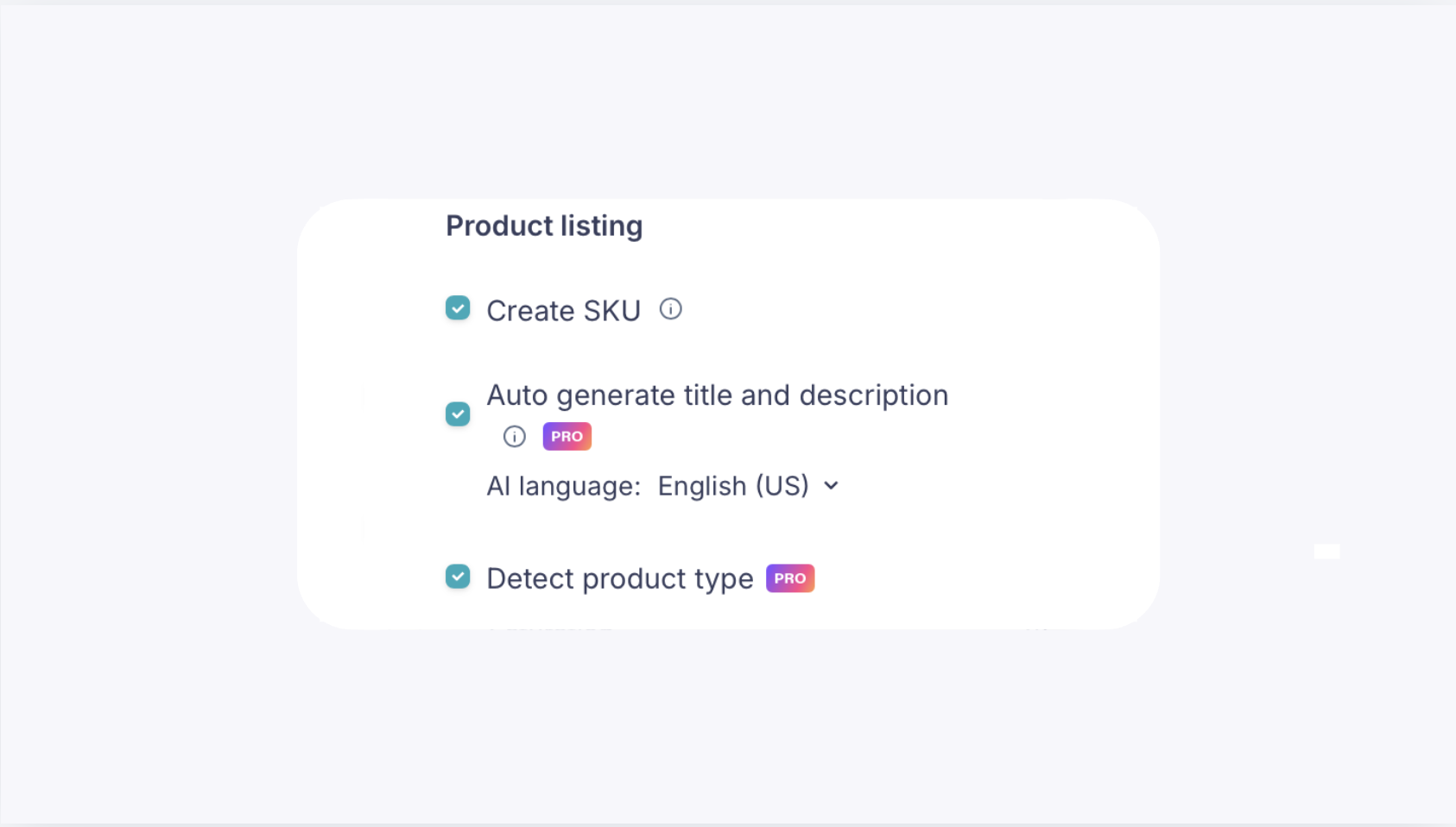
Create SKU
This automatically creates an SKU for each product you capture.
Auto generate title and description
This function allows you to automatically generate a product title and description for you. Use the AI language dropdown underneath to choose the output language.
Detect product type
This function automatically identify what kind of piece you've captured (ring, necklace, earrings, etc.).
Other Capture Settings#
Add logo watermark
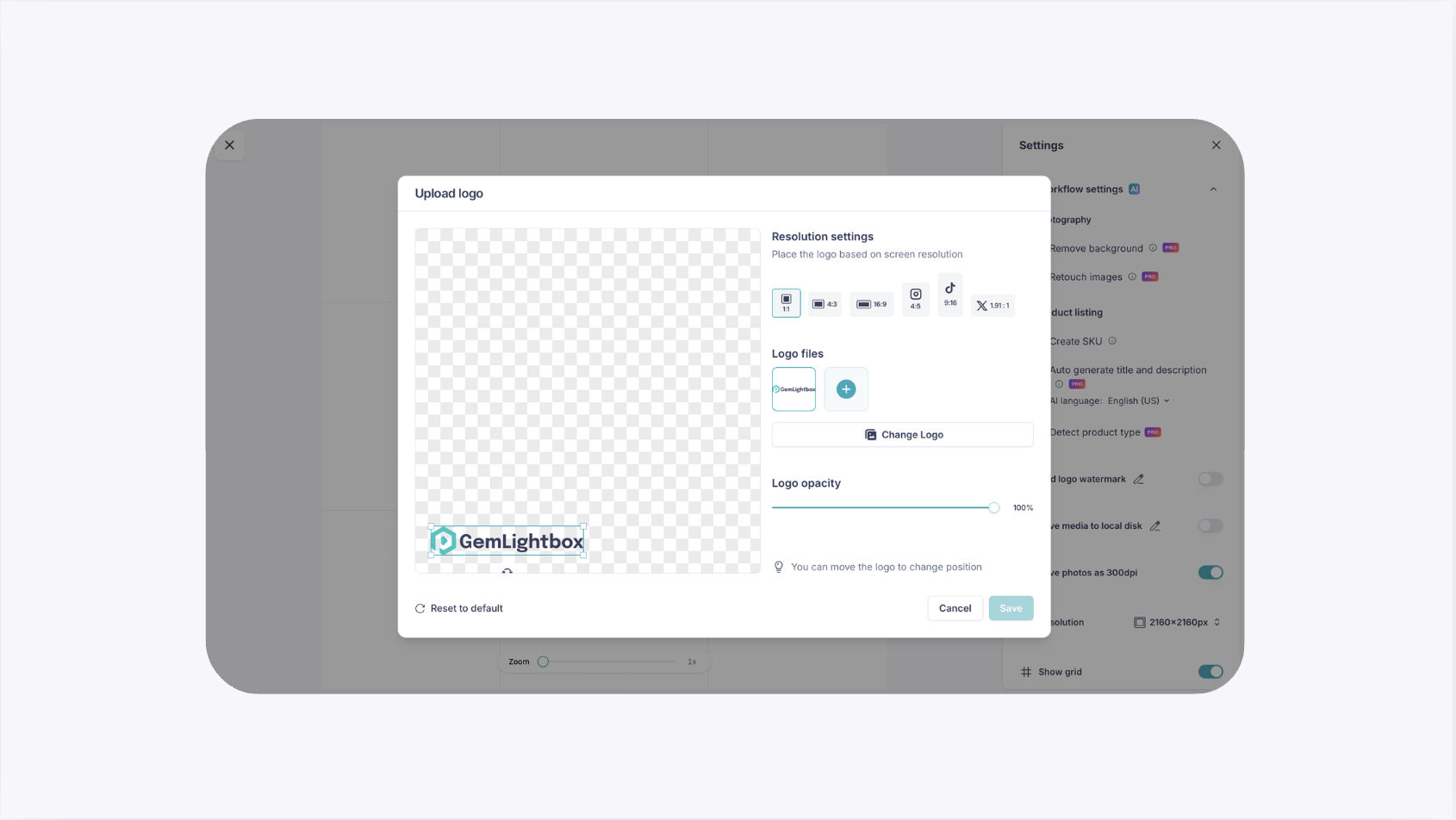
This options allows you to upload and automatically apply your logo watermark to every capture. Tap the pencil icon next to it to upload and position your logo.
Save media to local disk
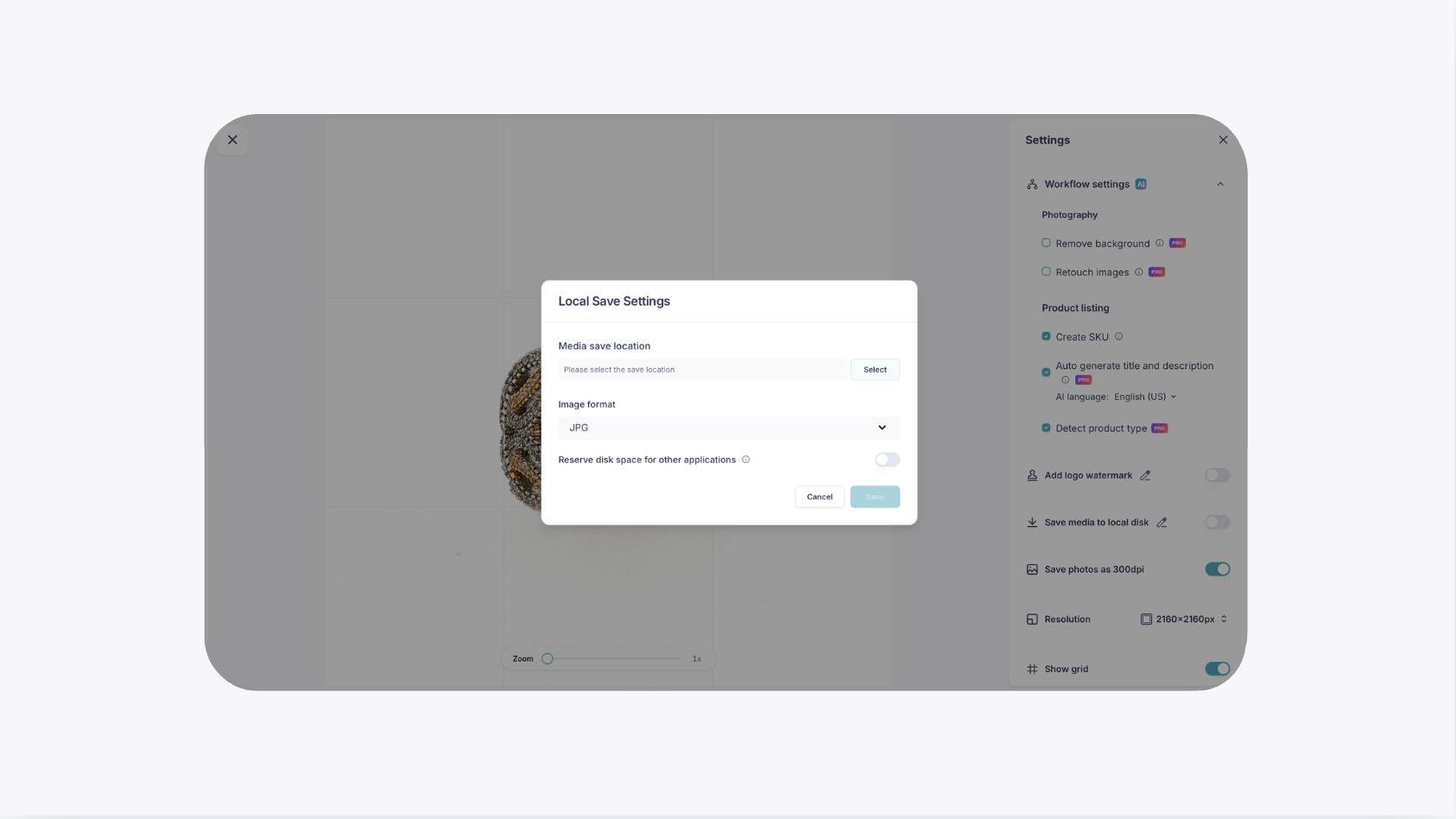
This to also save your photos and videos to your computer, in addition to your GemIQ cloud storage.
Save photos as 300dpi
This allows you to save your images at 300dpi, which is useful if you plan to print your photos or need higher print-quality output.
Resolution
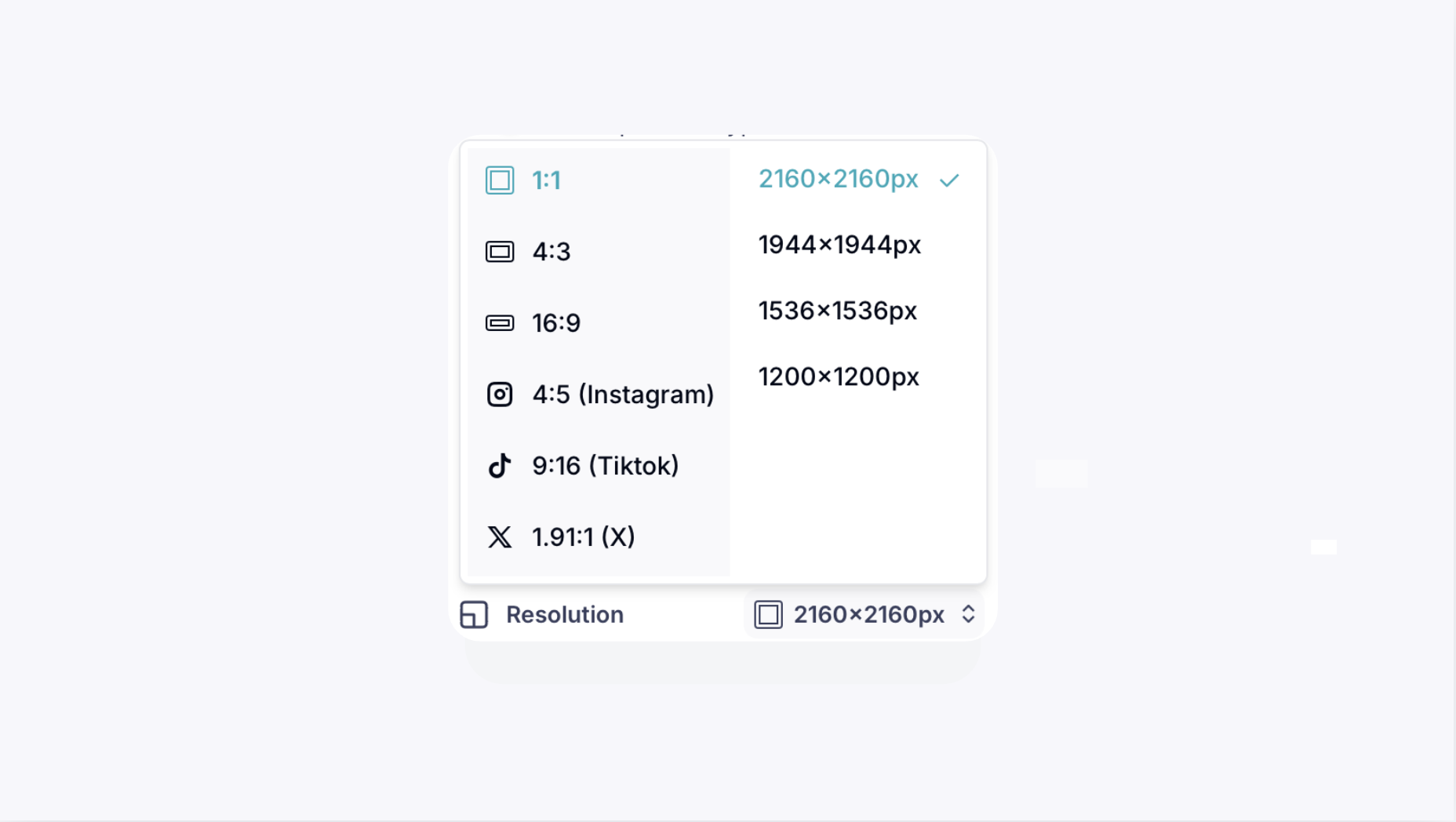
This sets the pixel dimensions of your captured images (for example, 2160×2160px). Choose a higher resolution for more detail, especially for zoomed-in or printed use.
Show grid
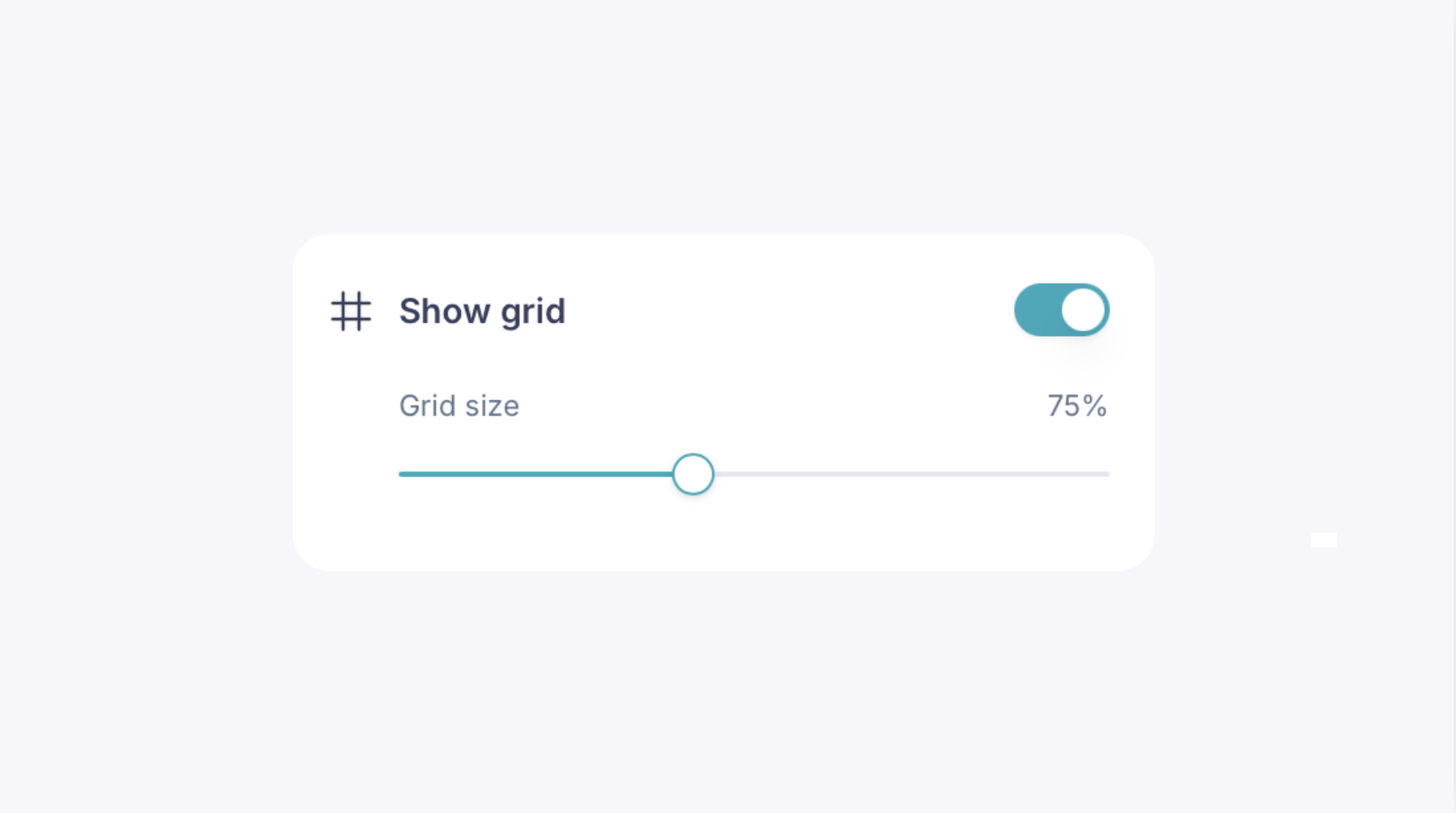
This allows you to overlay a grid on your capture screen, helping you keep your piece centered and level while shooting.
Reset to default
This will allow you to reset all the changes that were made back to default.