Quick Answer#
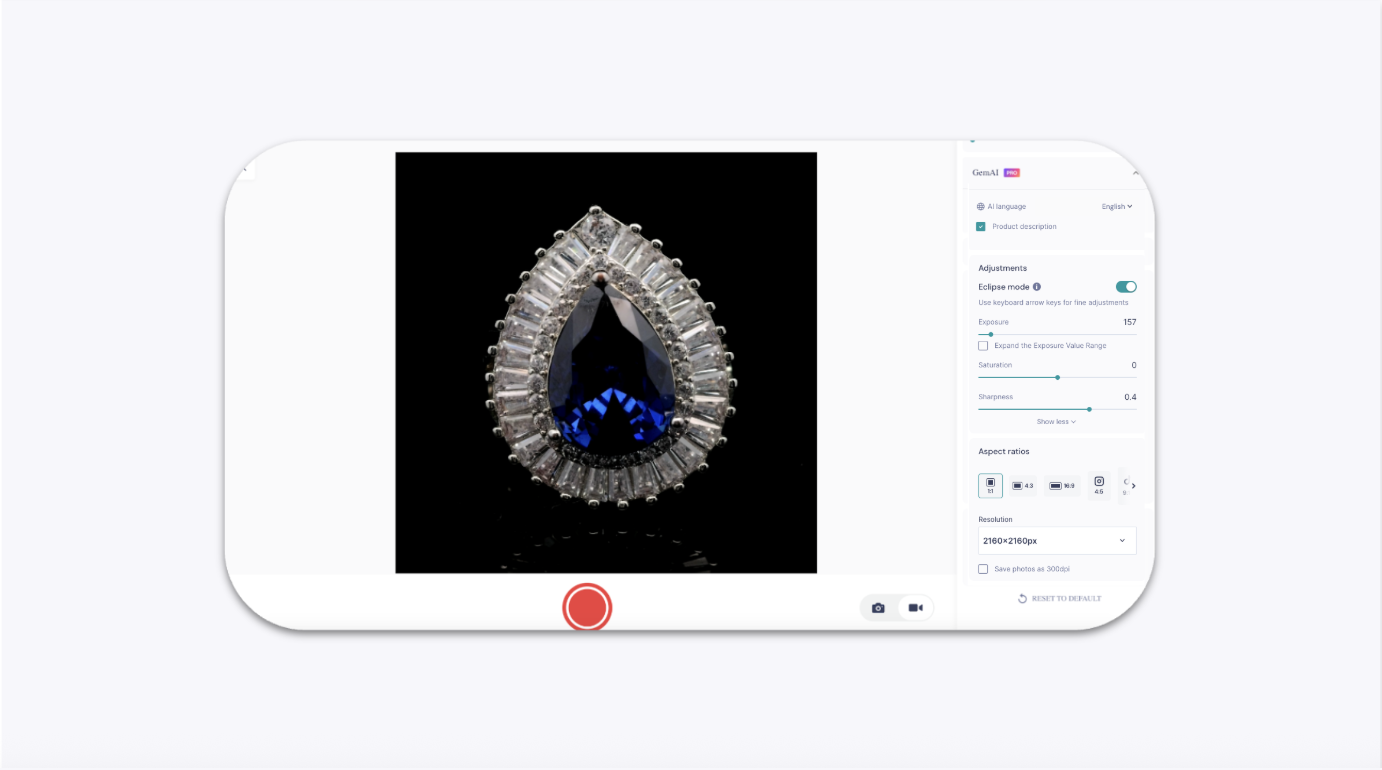
To use the Pro Eclipse, place it inside your GemLightbox Pro and connect your GemCam. In the GemIQ, enable the "Eclipse" preset to optimize the lighting, then position your GemCam to focus on the jewelry and capture your image.
Before You Start#
GemCam, connected to your computer
GemLightbox Pro, connected to a power source
Eclipse turntable accessory
GemIQ installed on your computer
Steps#
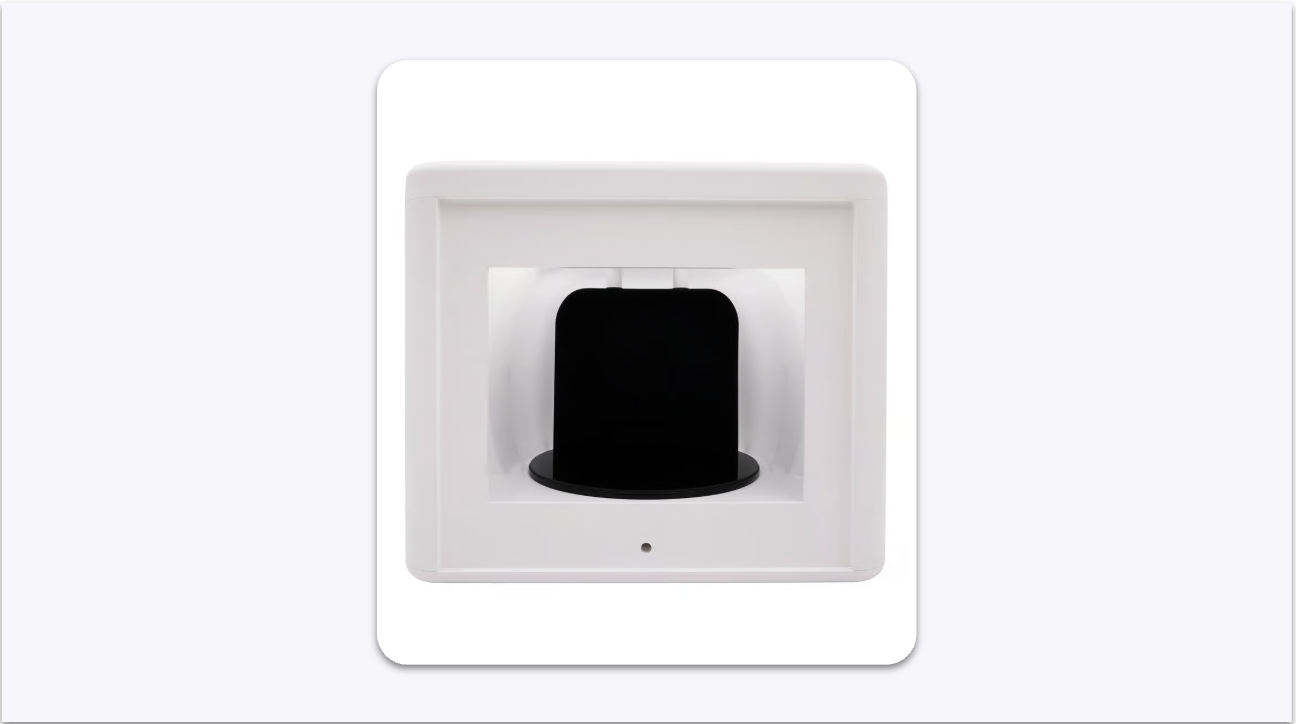
Place the Pro Eclipse inside your GemLightbox Pro, ensuring it is centred under the main light source.
Open GemIQ on your computer and select the GemCam capture function.
In the camera settings, find and enable the Eclipse preset. This adjusts the lighting for the turntable.