Quick Answer#
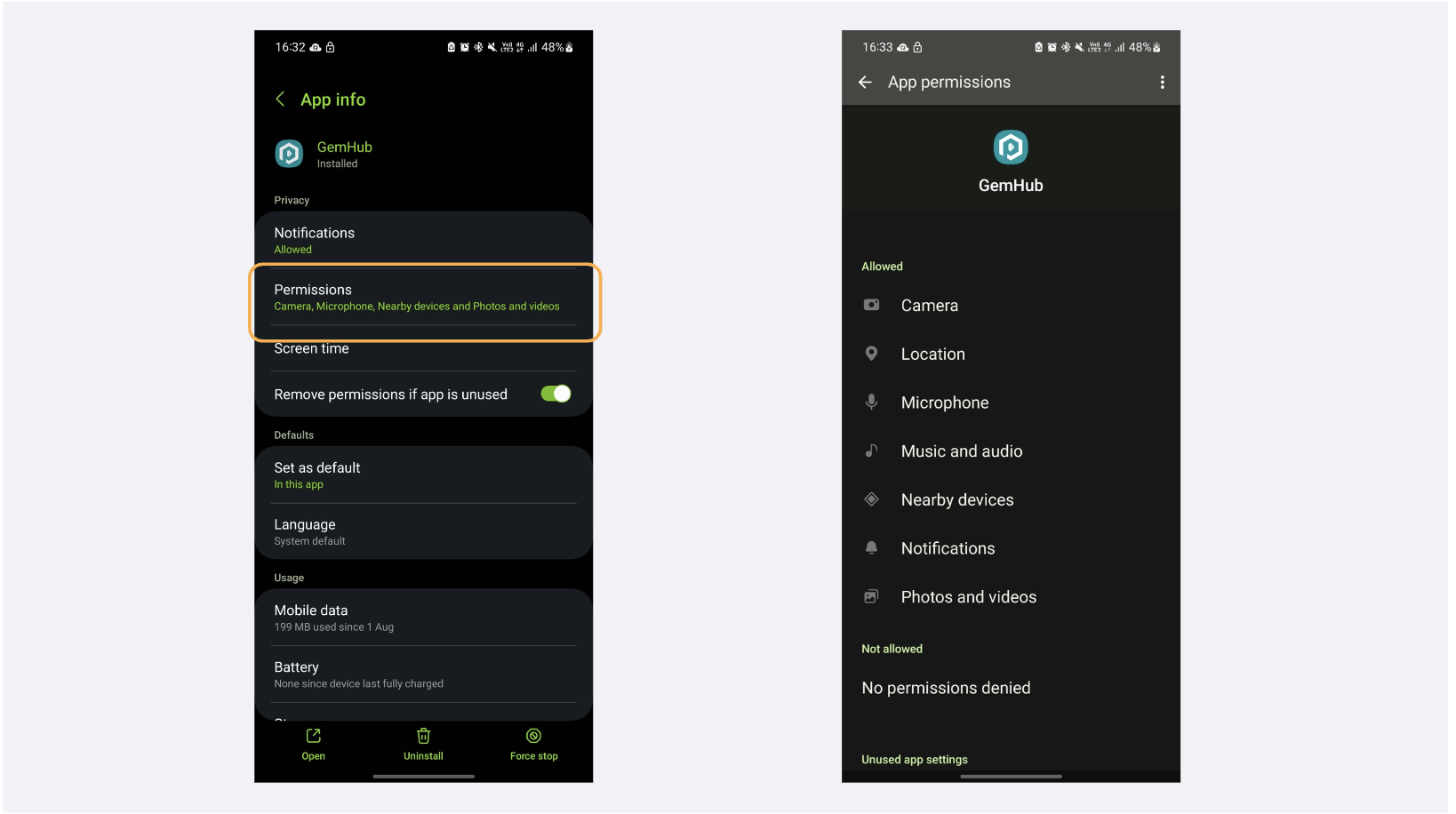
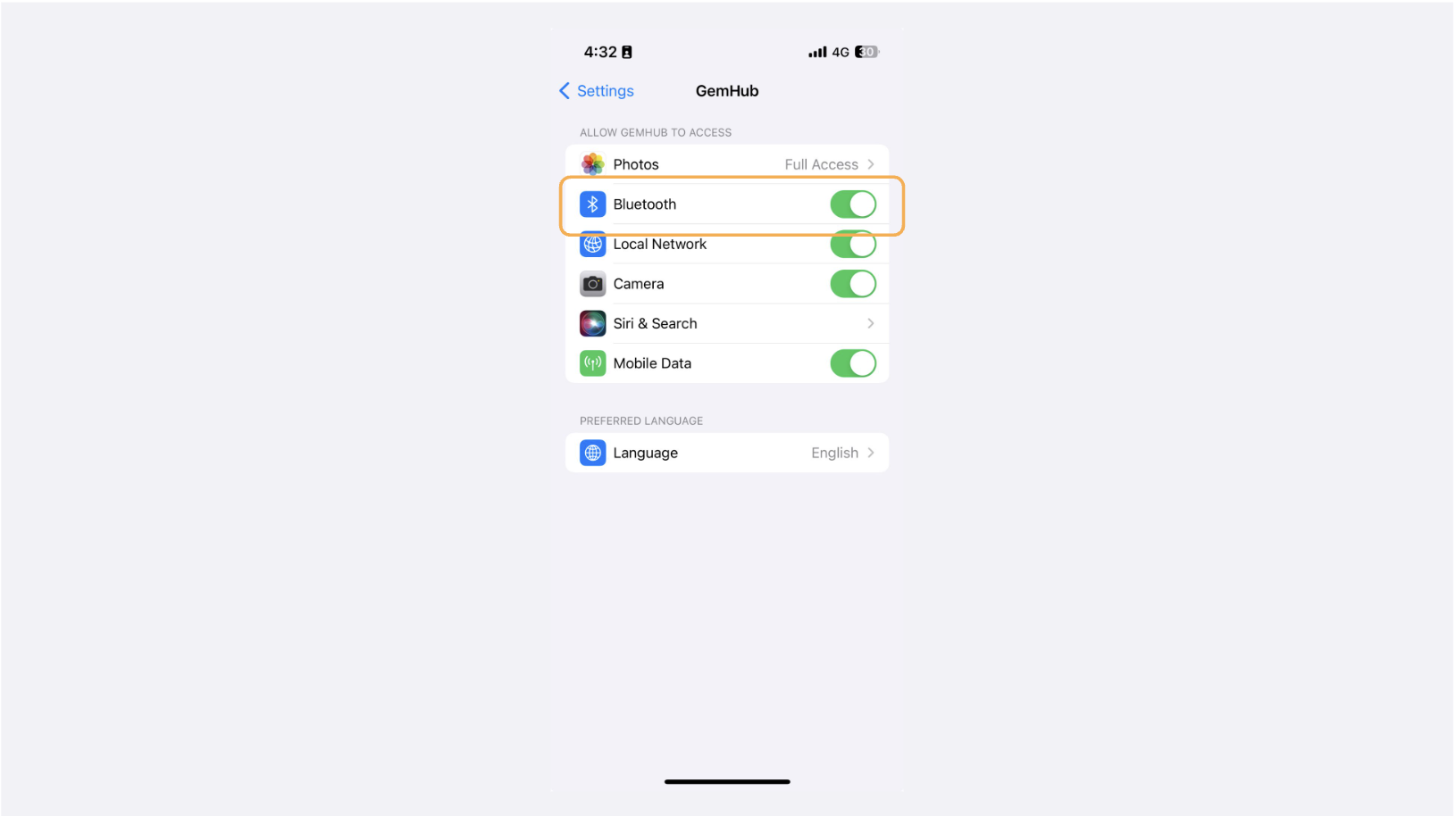
If your GemLightbox device isn't connecting to GemIQ, the most common causes are that Bluetooth is disabled on your phone, the GemLightbox device is not in the correct mode, or the app is missing required permissions. Ensure your device is powered on, in App Mode (for GemLightbox Pro), and that GemIQ has all necessary permissions in your phone's settings.
Before You Start#
Make sure GemIQ is installed on your smartphone.
Confirm your GemLightbox device (GemLightbox, Pro, Turntable, Aerial) is plugged in and powered on.
Enable Bluetooth on your smartphone.
Steps#
Follow these steps to diagnose and fix connection problems.
Check Your GemLightbox Device's Status
For GemLightbox Pro: Make sure the switch on the back of the unit is set to App Mode.
For the Turntable: Check that the white power indicator light on the back is on.