

Quick Answer#
The GemLightbox Pro features two built-in turntables for rotating jewelry during photo and video capture.
Top turntable — designed for hanging jewelry such as necklaces and earrings
Bottom turntable — designed for flat or standing pieces such as rings and other jewelry
The turntables can be controlled through the GemIQ app in App Mode, or operated manually using the Fast and Slow speed settings on the back of the GemLightbox Pro.
Before You Start#
GemLightbox Pro is powered on
GemIQ app is installed and up to date
Bluetooth is enabled on your phone or computer when using App Mode
Your jewelry is positioned securely on the appropriate turntable
Turntable Rotation Options#
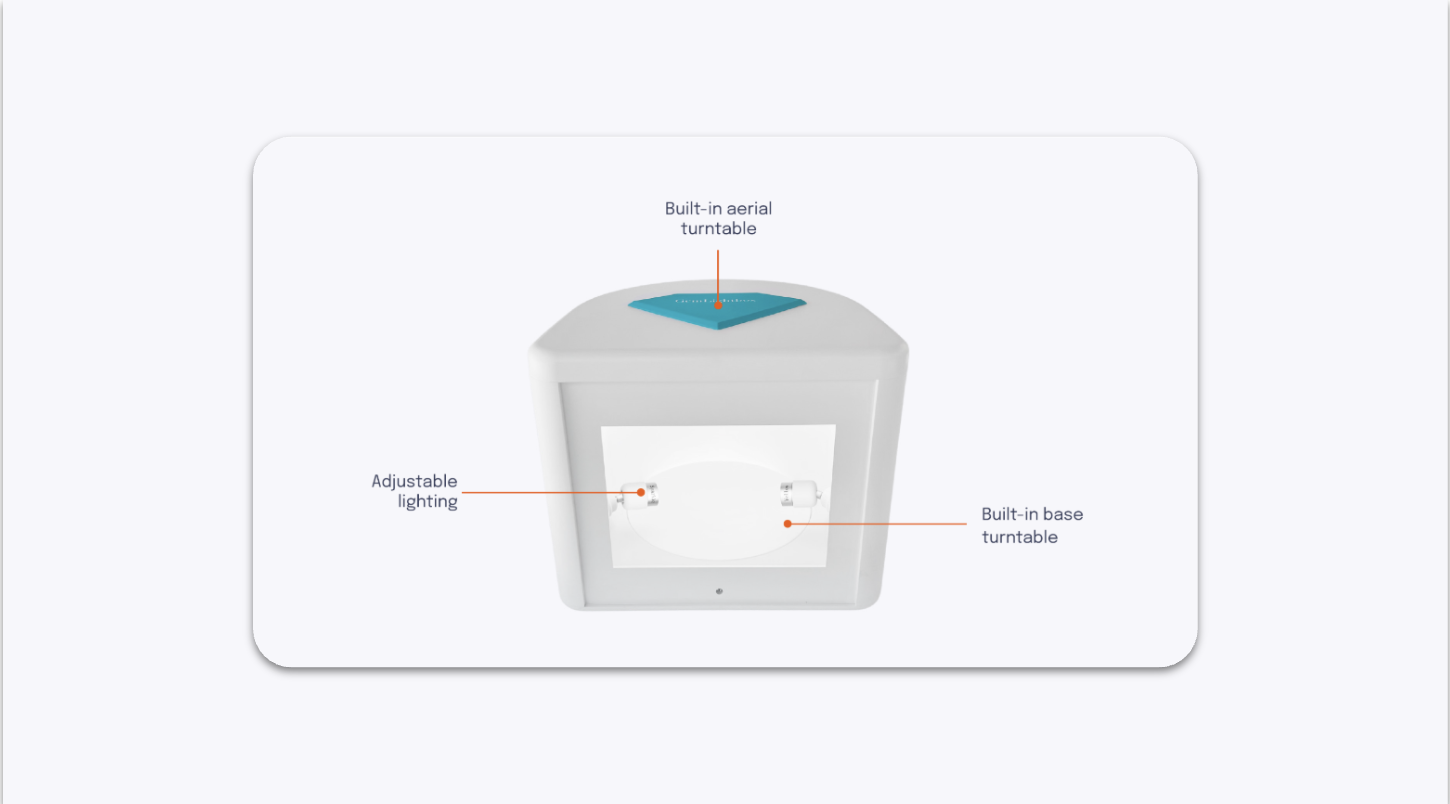
The GemLightbox Pro has two built-in turntables: one at the top and one at the bottom.
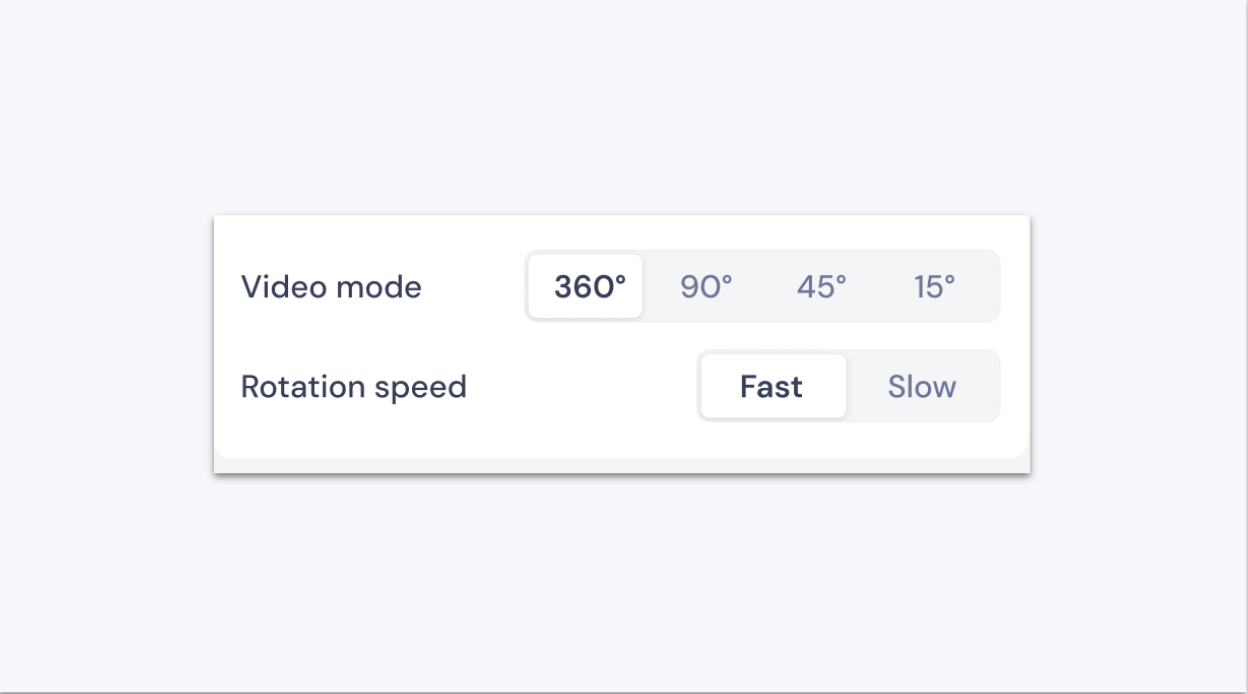
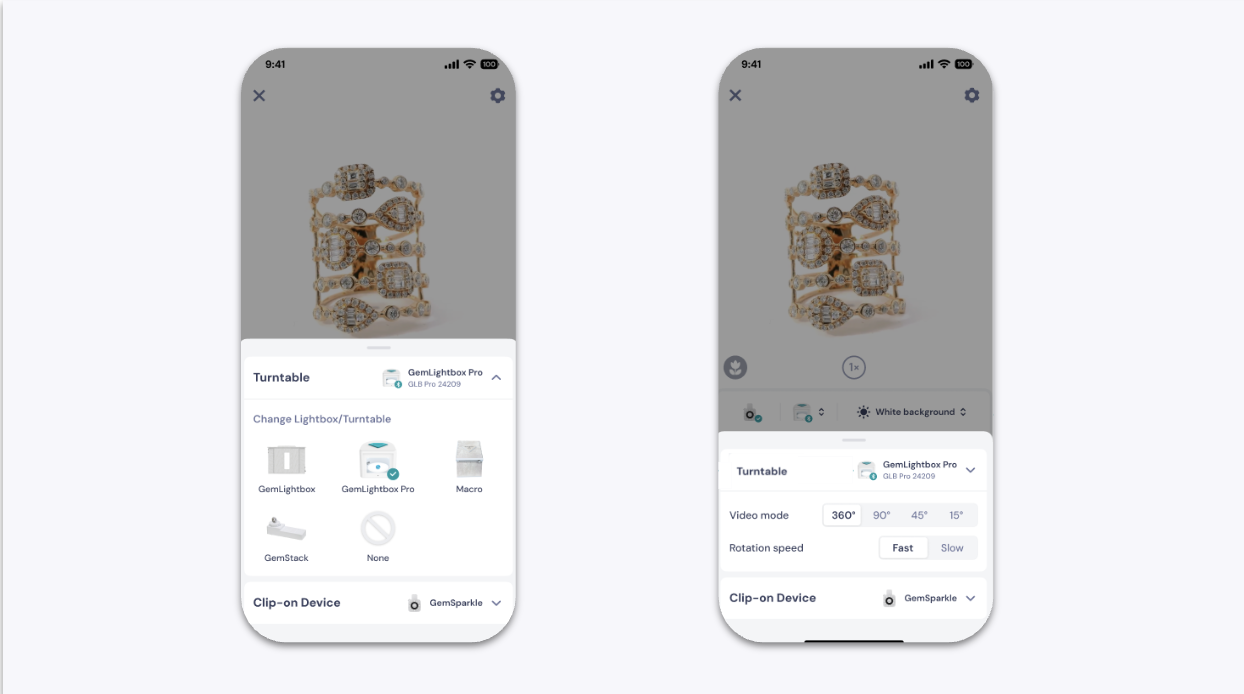
The GemIQ app provides 4 rotation modes and 2 speed settings when the GemLightbox Pro is connected in App Mode.
Steps — Control the Turntable via the GemIQ app#
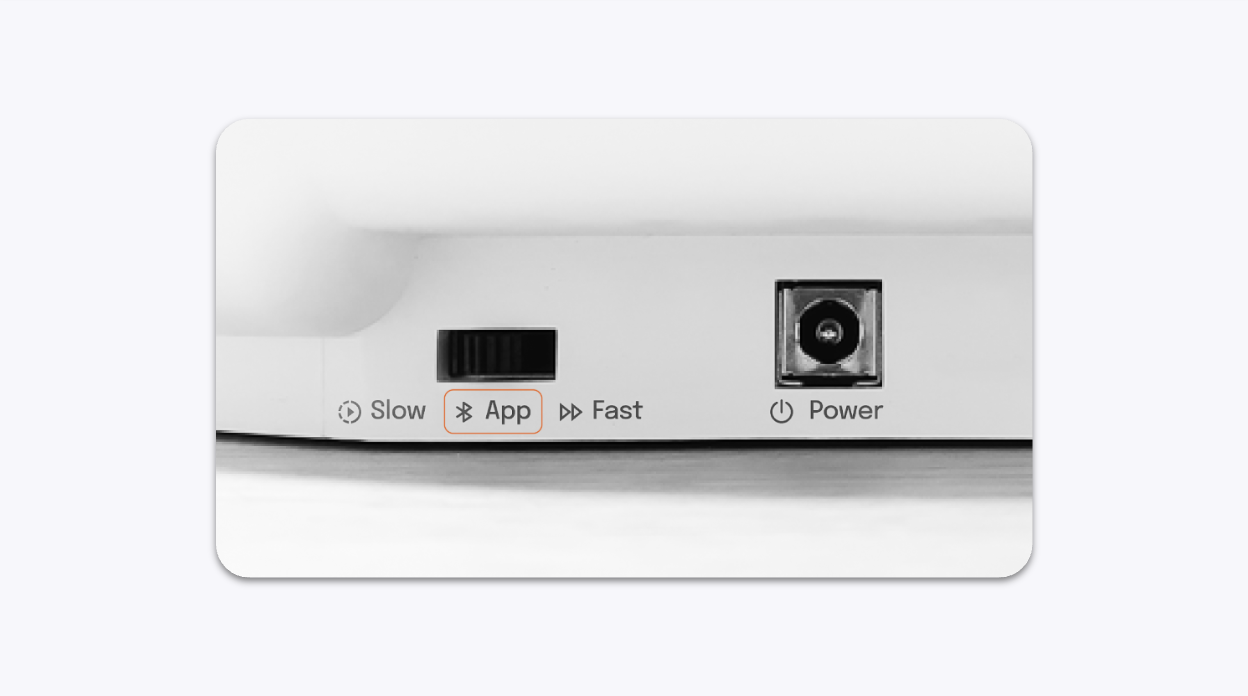
Set the switch on the back of the GemLightbox Pro to App Mode.
App Mode activates Bluetooth so the GemLightbox Pro can connect to the GemIQ app.
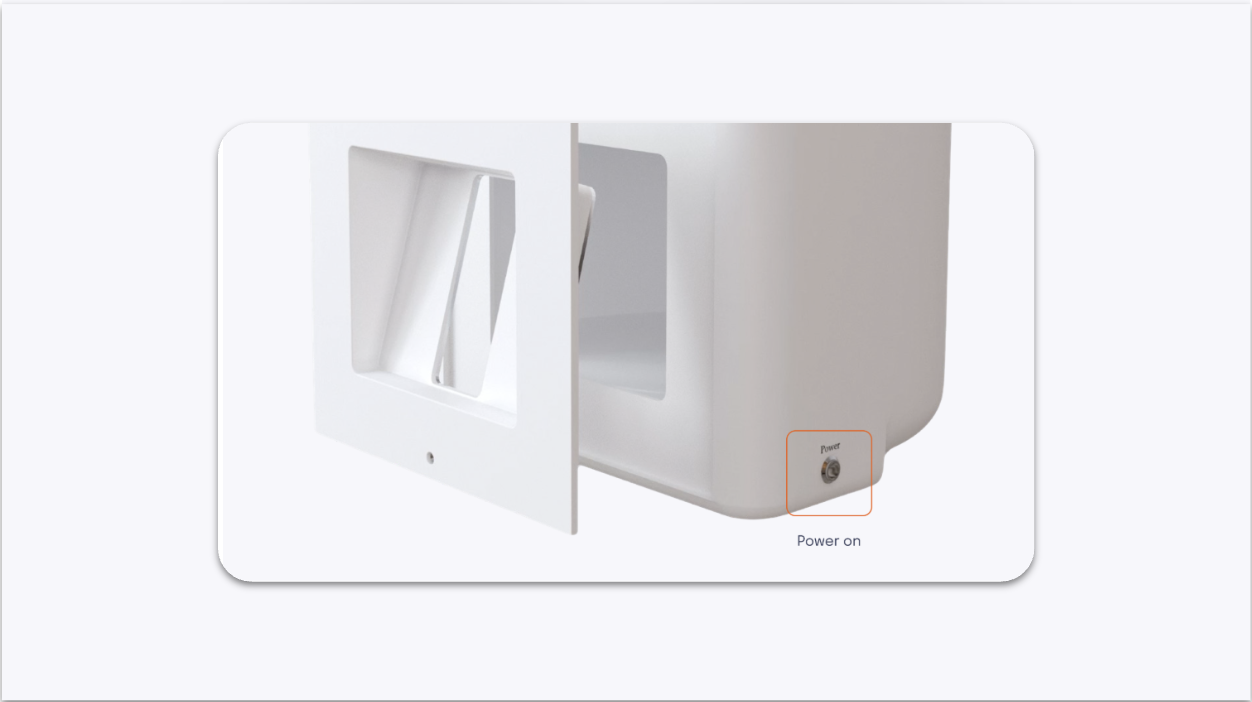
Power on the GemLightbox Pro.
Open the GemIQ app and tap the Camera button.
Switch to Video Mode.
Tap Connect in the top right corner, or tap your device name from the device list to begin pairing.
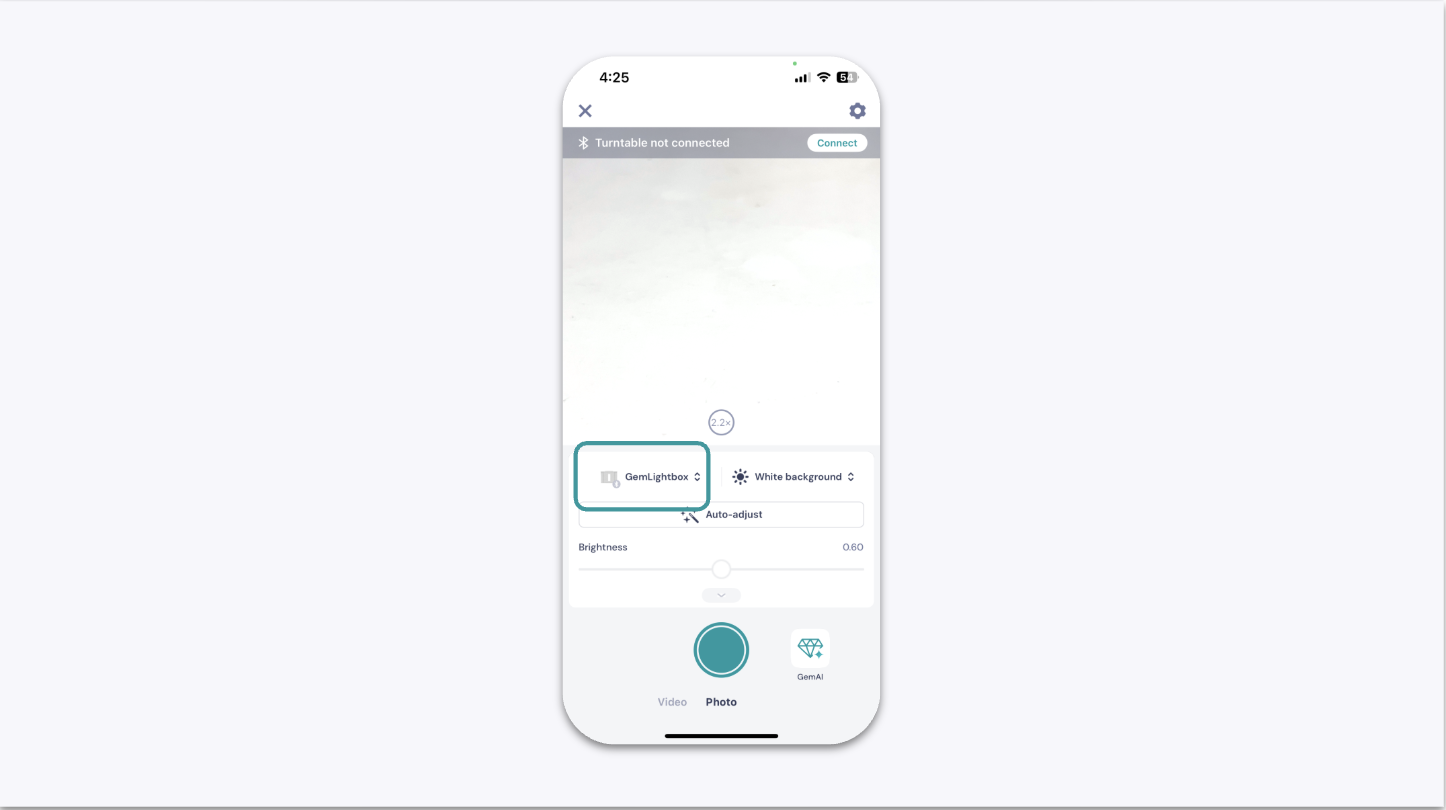
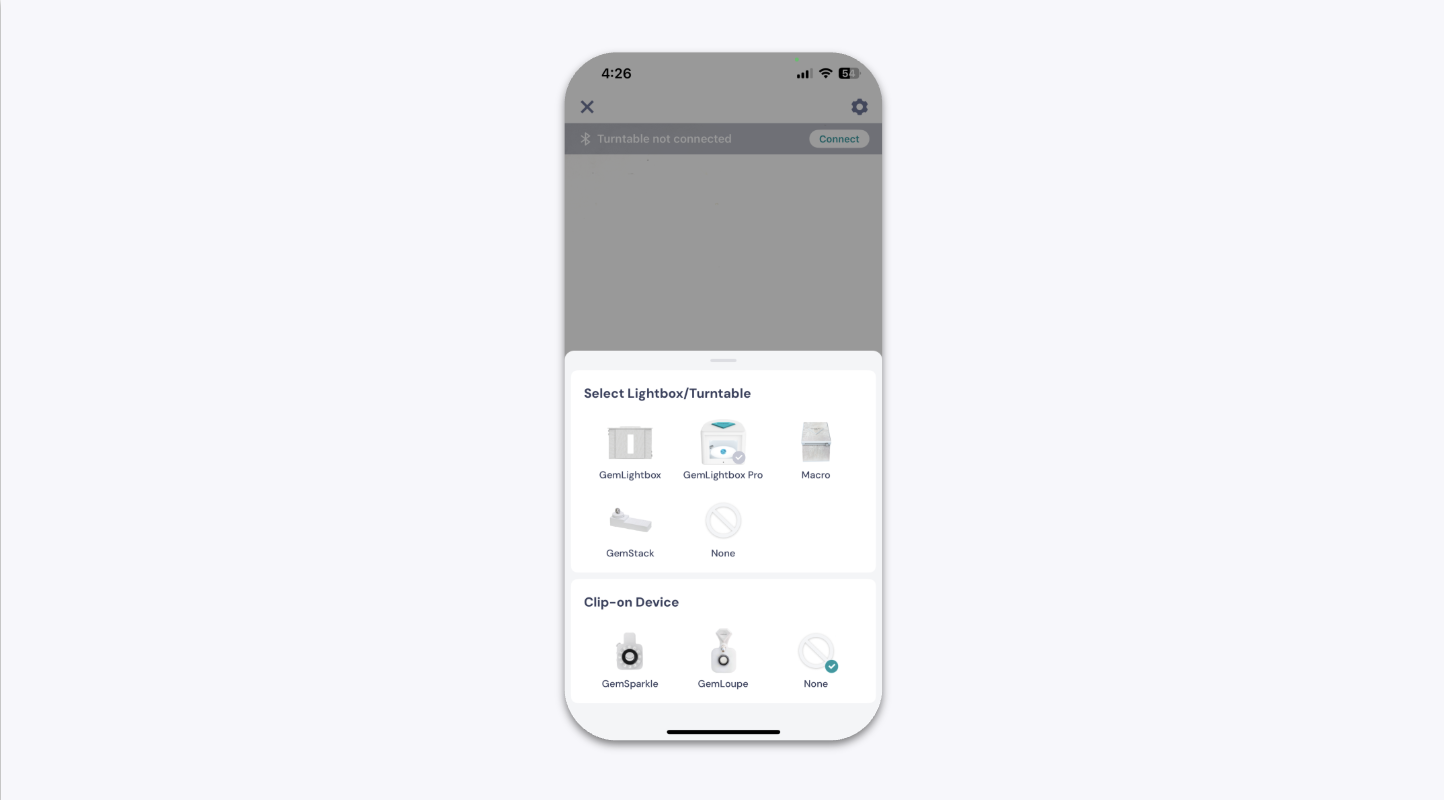
Select your GemLightbox Pro from the list of available devices.
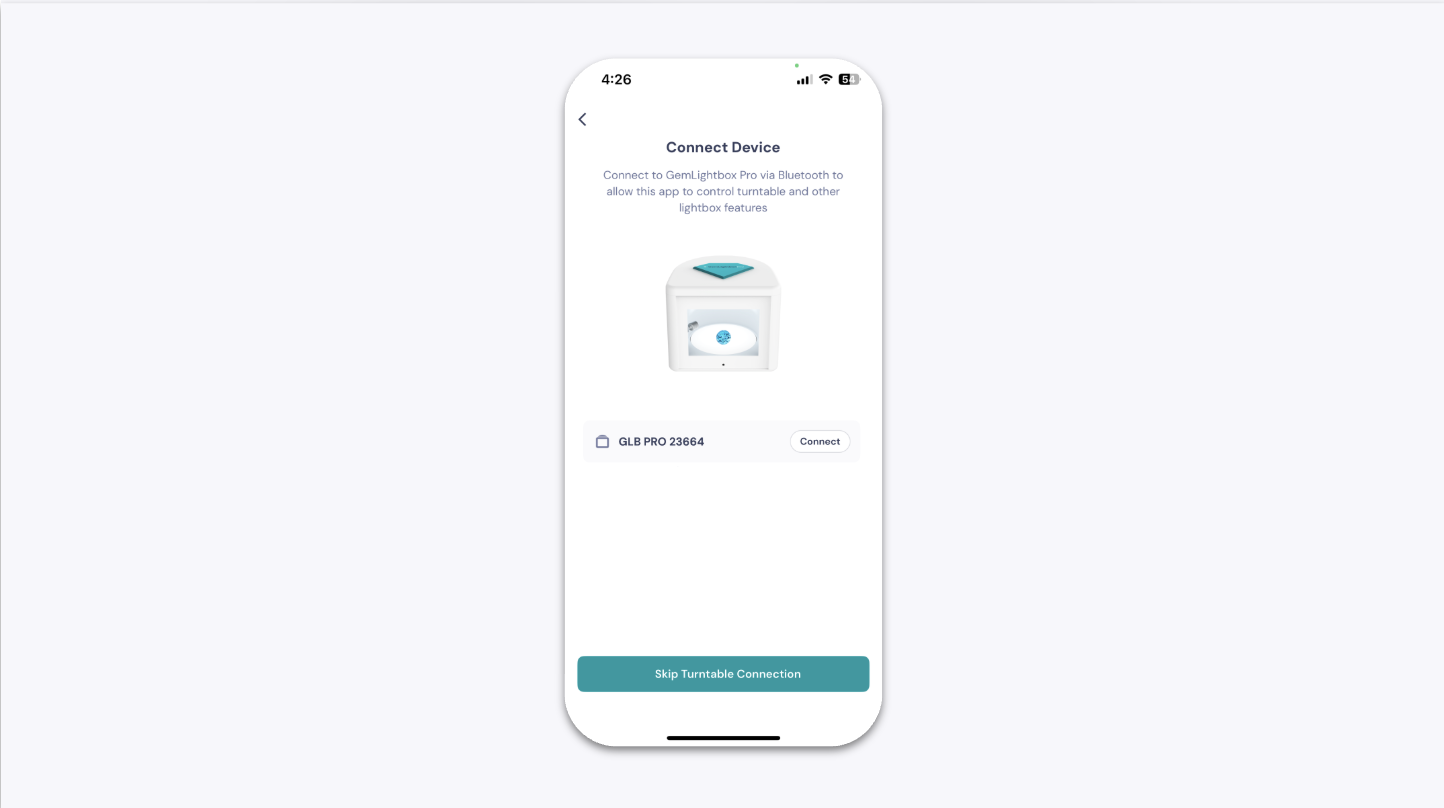
When the device serial number appears, tap Connect to confirm.
Once connected, select your preferred rotation mode and speed from the control panel.
Steps — Control the Turntable Manually#
Manual control can be used when shooting with a DSLR or when you do not want to connect the GemLightbox Pro to the GemIQ app.
When either manual speed mode is selected, Bluetooth is deactivated.
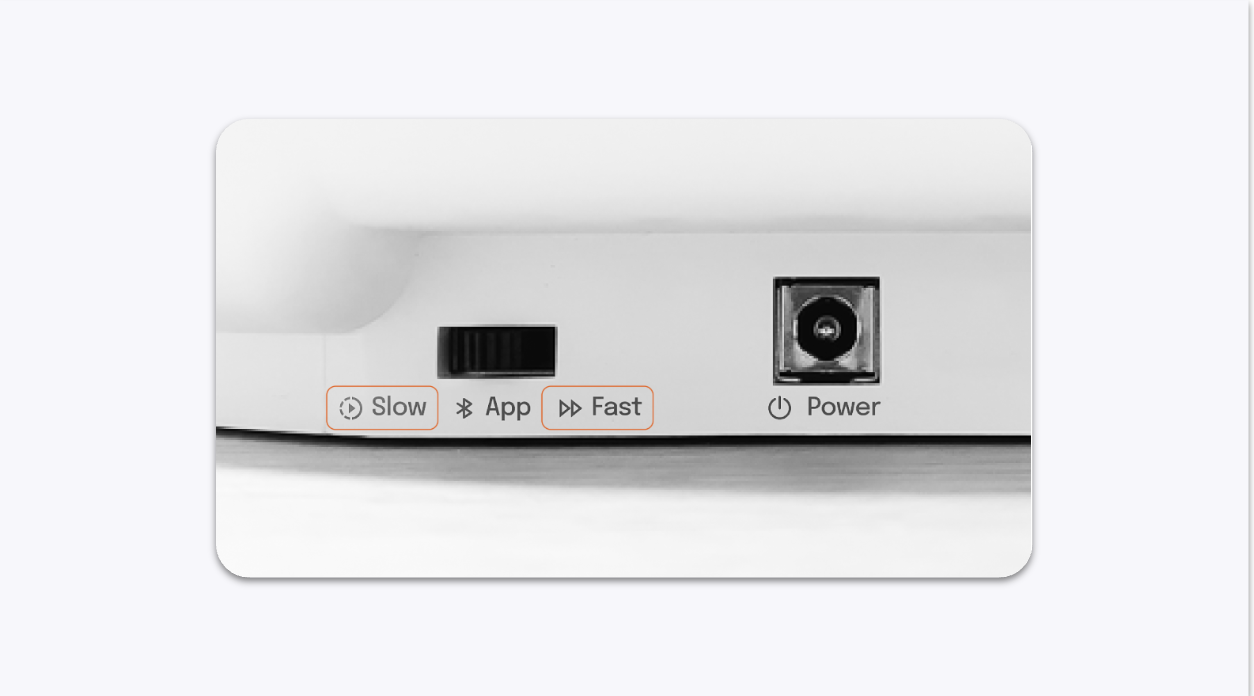
Use the switch on the back of the GemLightbox Pro to select a manual speed mode.
Choose your preferred speed:
Slow — provides slower continuous rotation for jewelry that requires more controlled movement
Fast — provides faster continuous rotation for quicker 360° video capture
Start recording with your DSLR or camera
The selected turntable will rotate continuously at the chosen speed.
Cleaning and Maintaining the Turntable#
Wipe the turntable surfaces regularly with a soft, lint-free cloth.
Remove dust and fingerprints before shooting.
Do not use abrasive materials or harsh chemicals.
Make sure jewelry is positioned securely and balanced before rotation.
Expected Result#
App Mode:
Bluetooth is activated and the GemLightbox Pro can be controlled through the GemIQ app. You can select from the available rotation modes and speed settings.Manual Fast or Slow Mode:
Bluetooth is deactivated and the turntable rotates continuously at the selected manual speed.
In both cases, your jewelry should rotate smoothly and consistently for clean, professional photo and video capture.
If This Does Not Work#
Turntable not responding in the app: Confirm that the rear switch is set to App Mode and reconnect the GemLightbox Pro in the GemIQ app.
Device not appearing in the connection list: Confirm that Bluetooth is enabled, App Mode is selected, and the GemLightbox Pro is powered on.
Turntable not rotating in manual mode: Confirm that either Fast or Slow manual mode is selected and that the GemLightbox Pro is powered on.
Turntable rotating unevenly: Check that the jewelry is positioned securely and balanced on the appropriate turntable.
No turntable controls visible in the app: Confirm that you are using the correct video capture screen and that the GemLightbox Pro is successfully connected.
Common Mistakes#
Selecting Fast or Slow manual mode while trying to connect through Bluetooth
Forgetting to switch to App Mode before connecting to GemIQ
Trying to use app controls before the GemLightbox Pro has been paired
Using the wrong turntable for the jewelry type
Placing jewelry off-center or unsecured before rotation