

1. Check your Scene Preset Mode
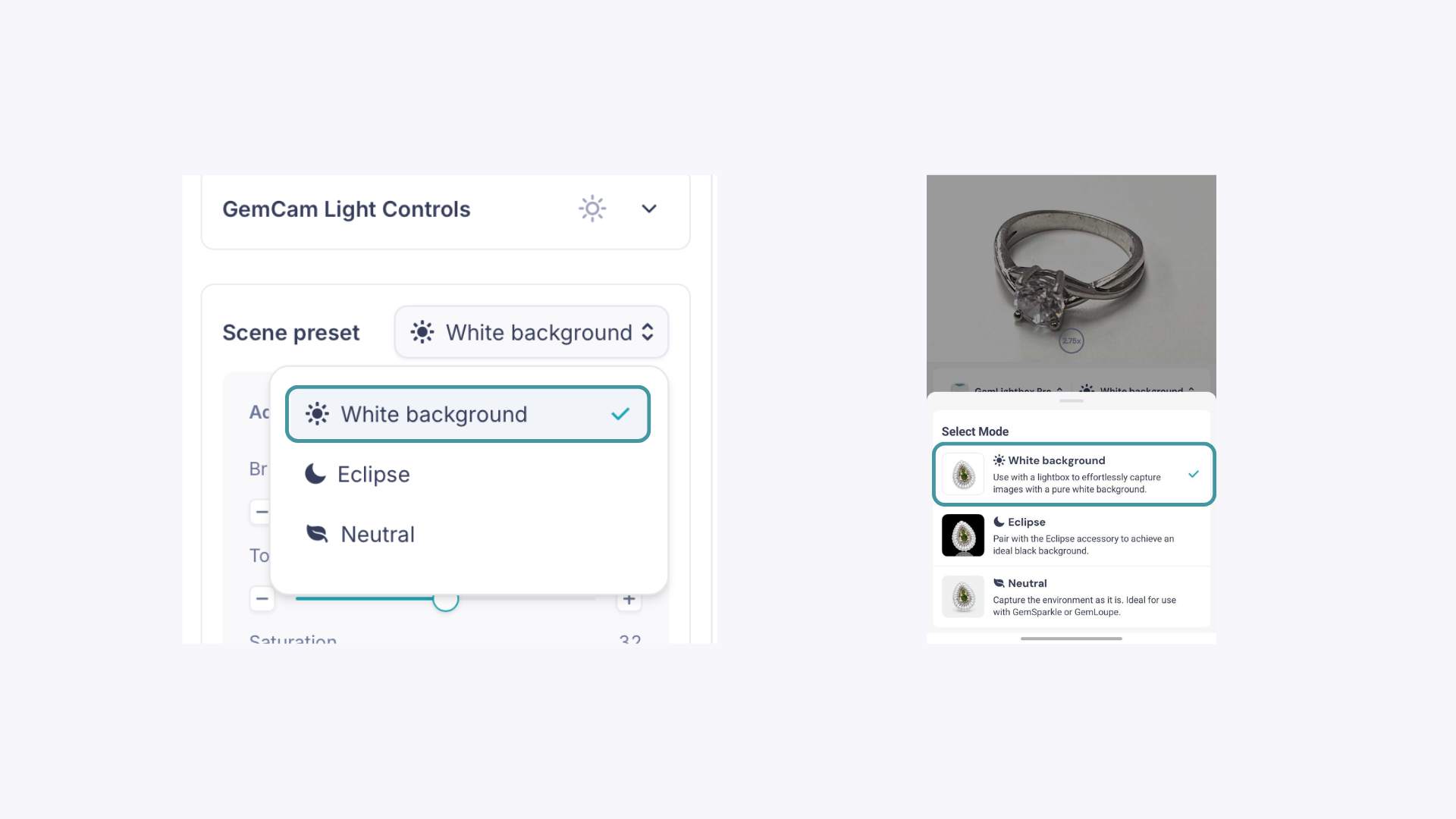
Whether you're using the GemIQ desktop app with the GemCam Pro or the phone app, make sure White Background is selected under Scene Preset. This activates the correct settings for a clean white result.
2. Your brightness is set too low
If the brightness has been adjusted down too far, the background will appear grey.
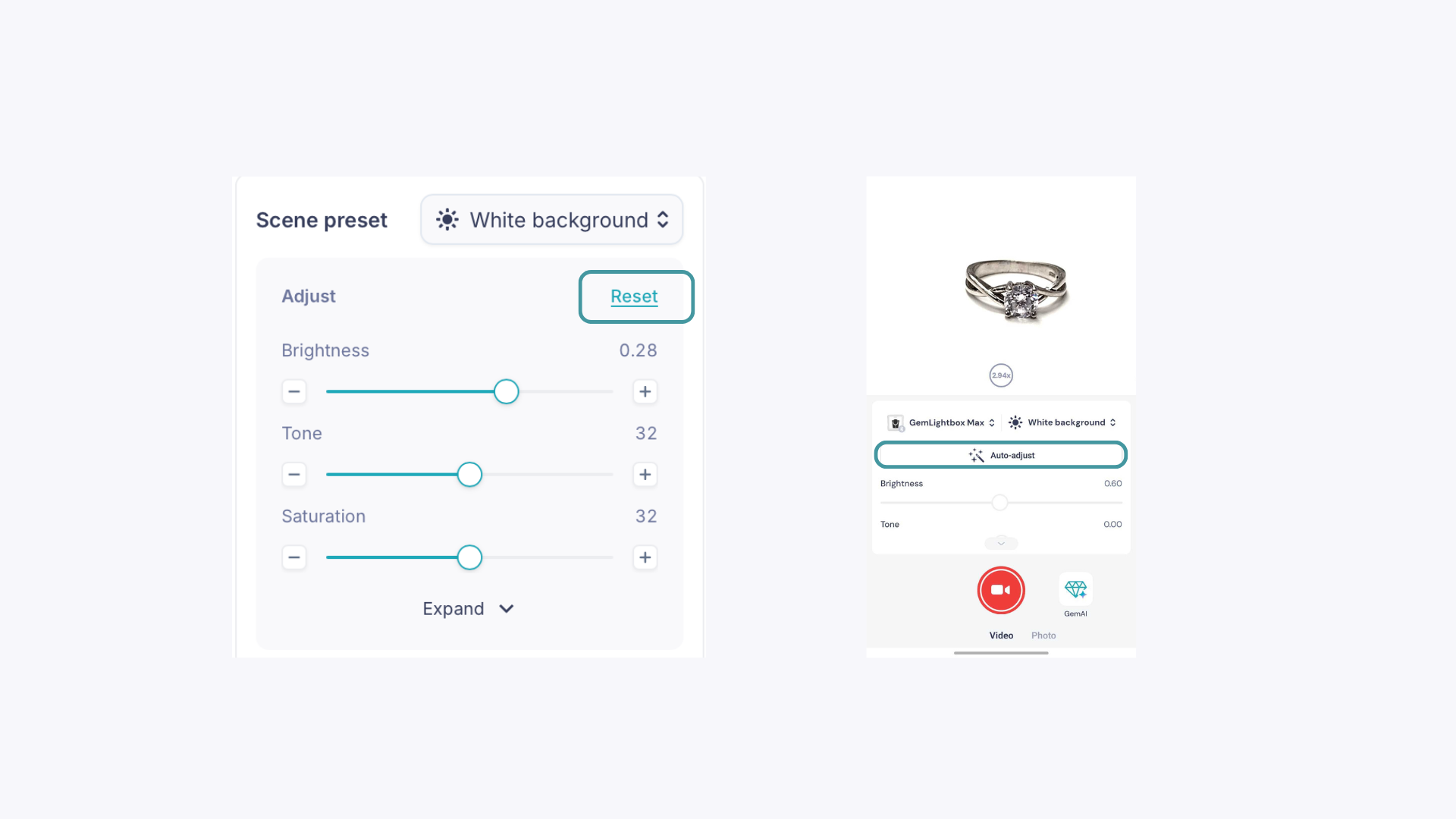
Desktop app: Press Reset to restore the default brightness, then gradually lower it until you find the right exposure — stopping before the background turns grey.
Phone app: Tap Auto-Adjust and the app will find the best settings automatically. If you want to fine-tune, use the Brightness slider — left for less bright, right for brighter.
A grey background is almost always a quick fix. Start with the right Scene Preset, and let Auto-Adjust or Reset do the heavy lifting before making any manual changes.