Fix Upside-Down GemCam Images on Windows#
Quick Answer#
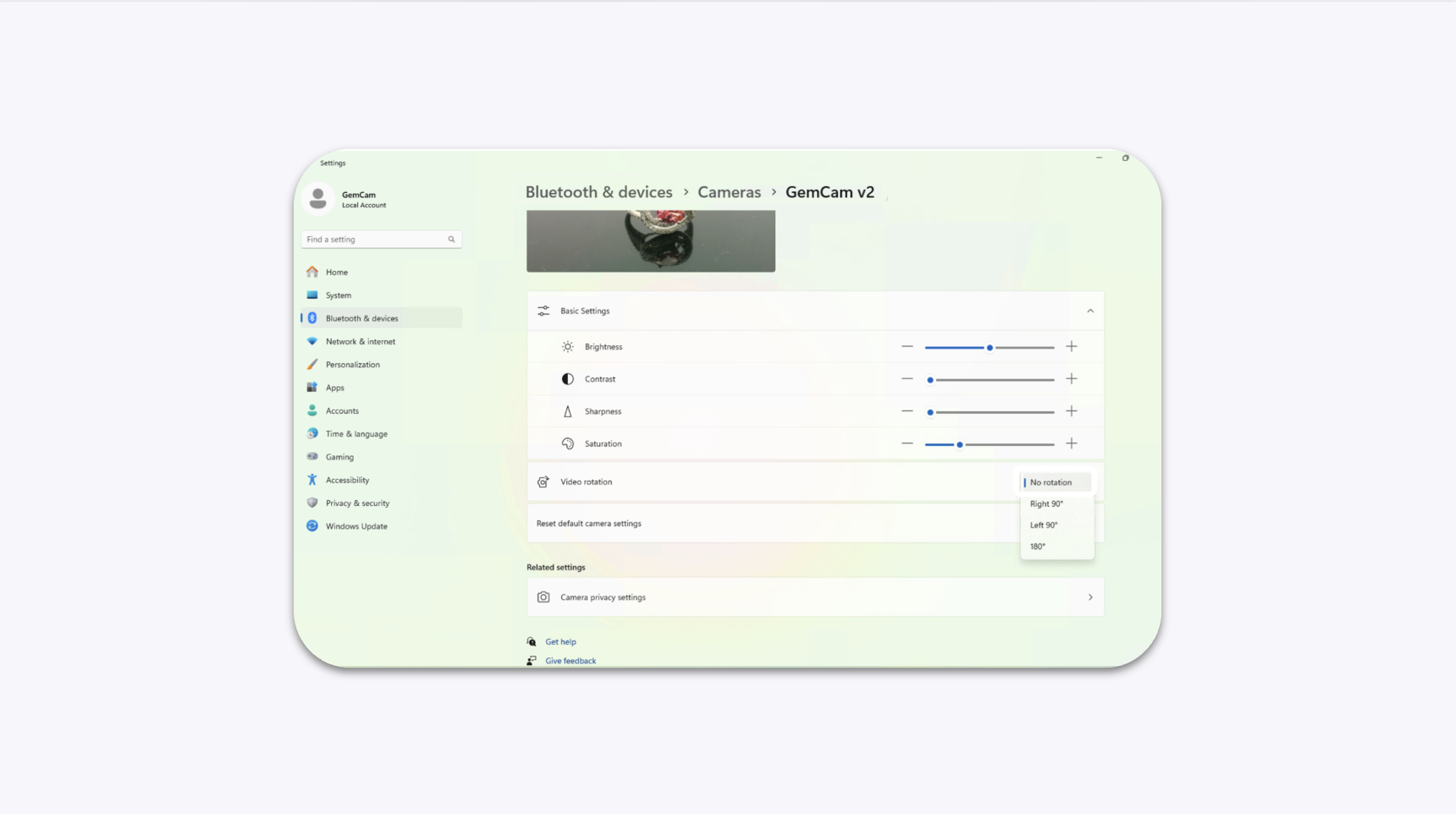
If your GemCam's live preview appears upside down in the GemIQ, you need to adjust a setting in Windows. Go to your computer's Camera settings, select GemCam, and set Video Rotation to "No rotation". This is a system-level setting that corrects the image orientation for all apps, including GemIQ.
Before You Start#
Your GemCam must be connected to your Windows computer.
Ensure the GemIQ is closed before changing system settings.
Steps#
Open the Start Menu on your Windows computer.
Search for and click on "Bluetooth & devices".
In the settings panel, click on "Cameras".
Select your camera from the list, which should be named