GemCam Not Connecting to Your Computer
Quick Answer
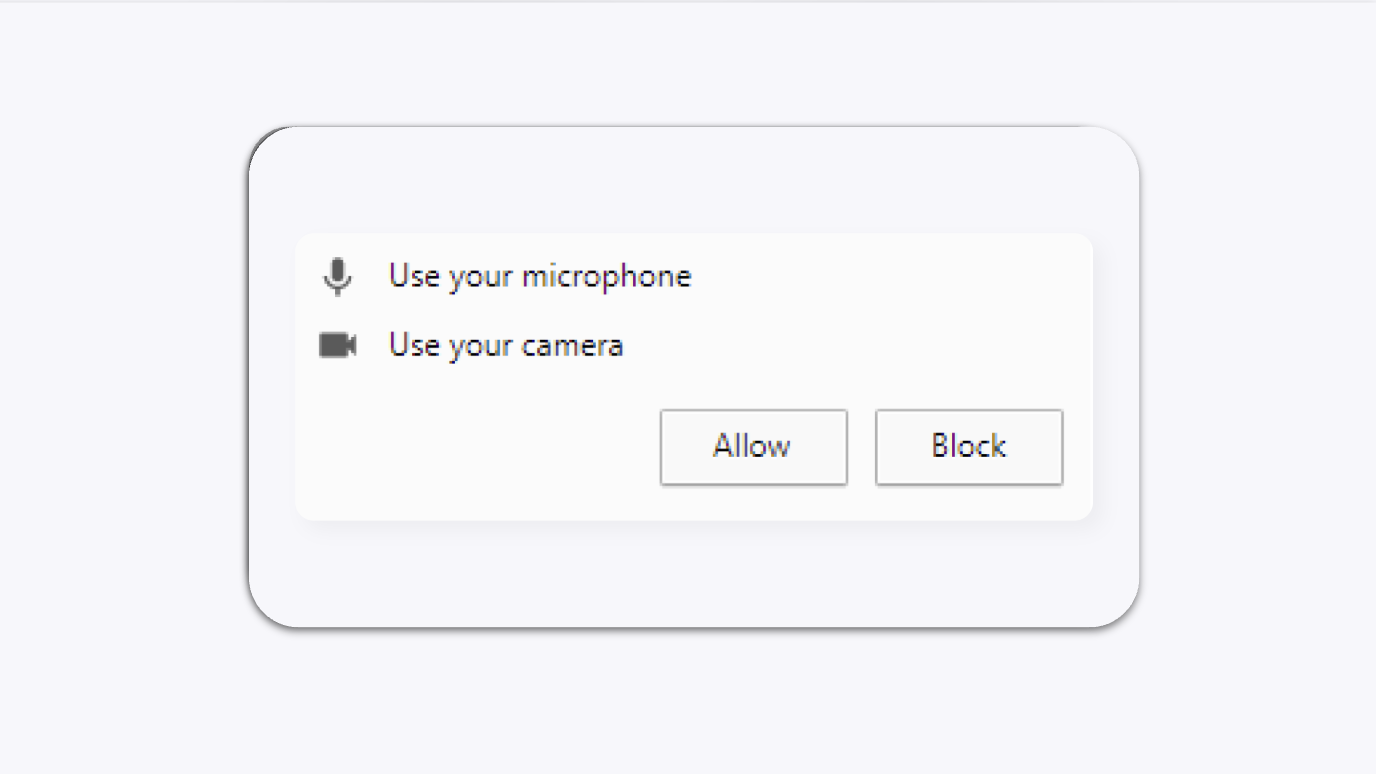
If your GemCam is not connecting, start by checking the USB-C cable and port, confirming the power indicator light is on, and making sure you are using the supplied cable. Mac users should update the GemLightbox app; Windows users should use an updated version of Google Chrome with camera access enabled in browser settings.
Before You Start
Have the USB-C cable that came in the box with your GemCam.
Know whether you are using a Mac or a Windows computer.
Confirm the GemCam is powered on — there should be a green indicator light at the back of the device.
Steps
Step 1 — Check the USB-C Cable
Make sure the USB-C cable is firmly plugged into both the GemCam and your computer.
Disconnect and reconnect the cable to rule out a loose connection.
Step 2 — Check the USB-C Port
Confirm the USB-C port on your computer is working.
If your computer has more than one USB-C port, try a different one.
Step 3 — Check the Power Button and Indicator Light
Press the power button on the GemCam to turn it on.
Look for the green indicator light at the back of the device — this confirms the GemCam is powered on and ready to connect.
Step 4 — Use the Supplied USB-C Cable
If you are using a third-party cable, replace it with the USB-C cable that came in the box.