

Quick Answer#
If your GemCam Pro images are appearing upside down, check the position of the lens.
The lens may be installed upside down. Rotate the GemCam Pro lens 180° and try capturing the image again.
How to Fix Upside-Down Images#
Check the GemCam Pro Lens#
Look at the current position of the lens on your GemCam Pro.
If the lens is positioned upside down, the captured image may also appear upside down.
Rotate the Lens 180°#
Carefully rotate the GemCam Pro lens 180° until it is positioned correctly.
Compare the Lens Position#
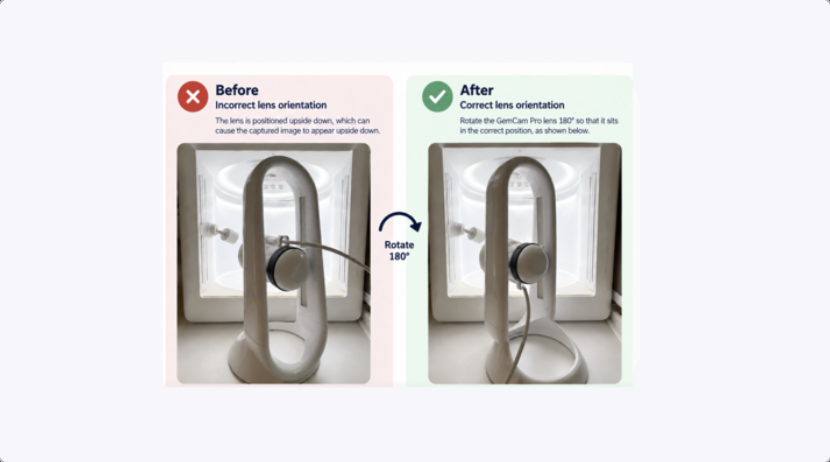
Before: Lens positioned upside down
After: Lens positioned correctly
Capture Another Image#
Open GemIQ and capture another image.
The image should now display in the correct orientation.
Expected Result#
Once the GemCam Pro lens is positioned correctly, your captured images should no longer appear upside down.
Common Questions#
Why are my GemCam Pro images upside down?
The GemCam Pro lens is most likely positioned upside down.
Do I need to change any settings in GemIQ?
No. If the issue is caused by the lens orientation, you only need to rotate the lens 180°.
Do I need to reinstall GemIQ or the camera?
No. Reinstallation is not required when the issue is caused by the physical lens orientation.