

Update the GemIQ App #
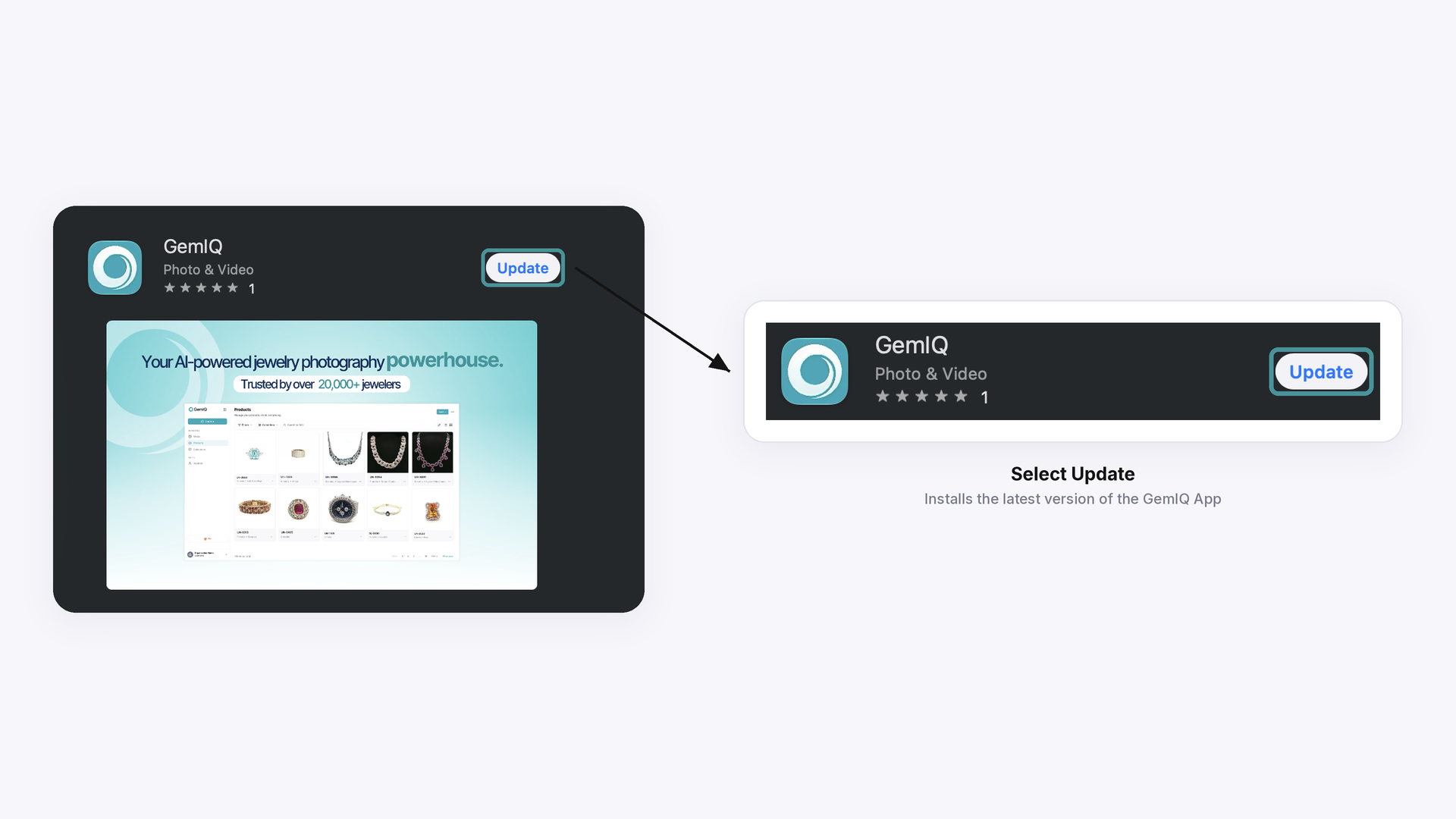
Crash fixes are delivered through app updates, so start by making sure you have the latest version. Open your app store, search for GemIQ, and select Update. If you see Open instead of Update, you already have the latest version. [TBC: confirm which app stores the GemIQ App is available from.]
Close and reopen the app #
Fully close the GemIQ App rather than just switching away from it, then open it again.
Restart your device #
Turn your device off and on again, then open the GemIQ App.
Contact support #
If the GemIQ App still crashes after these steps, email support@gemiq.com. Include your device model, GemIQ App version, and what you were doing when the app crashed, so our team can investigate.
Common Questions#
Q: Why is the GemIQ App crashing?
A: Crashes are often fixed in newer versions of the app, so updating is the first step. If you're already on the latest version, restart the app and your device, then contact support if it continues.
Q: How do I know if I have the latest version?
A: Find GemIQ in your app store. If the button says Open rather than Update, you have the latest version installed.
Q: The app still crashes after I tried everything. What should I do?
A: Email support@gemiq.com with your device model, GemIQ App version, and what you were doing when it crashed.
Q: Can I get updates automatically?
A: Yes. Turn on automatic updates in your app store settings, and new GemIQ App versions will install without you having to check.