Quick Answer
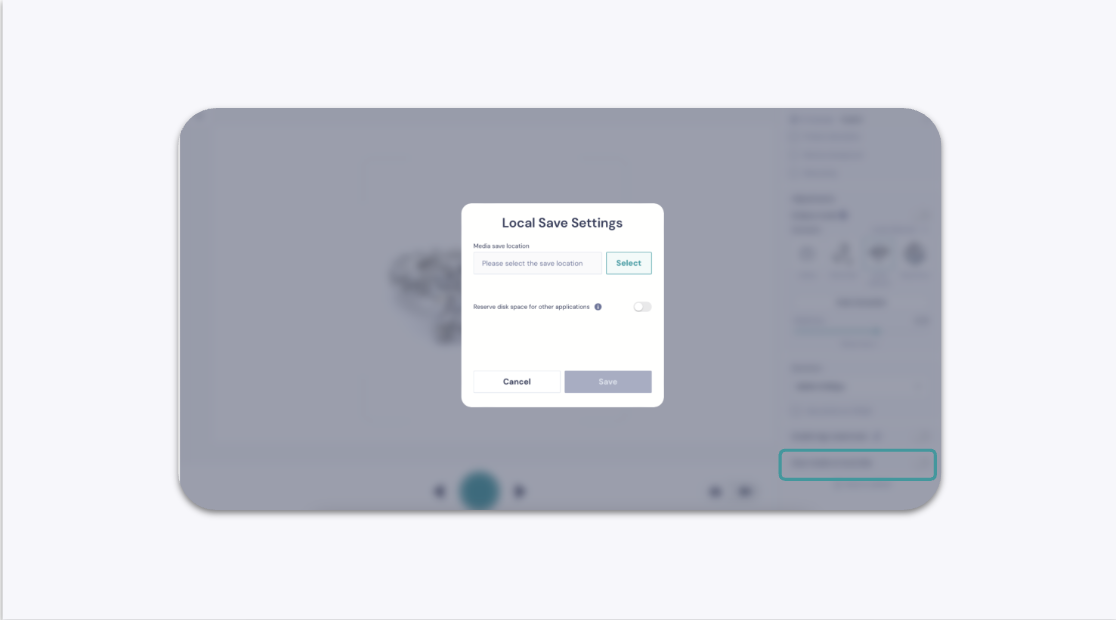
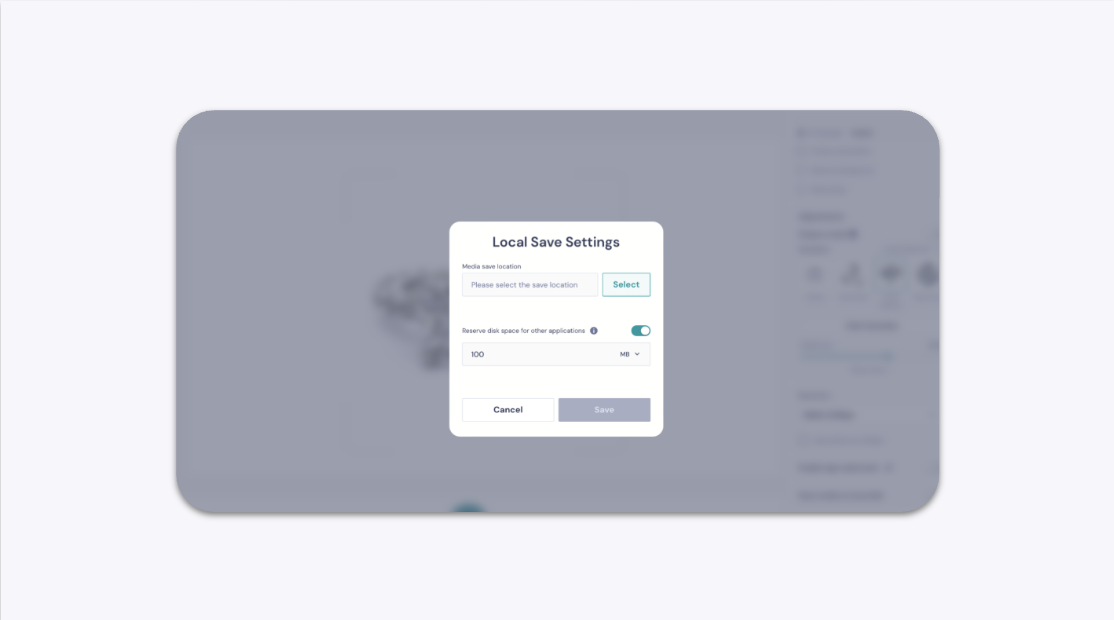
GemIQ allows you to save images and videos from your GemCam directly to a folder on your computer. Enable the "Save media to local disk" option in the GemCam control panel and select your desired save location.
Before You Start
Your GemCam must be connected to your computer.
The GemIQ must be installed and running on your computer.
You should have a folder on your computer ready to store your media files.
Steps
Launch GemIQ on your computer and open the GemCam interface.
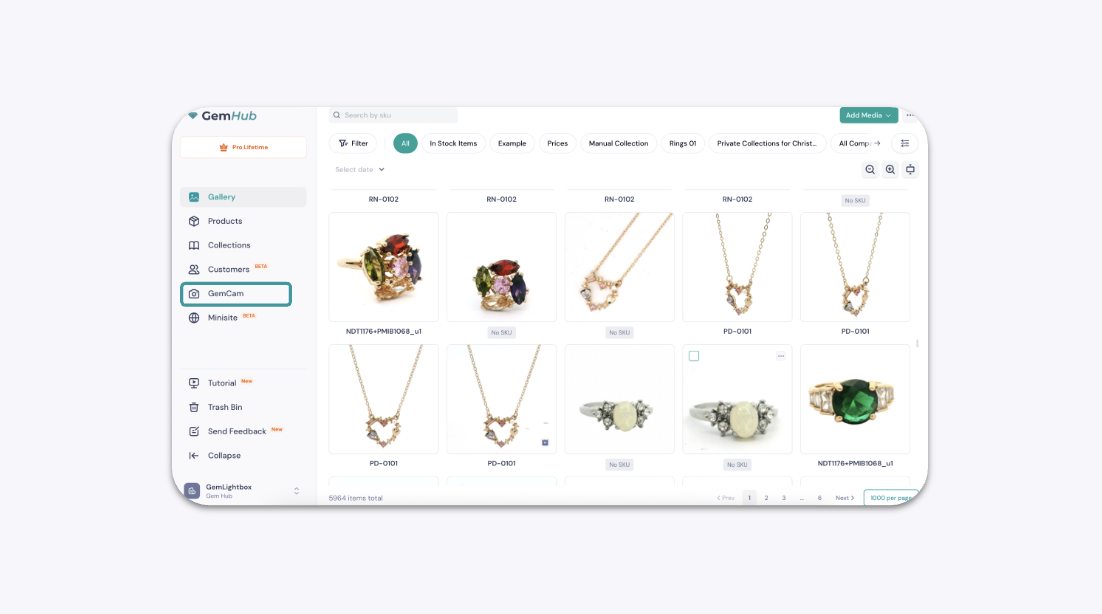
GemIQ App Showing the GemCam Function Highlighted 2. In the control panel, scroll down to find the Save media to local disk setting.
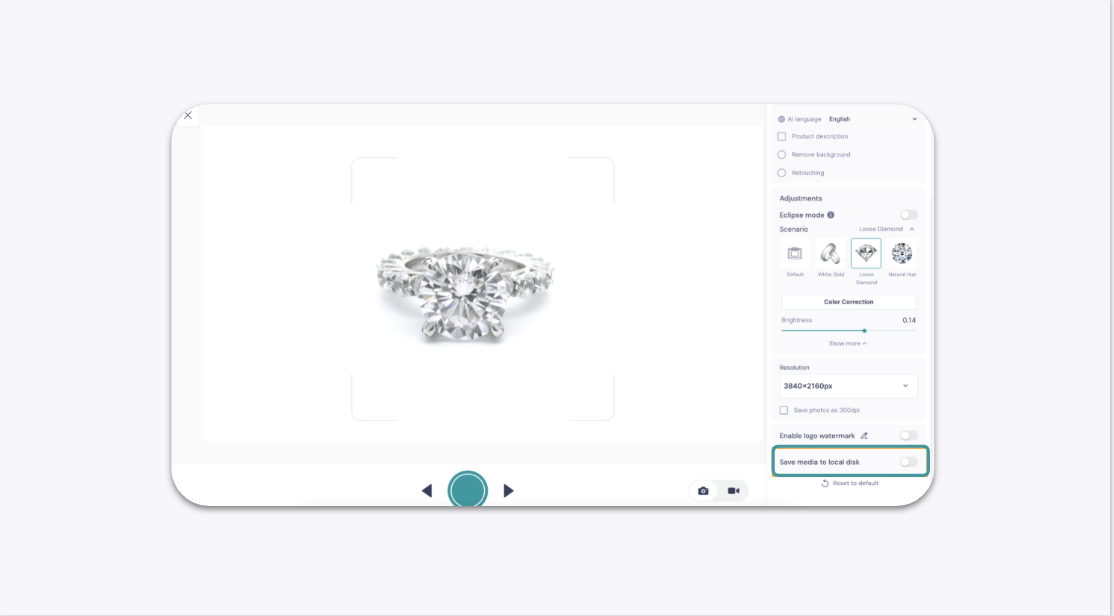
The GemCam Control Panel with the 'Save Media to Local Disk' Option Circled 3. Click the toggle to turn this feature on.