Quick Answer#
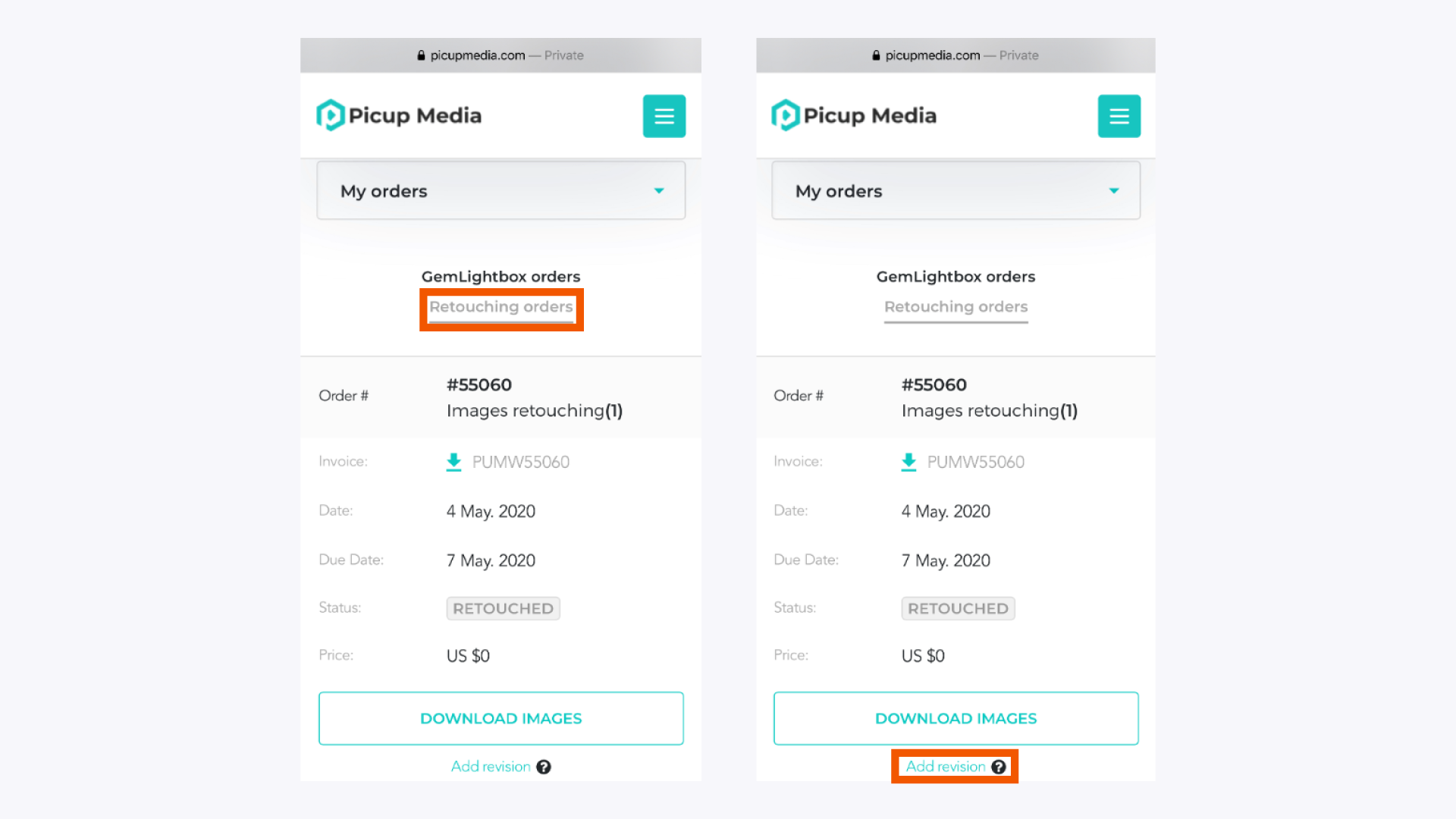
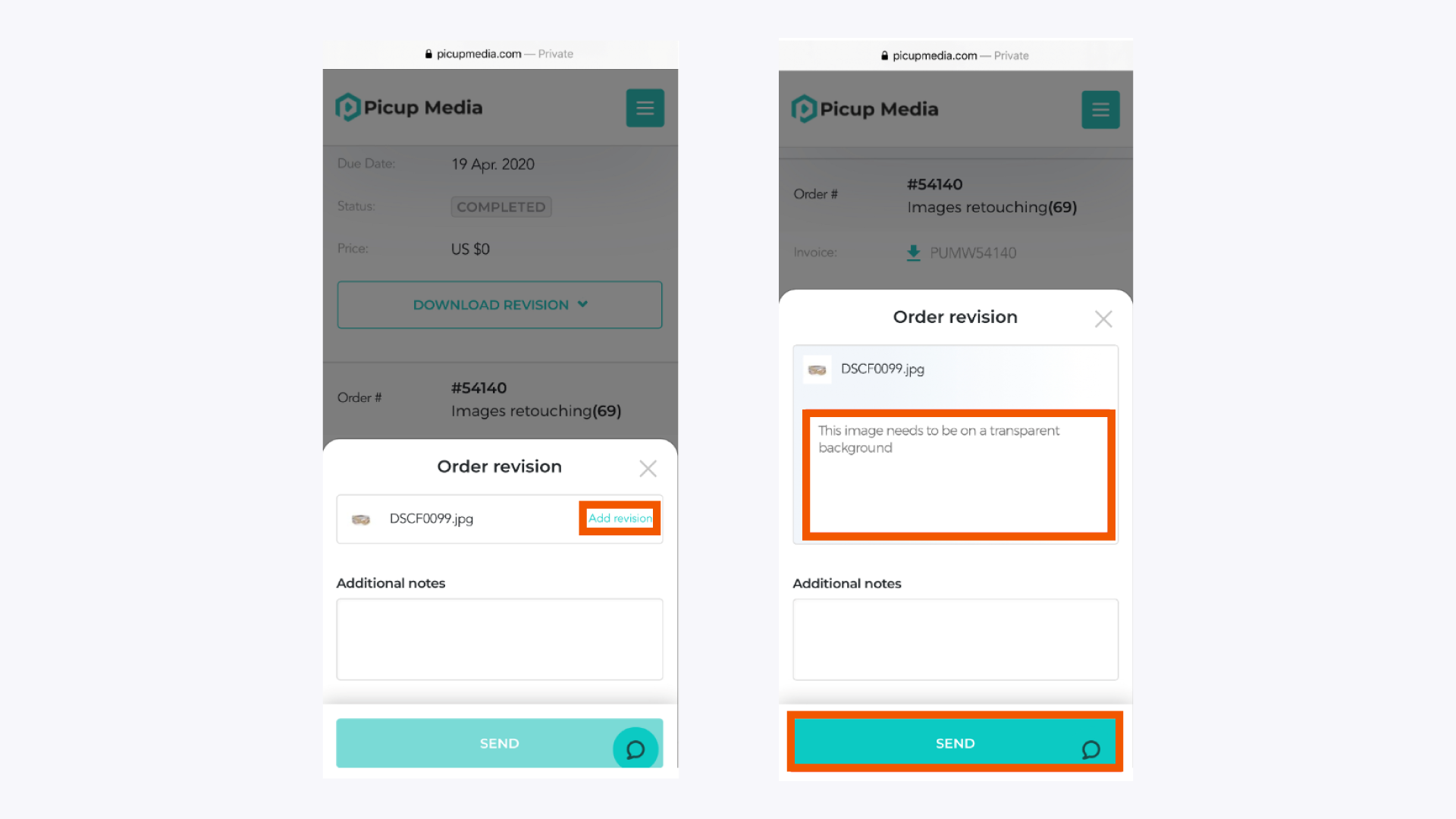
If your retouched images are not quite right, you can request a revision. Log in to your GemIQ account on your mobile web browser, navigate to your retouching orders, and submit a revision request with specific instructions for the images that need changes.
Before You Start#
You will need a mobile device with an internet browser.
Have your GemIQ account login credentials ready.
You must have a completed retouching order that you wish to revise.
Steps#
Log In to Your Account: On your mobile device's web browser, go to the Picup Media website and log in to your GemIQ account.
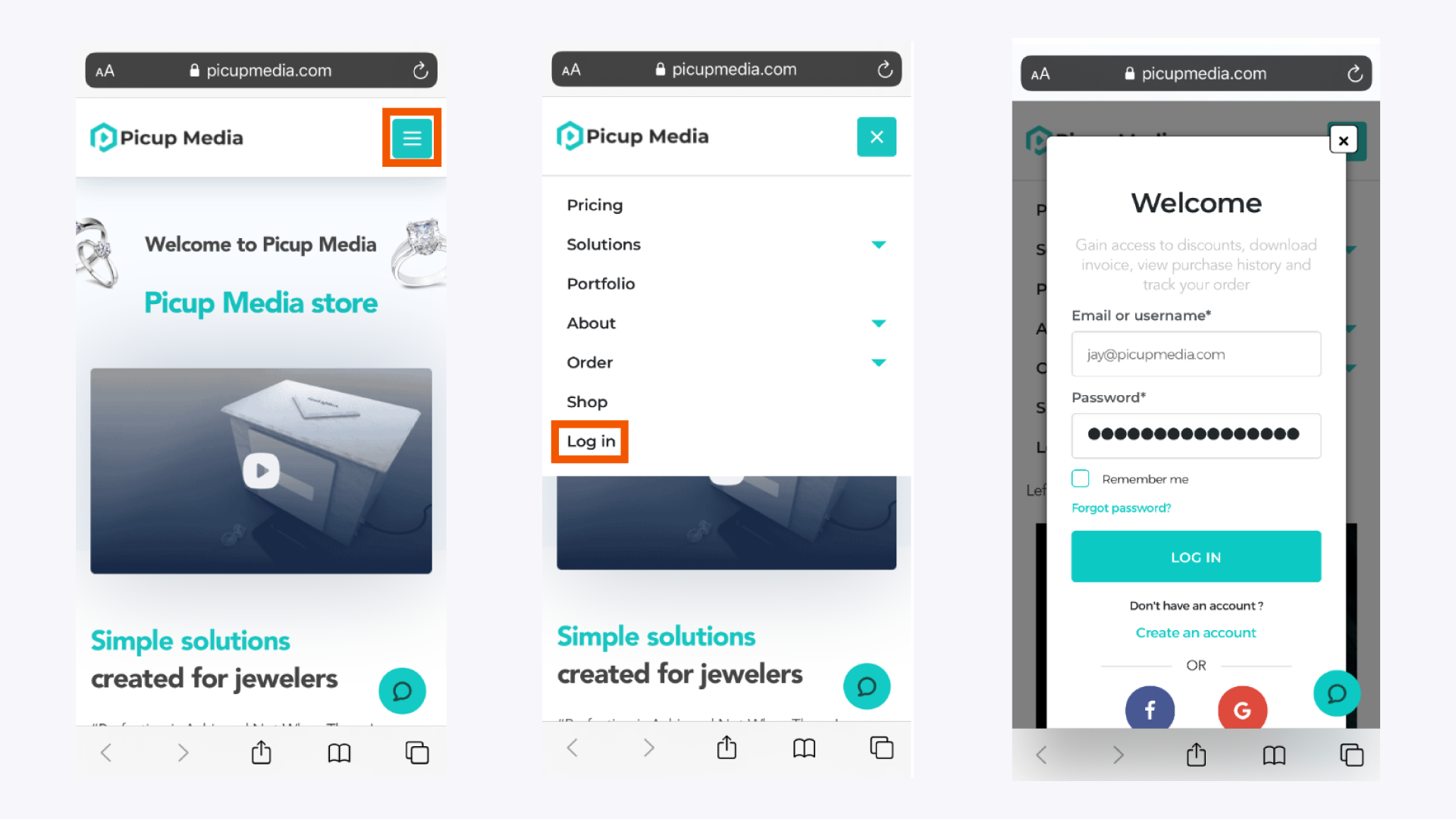
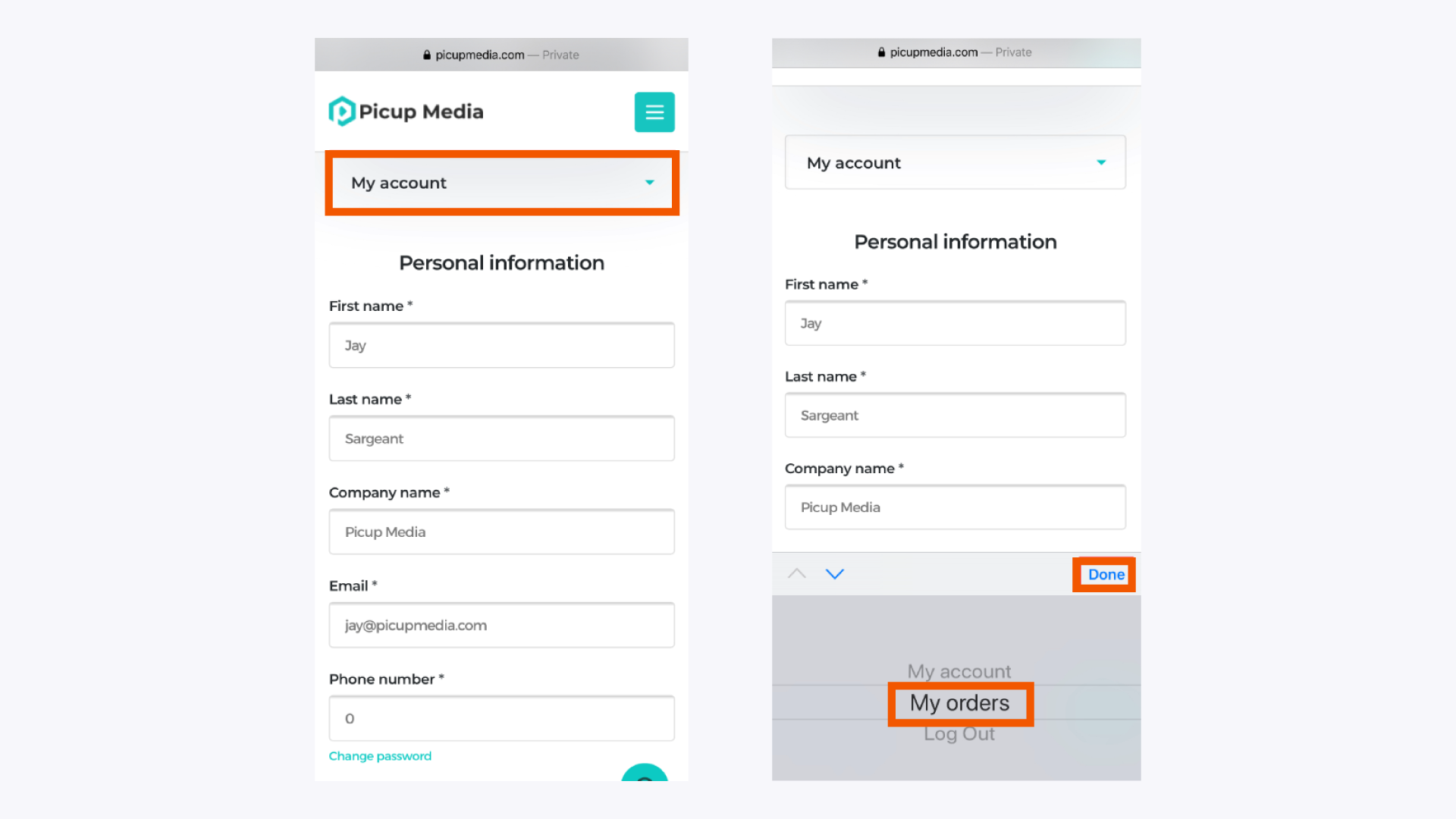
2. Navigate to Your Orders: Tap on "My account" from the menu, scroll down to "My orders," and tap "Done."