Quick Answer#
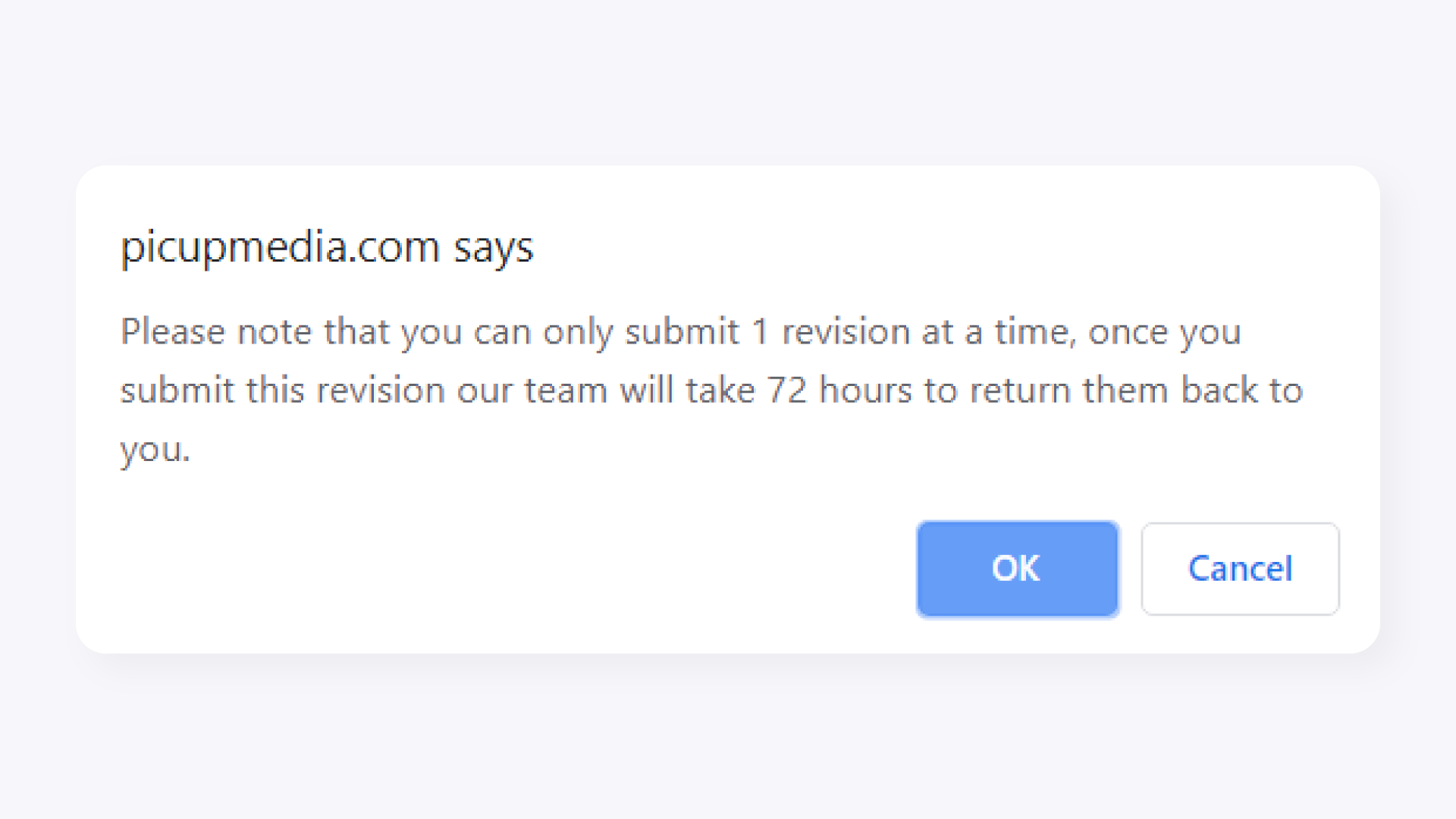
If a retouched image needs changes, you can request a revision directly from the Retouching dashboard. Log in, find your order, select the images that need updating, add your instructions, and submit — all in a few steps.
Before You Start#
Your retouching order must be complete with images delivered.
Prepare your revision instructions before you begin — be specific about what needs to change.
Steps#
Log in to your Retouching dashboard at retouch.picupmedia.com/dashboard/login.
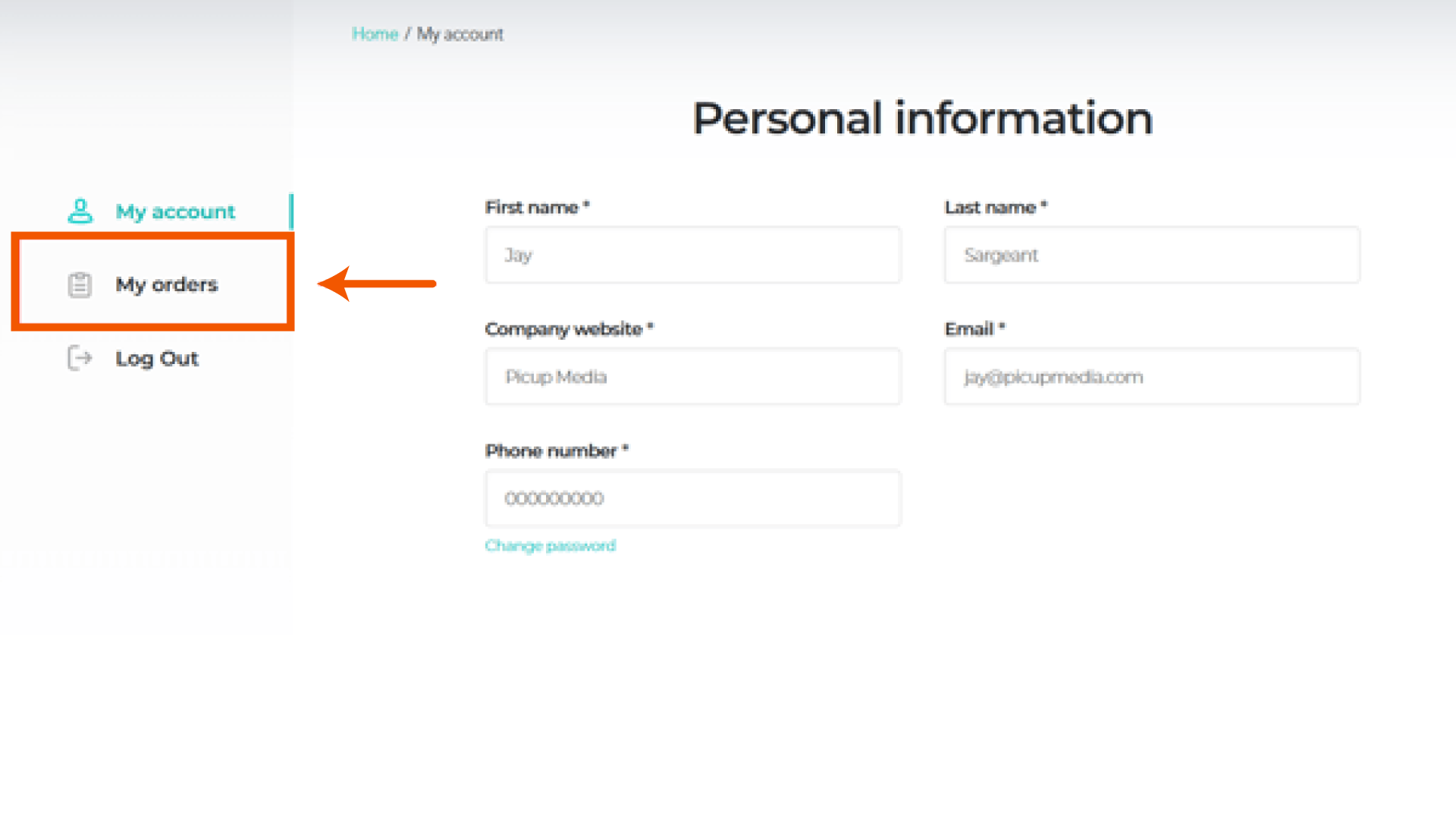
Click My Orders.
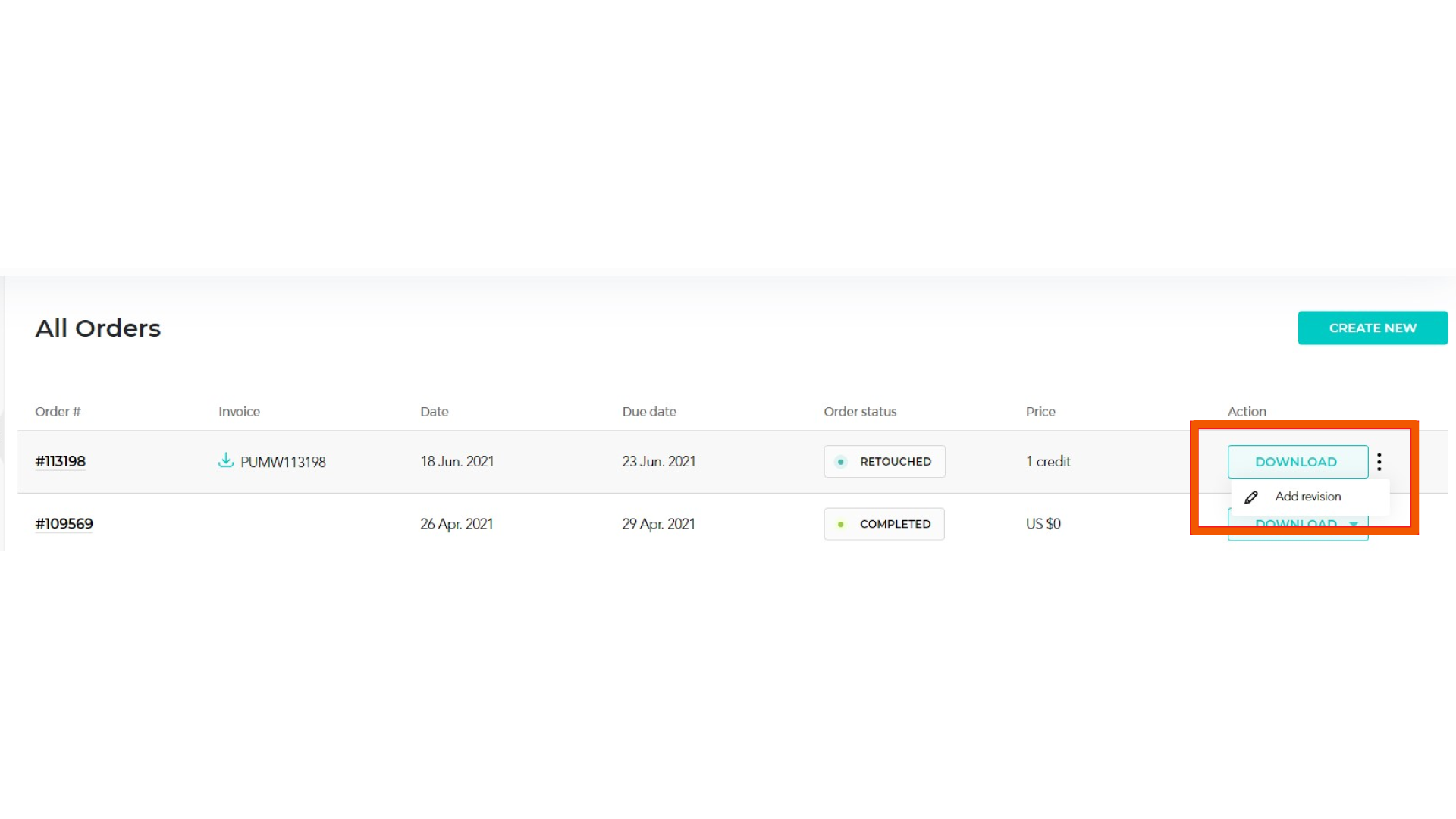
Find the retouching order that needs a revision. Click the ... menu next to it, then select Add Revision.