How to Do It:#
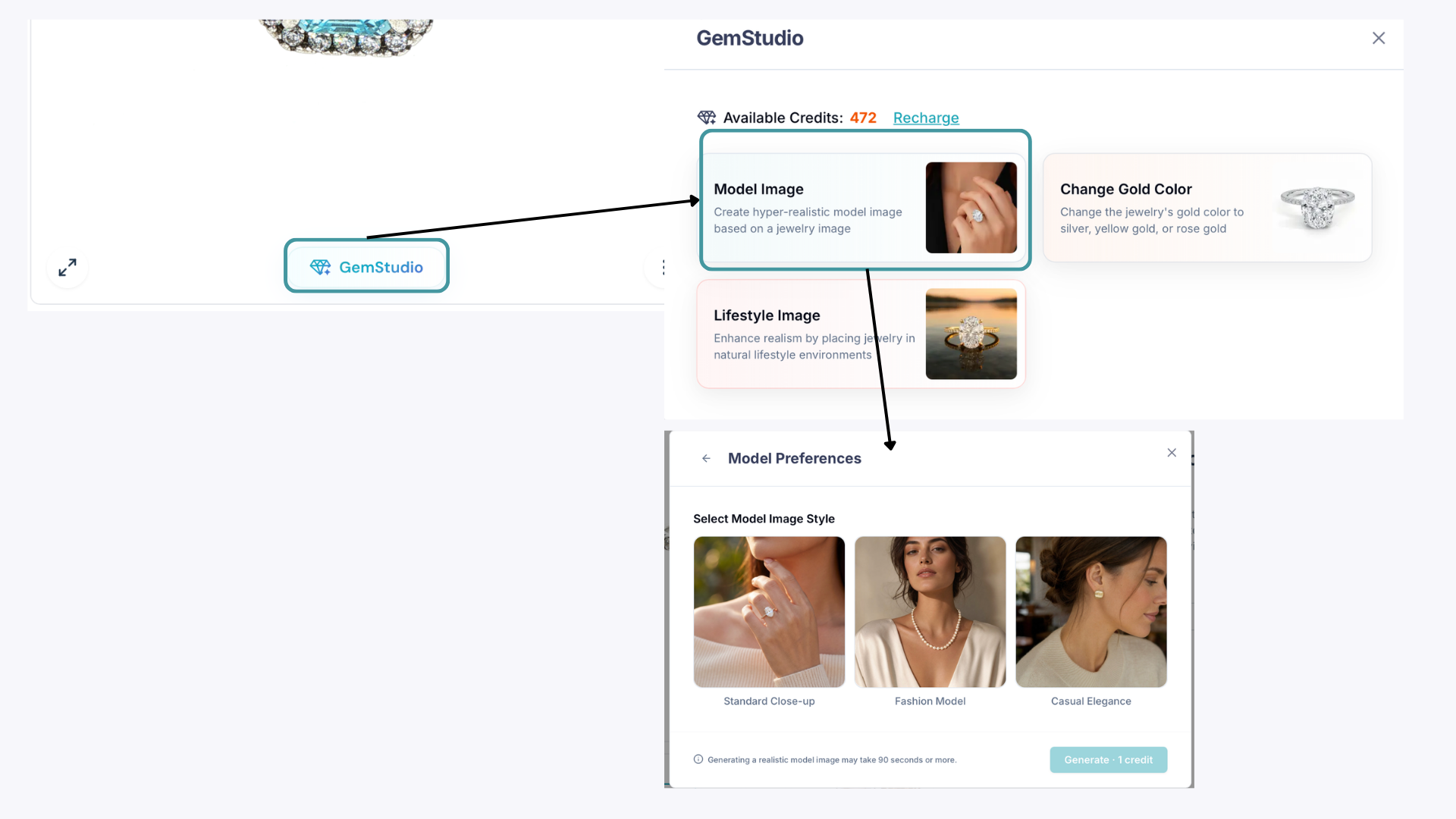
Step 1: Generate a model image (1 credit)
Create an AI model lifestyle image inside GemStudio as usual.
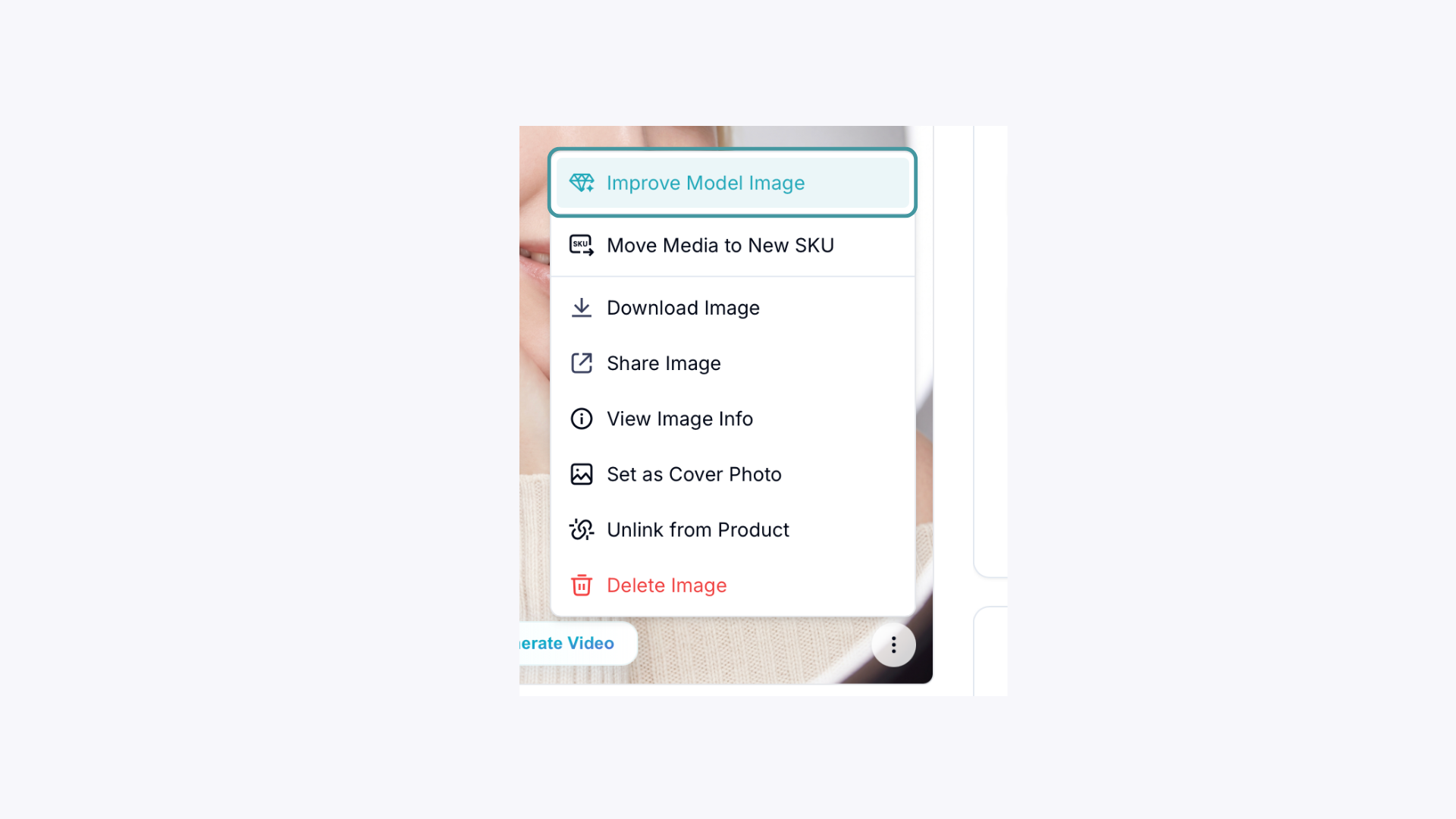
Step 2: Open Improve Image
Click the ellipsis (⋯) in the bottom right corner of your generated image and select “Improve Image”.
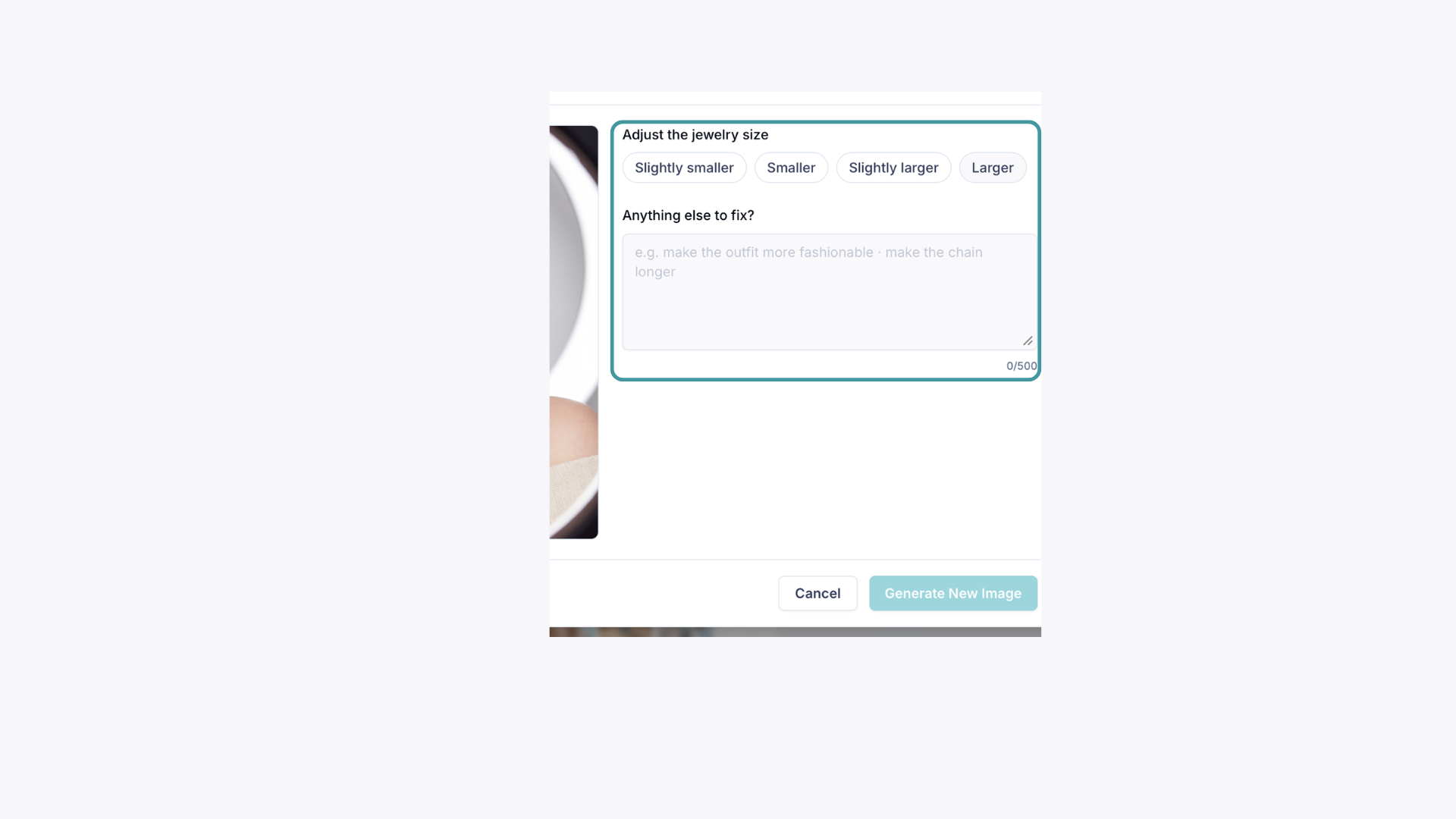
Step 3: Adjust and refine
You'll see size adjustment options ranging from slightly smaller to larger. You can also type a specific instruction in the text field at the bottom — for example, if your ring should have 6 prongs but the generated image shows 4, simply describe the fix and GemStudio will apply it.