
How to Capture Images with the Eclipse Turntable and GemCam
Quick Answer
To use the Eclipse turntable, place it inside your GemLightbox Pro and connect your GemCam. In the GemHub, enable the "Eclipse" preset to optimize the lighting, then position your GemCam to focus on the jewelry and capture your image.
Before You Start
GemCam, connected to your computer
GemLightbox Pro, connected to a power source
Eclipse turntable accessory
The GemHub installed on your computer
Steps
Place the Eclipse turntable inside your GemLightbox Pro, making sure it is centered under the main light source.
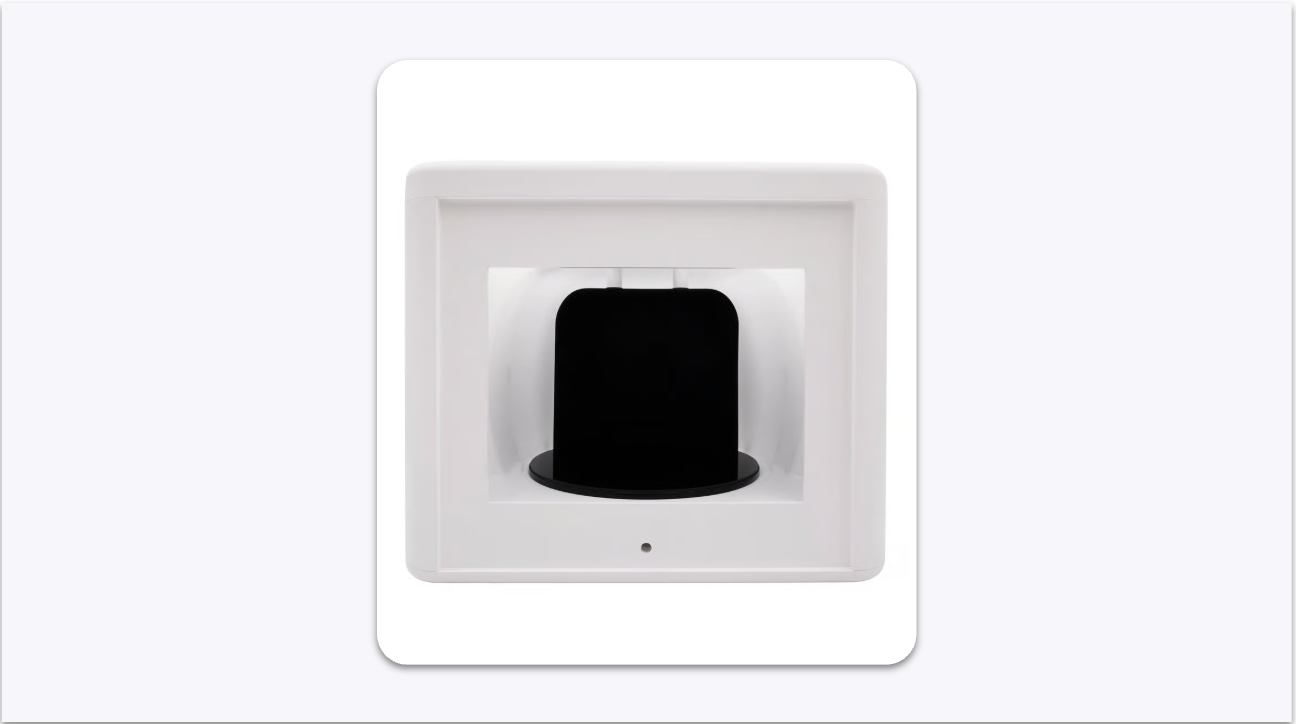
Eclipse Turntable Placed Inside a GemLightbox Pro Open the GemHub on your computer and select the GemCam capture function.
In the camera settings, find and enable the Eclipse preset. This adjusts the lighting for the turntable.
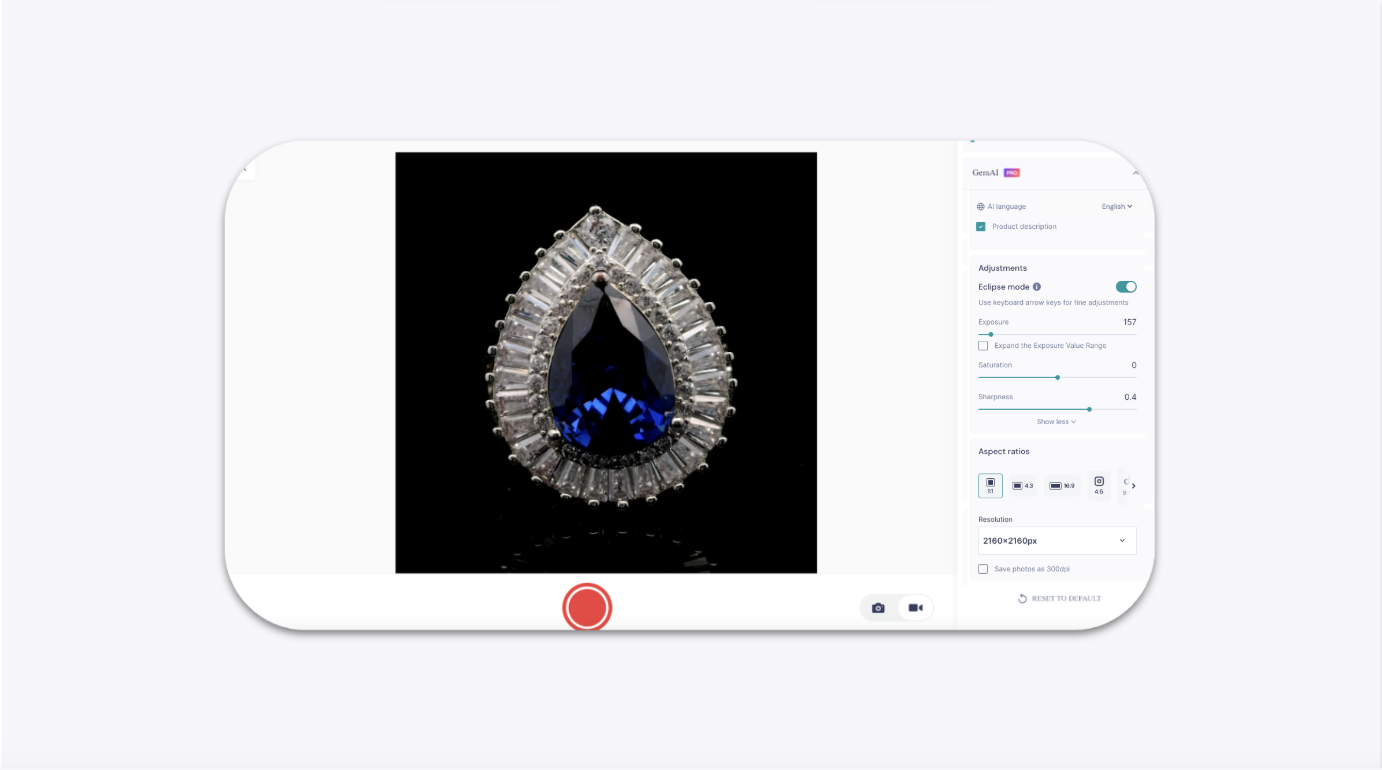
Enabling the Eclipse Preset in the GemIQ App Place your jewelry on the center of the Eclipse turntable.