Quick Answer
To set up the GemLightbox Pro Eclipse, place the magnetic curved backdrop and reflective base inside your GemLightbox Pro. Then, connect to your device in the GemHub and enable the Eclipse filter to begin capturing jewelry photos and videos with a pure black background.
Before You Start
You will need a GemLightbox Pro.
You will need the GemLightbox Pro Eclipse accessory kit (backdrop and reflective base).
Ensure the GemIQ is installed on your smartphone or computer.
Steps
Hardware Setup
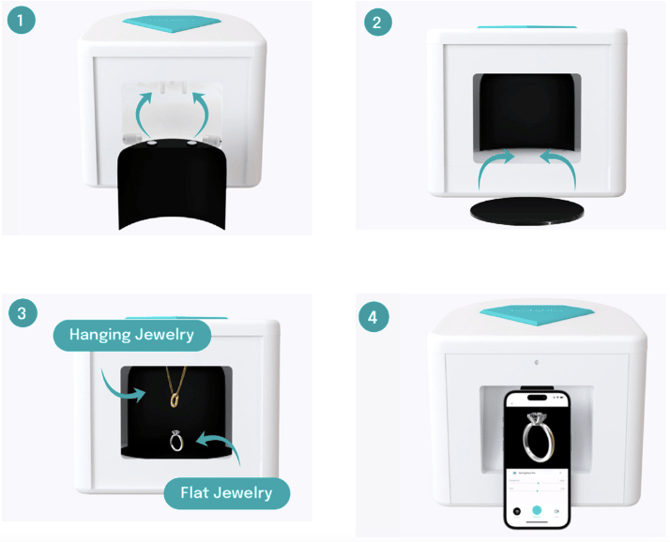
Place the curved Eclipse backdrop inside the GemLightbox Pro. It will attach to the internal magnetic rods.
Position the Eclipse reflective base on the turntable inside the GemLightbox Pro. Rotate it until it snaps into place with the magnets.
Place your jewelry in the center of the reflective base for flat-lay shots, or hang it from the top turntable using the provided accessories for dangle shots.
Software Setup
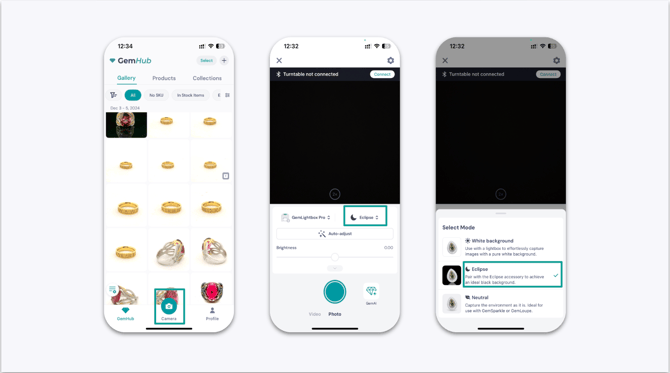
Open GemIQ and connect to your GemLightbox Pro.
In the camera view, locate and toggle on the Eclipse filter